

Mini METARs is a micro-utility to display up-to-date METAR information (primarily altimeter and wind direction + speed, with full METAR toggle-able) and VATSIM ATIS code for a number of user-inputted airports/stations in a minimal on-top window.
Originally created by kengreim.
Built with Tauri, with a Rust backend for METAR/ATIS fetching and profile/settings management, and a SolidJS frontend for UI actions.
METAR data is sourced from the Aviation Weather Center API.
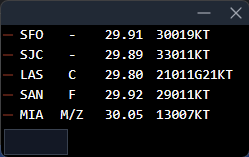
Supports Windows and Mac (Apple Silicon and Intel Mac) currently.
The application window stays "on top" of other windows for constant visibility, and expands or contracts as needed to display more or less information.
Clicking on an ATIS letter will toggle visibility of the full VATSIM ATIS text, and clicking on either the altimeter setting or the wind will toggle visibility of the full METAR text (note: only one of the ATIS and METAR full text will be visible at once).
- Altimeter change highlight: When the altimeter value changes between METAR updates, it is displayed in amber/orange for 10 minutes to draw attention to the new value.
- Stale METAR warning: Wind data is color-coded based on METAR age:
- Yellow — METAR is older than 1.5 hours
- Red — METAR is older than 2.5 hours
You can toggle visibility of the titlebar (Windows-only) and the input box with the following shortcuts:
Ctrl/Cmd+D: toggle visibility of input box and station delete iconsCtrl/Cmd+B: toggle visibility of the titlebar (Windows only)Ctrl/Cmd+M: minimize windowCtrl/Cmd+H: hide airports that do not have a VATSIM ATIS (only applies and works when in "condensed" view where input box and delete controls are hidden; when those controls are shown, all airports will be shown regardless of this setting and the hotkey will have no effect on the setting)Ctrl/Cmd+Uto toggle between inHg and hPa for altimeter units
The following shortcuts toggle additional METAR information displayed below the main line for each station (or inline after the wind when inline mode is enabled). All of these are off by default.
Ctrl/Cmd+1: toggle FEW cloud layer display (e.g.FEW020)Ctrl/Cmd+2: toggle SCT cloud layer display (e.g.SCT012)Ctrl/Cmd+3: toggle BKN cloud layer display (e.g.BKN016)Ctrl/Cmd+4: toggle OVC cloud layer display (e.g.OVC007)Ctrl/Cmd+5: toggle all cloud layers at once (turns all on if any are off, turns all off if all are on)
Ctrl/Cmd+6: toggle overall cloud cover (e.g.BKN,OVC,CAVOK)Ctrl/Cmd+7: toggle weather string / wxString (e.g.-SHRA,-DZ RA)Ctrl/Cmd+8: cycle flight category display (off → colored dot → colored text → off). Always shown in front of the ICAO identifier and always colored (green = VFR, blue = MVFR, red = IFR, magenta = LIFR).Ctrl/Cmd+9: toggle visibility as reported in the METAR text (e.g.6000,0800). Only displayed when visibility is below 9999 / not CAVOK.Ctrl/Cmd+0: toggle RVR (Runway Visual Range) as reported in the METAR text (e.g.R28L/0600V1000)Ctrl/Cmd+T: cycle temperature / dewpoint display (off → temp only → temp/dewpoint → off)Ctrl/Cmd+R: toggle METAR age display (e.g.12m,1h30m)
Ctrl/Cmd+E: toggle extra info display mode — switch between a cyan line below the main row (default) and white inline text appended after the wind data
Ctrl/Cmd+G: open settings window (configures QNH highlight duration, trend arrow, METAR staleness thresholds, and all data toggles listed above)
When the altimeter/QNH value changes between METAR updates, a ↑ or ↓ arrow is displayed next to the altimeter value (in amber) for 10 minutes to indicate whether pressure is rising or falling.
Mini METARs supports loading and saving profiles, which include the list of stations, the size and position of the window, and the visibility and display states outlined in the section above.
By default, Mini METARs will load your last used profile on application startup.
The following shortcuts allow you to work with profiles:
Ctrl/Cmd+S: save current profile, either to existing location (if you've loaded a profile) or to a new location if the current profile is newCtrl/Cmd+Shift+S: "save as" current profileCtrl/Cmd+O: open profile
How often do METARs update?
- Each airport/station checks for a METAR update every 2 to 2.5 minutes, with the value slightly randomized to prevent "clumping" of requests.
How often do VATSIM ATIS codes update?
- Each airport/station checks for a VATSIM ATIS code update every 20 to 30 seconds.
What if an airport has separate arrival and departure ATIS?
- Both codes will be displayed in the format "
ARRIVAL_CODE/DEPARTURE_CODE"