
Prerequisites:
- NodeJS application code hosted on a Git repository
- Jenkins server
- EKS cluster
- Argo CD
Tools Required:
- Java
- Git
- npm
- Jenkins
- SonarQube
- Docker
- EKS
- ArgoCD
- Prometheus
- Grafana
- Create EC2 Instance on AWS
- Connect to the instance using SSH.
sudo apt update
sudo apt install fontconfig openjdk-21-jre -y
sudo wget -O /etc/apt/keyrings/jenkins-keyring.asc \
  https://pkg.jenkins.io/debian-stable/jenkins.io-2023.key
echo "deb [signed-by=/etc/apt/keyrings/jenkins-keyring.asc]" \
  https://pkg.jenkins.io/debian-stable binary/ | sudo tee \
  /etc/apt/sources.list.d/jenkins.list > /dev/null
sudo apt-get update
sudo apt-get install jenkins -y
curl -sL https://deb.nodesource.com/setup_16.x | sudo bash -
sudo apt install nodejs -y
**Note: ** By default, Jenkins will not be accessible to the external world due to the inbound traffic restriction by AWS. Open port 8080 in the inbound traffic rules as show below.
- EC2 > Instances > Click on
- In the bottom tabs -> Click on Security
- Security groups -> Edit inbound rules
- add 8080 Port for jenkins
http://<ec2-instance-public-ip-address>:8080 [You can get the ec2-instance-public-ip-address from your AWS EC2 console page]
- Edit the inbound traffic rule to only allow custom TCP port
8080
After you login to Jenkins,
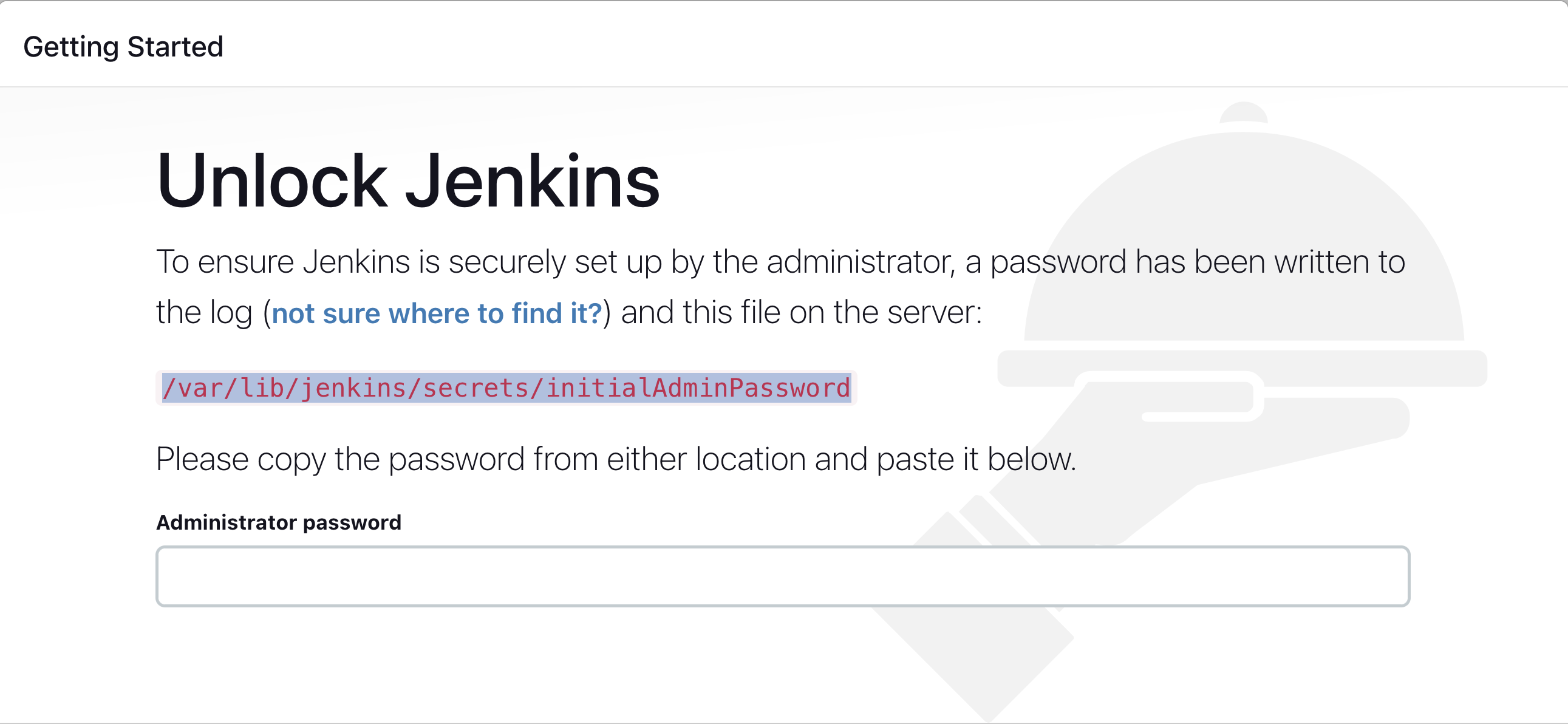
- Run the command to copy the Jenkins Admin Password - sudo cat /var/lib/jenkins/secrets/initialAdminPassword
- Enter the Administrator password
Click on Install suggested plugins
Wait for the Jenkins to Install suggested plugins
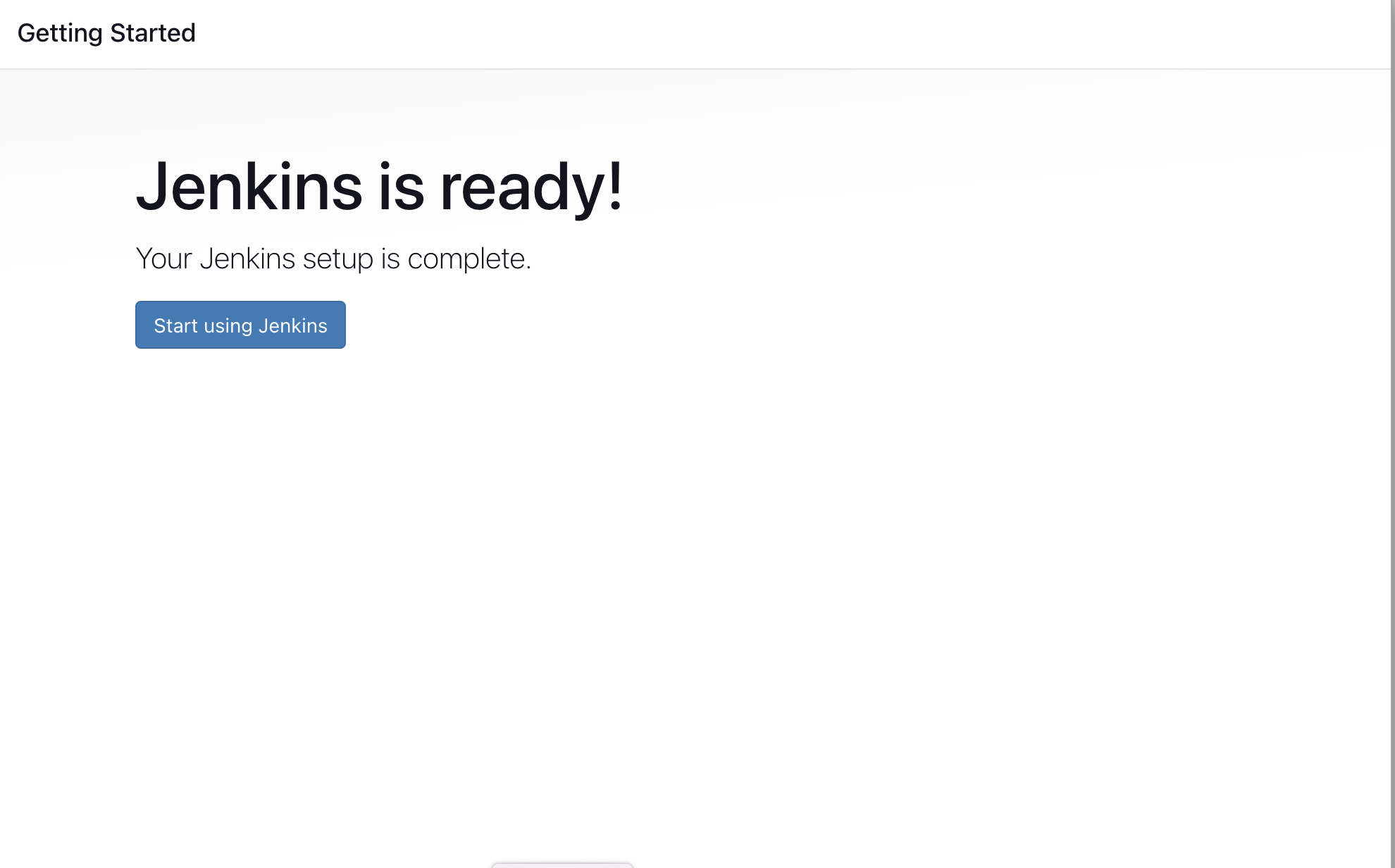
Jenkins Installation is Successful. You can now starting using the Jenkins
Install the Required plugins in Jenkins
stage view
NodeJs
SonarQube Scanner
nodejs
Eclipse Temurin installer Plugi
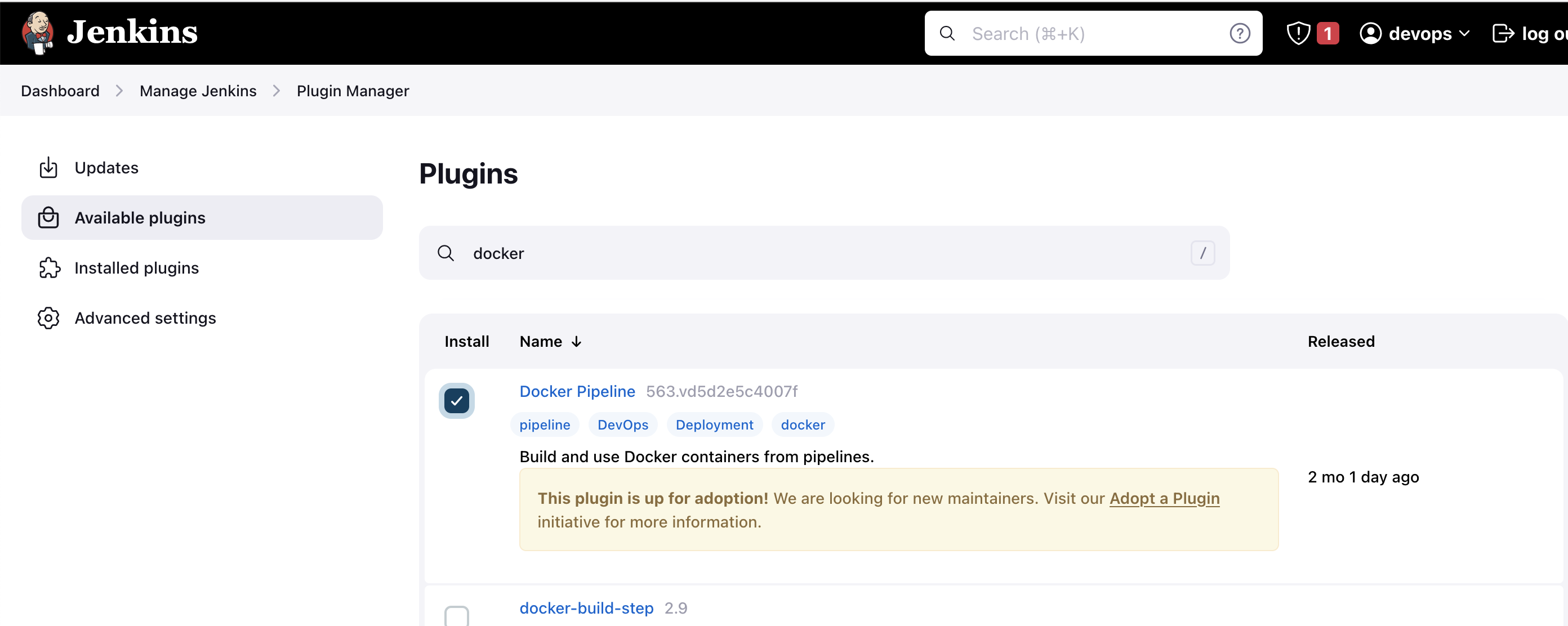
docker
- CloudBees Docker Build and Publish plugin, Docker Pipeline, Docker plugin, docker-build-step
- Select the plugins and click the Install button.
- Restart Jenkins after the plugin is installed.
http://<ec2-instance-public-ip-address>:8080/restart
Wait for the Jenkins to be restarted.
- Set up Docker on the EC2 instance:
sudo apt update -y
sudo apt install docker.io -y
sudo systemctl enable docker
sudo systemctl start docker
sudo usermod -aG docker jenkins
sudo usermod -aG docker ubuntu
newgrp docker
sudo chmod 777 /var/run/docker.sock
Once you are done with the above steps, it is better to restart Jenkins.
http://<ec2-instance-public-ip>:8080/restart
-
Install SonarQube and Trivy on the EC2 instance to scan for vulnerabilities.
sonarqube
docker run -d --name sonar -p 9000:9000 sonarqube:lts-communityTo access:
publicIP:9000 (by default username & password is admin)
- Integrate SonarQube with your CI/CD pipeline.
- Configure SonarQube to analyze code for quality and security issues.
**Note: ** By default, SonarQube will not be accessible to the external world due to the inbound traffic restriction by AWS. Open port 9000 in the inbound traffic rules as show below.
- EC2 > Instances > Click on
- In the bottom tabs -> Click on Security
- Security groups -> Edit inbound rules
- add 9000 Port for SonarQube
http://<ec2-instance-public-ip-address>:9000 [You can get the ec2-instance-public-ip-address from your AWS EC2 console page]
- Edit the inbound traffic rule to only allow custom TCP port
9000
Hurray !! Now you can access the SonarQube Server on http://<ec2-instance-public-ip-address>:9000

Login using username: admin, Passsword: admin and Change the password
Now at the right top corner click profile icon -> My Account -> Security, Under Generate Token give a name and click Generate and copy the Token.
For SonarQube
- Go to Manage Jenkins > Manage Credentials > System > global > Add Credentials
- Select Kind as Secret text
- Copy the Sonarqube Token in Secret box and give name as sonarqube in ID
- Click Save
For DockerHub
- Now go to DockerHub create a user and create a new repository with name 'Myntra'
- Go to Manage Jenkins > Manage Credentials > System > global > Add Credentials
- Select Kind as Username and Password
- Give the username and password and give your
Dockerhub usernameandDockerhub Passwordid isdocker. - Click Save

- Jenkins Pipeline
pipeline {
    agent any

    tools {
        jdk 'jdk17'
        nodejs 'node16'
    }

    environment {
        SCANNER_HOME          = tool 'sonar-scanner'
        DOCKER_IMAGE          = 'myntraa'
        DOCKER_REGISTRY       = 'username'
        DOCKER_CREDENTIALS_ID = 'docker-cred'
        MANIFEST_FILE         = 'k8s/deployment.yml'
        GIT_REPO_NAME         = 'Project-Myntra-Clone'
        GIT_USER_NAME         = 'username'
        GIT_EMAIL             = 'username@gmail.com'
    }

    stages {
        stage('Clean Workspace') {
            steps {
                cleanWs()
            }
        }

        stage('Checkout Code') {
            steps {
                git branch: 'main', url: "https://github.com/${env.GIT_USER_NAME}/${env.GIT_REPO_NAME}.git"
            }
        }

        stage('SonarQube Analysis') {
            steps {
                withSonarQubeEnv('sonar-server') {
                    sh """
                        ${SCANNER_HOME}/bin/sonar-scanner \
                        -Dsonar.projectName=Myntra \
                        -Dsonar.projectKey=Myntra
                    """
                }
            }
        }

        stage('Quality Gate') {
            steps {
                waitForQualityGate abortPipeline: false, credentialsId: 'sonar-token'
            }
        }

        stage('Install Dependencies') {
            steps {
                sh 'npm install'
            }
        }

        stage('Build & Push Docker Image') {
            steps {
                script {
                    def imageTag = "${DOCKER_IMAGE}:${BUILD_NUMBER}"
                    def registryImageTag = "${DOCKER_REGISTRY}/${imageTag}"

                    sh "docker build -t ${imageTag} ."

                    withDockerRegistry(credentialsId: DOCKER_CREDENTIALS_ID, toolName: 'docker') {
                        sh """
                            docker tag ${imageTag} ${registryImageTag}
                            docker push ${registryImageTag}
                        """
                    }
                }
            }
        }

        stage('Update Manifest and Push to GitHub') {
            steps {
                script {
                    def newImage = "${DOCKER_REGISTRY}/${DOCKER_IMAGE}:${BUILD_NUMBER}"
                    withCredentials([usernamePassword(credentialsId: 'git-cred', usernameVariable: 'GIT_USER', passwordVariable: 'GIT_PASS')]) {
                        sh """
                            git config user.email "${GIT_EMAIL}"
                            git config user.name "${GIT_USER_NAME}"
                            sed -i 's|image: .*|image: ${newImage}|g' ${MANIFEST_FILE}
                            git add ${MANIFEST_FILE}
                            git commit -m "Update image to ${BUILD_NUMBER}" || echo "No changes"
                            git push https://${GIT_USER}:${GIT_PASS}@github.com/${GIT_USER_NAME}/${GIT_REPO_NAME}.git HEAD:main
                        """
                    }
                }
            }
        }
    }
}
https://github.com/abhipraydhoble/CDEC-Devops/blob/main/Kubernetes/eks-setup.md
Note: check your region while creating eks cluster
Create a namespace:
kubectl create namespace argocdApply official ArgoCD installation:
kubectl apply -n argocd -f https://raw.githubusercontent.com/argoproj/argo-cd/stable/manifests/install.yamlWait 2–3 minutes:
kubectl get pods -n argocd✅ All pods should be in Running state.
kubectl patch svc argocd-server -n argocd \
-p '{"spec": {"type": "LoadBalancer"}}'Run:
kubectl get svc argocd-server -n argocdOpen in browser:
http://loadbalancer-link
kubectl get secret argocd-initial-admin-secret -n argocd \
  -o jsonpath="{.data.password}" | base64 -d
✅ Login with:
- Username:
admin - Password: (above decoded)
Click on CREATE APPLICATION
Now click CREATE


- installl helm
curl https://baltocdn.com/helm/signing.asc | gpg --dearmor | sudo tee /usr/share/keyrings/helm.gpg > /dev/null
sudo apt-get install apt-transport-https --yes
echo "deb [arch=$(dpkg --print-architecture) signed-by=/usr/share/keyrings/helm.gpg] https://baltocdn.com/helm/stable/debian/ all main" | sudo tee /etc/apt/sources.list.d/helm-stable-debian.list
sudo apt-get update
sudo apt-get install helm
or
sudo snap install helm --classic
-
Set up Prometheus and Grafana to monitor your application.
-
Add helm repo
helm repo add prometheus-community https://prometheus-community.github.io/helm-charts
- Update helm repo
helm repo update
- Install prometheus controller
kubectl get storageclass
kubectl apply -f https://raw.githubusercontent.com/rancher/local-path-provisioner/master/deploy/local-path-storage.yaml
kubectl patch storageclass local-path -p '{"metadata": {"annotations":{"storageclass.kubernetes.io/is-default-class":"true"}}}'
helm install prometheus prometheus-community/prometheus
kubectl get pods
kubectl get svc
-
Expose Prometheus Service
-
This is required to access prometheus-server using your browser.
kubectl expose service prometheus-server --type=NodePort --target-port=9090 --name=prometheus-server-ext
kubectl get svc
Note: Edit your service and change in the http nodeport:port no. and copy the EC2 instance public ip and past in your browser.
kubectl edit svc prometheus-server-ext

- Add helm repo
helm repo add grafana https://grafana.github.io/helm-charts
- Update helm repo
helm repo update
- Install Grafana
helm install grafana grafana/grafana
- Expose Grafana Service
kubectl expose service grafana --type=NodePort --target-port=3000 --name=grafana-ext
kubectl get svc
Note: Edit your service and change in the http nodeport:port no. and copy the EC2 instance public ip and past in your browser.
kubectl edit svc grafana-ext
- Grafana username is 'admin' and for password
kubectl get secret --namespace default grafana -o jsonpath="{.data.admin-password}" | base64 --decode ; echo

-
Create Prometheus as data source for your Grafana:
- Click on Data Source
- Click on Add data source
- Select Prometheus
- Provide your Prometheus ip adderess
- Save & Test
-
Create Dashboard:
- Click on Dashboard
- Select Import Dashboard
- Past the Dashboard ID
15661and click on load - Select the default Prometheus
- Click on Import
sudo snap install helm --classic
- select kubernets


kind: "DatadogAgent"
apiVersion: "datadoghq.com/v2alpha1"
metadata:
  name: "datadog"
spec:
  global:
    site: "us5.datadoghq.com"
    credentials:
      apiSecret:
        secretName: "datadog-secret"
        keyName: "api-key"
kubectl apply -f datadog-agent.yaml

- go to infrastructure -> containers->k8s explorer

