


Flutter application for Android that uploads documents to Paperless‑NGX directly from the system Share menu. This project updates and adapts the original "Paperless Share" by qcasey to modern Android versions while keeping the same simple "share and upload" workflow.
Origin project: Paperless Share — https://github.com/qcasey/paperless_share This repository is an updated/re‑implemented version inspired by that project, using Flutter and current Android support.



- Android native Share Intent integration (supports multiple files in a single action).
- "Open with" support: a compatible document (PDF, JPEG, PNG, TIFF, GIF or WebP) can also be delivered from a file manager or viewer with Open with; it receives the same treatment as a shared file. Only these types appear in the chooser, so the app is not offered for other files.
- Drag and drop on desktop: on the Windows and Linux desktop builds, drop one or more files onto the app window to upload them; they are handled exactly like shared files (same validation, default tags and upload pipeline).
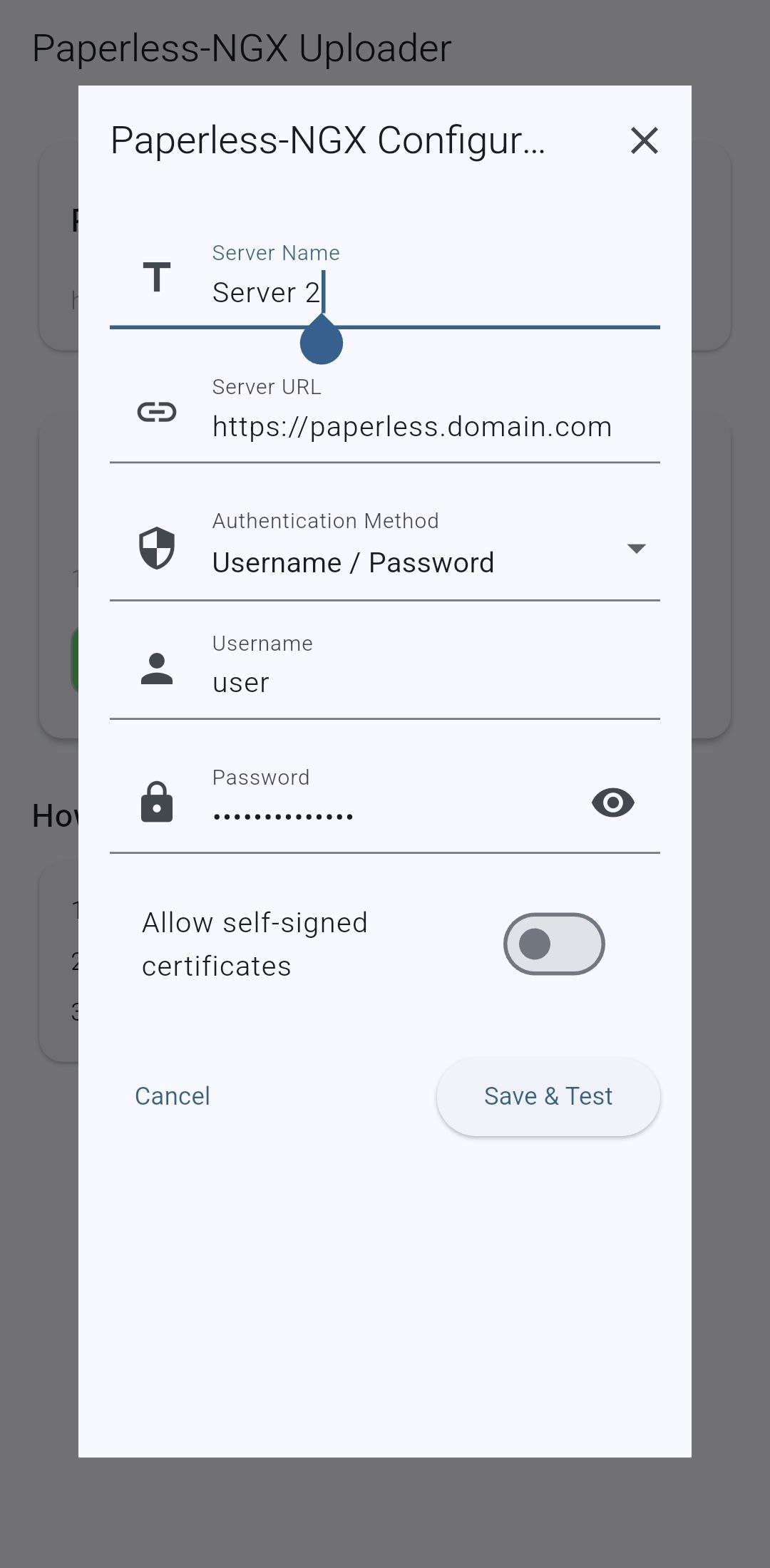
- Multiple Paperless‑NGX server profiles: Add, edit, and switch between multiple server configurations, each with independent credentials and default tags.
- Secure credential storage with automatic recovery on startup.
- Connection test with feedback (success, invalid credentials, unreachable host).
- Tag management per server:
- Fetches tags from the active Paperless‑NGX server after a valid connection.
- Tag selection dialog with search/filter.
- Option to set default tags for uploads (specific to each server profile).
- Selected tags are persisted per server and restored on startup.
- Uploads shared documents with the configured/default tags of the selected server.
- Upload status indicator; on failure, a Snackbar notifies the user.
- On success, the app returns to background.
Compatibility: Android 10+ Platform: Flutter (multi‑platform scaffold present; Android is the target platform)
The app automatically disables GitHub version checking if it is installed from the Play Store or F-Droid.
Rationale: Users who install from official stores receive updates through those channels, so in-app update checks are unnecessary for them.
No user action is required; this logic is automatic.
- From any app that supports sharing (PDF viewer, gallery, file manager), share one or more documents — or open a compatible document with Open with and choose "Paperless‑NGX Android Uploader" — and the app receives it.
- On first use, configure the server URL, username and password; the app stores them securely.
- The app tests the connection and downloads available tags from your Paperless‑NGX server.
- Select any default tags you want to apply.
- The app uploads all shared files with the selected tags and shows the result.
Notes:
- Multiple files can be uploaded in a single share action.
- Tag configuration is optional. You can upload without changing tags and set them later if needed.
- A file that cannot be read is never uploaded and never crashes the app: the app shows a single red notice per batch naming the affected file(s) (in Spanish, "No se pudo leer: …") and processes the readable files of the same batch normally. The app stays open so the notice can be read.
- A reachable Paperless‑NGX server (API docs: https://docs.paperless-ngx.com/api/).
- Android 10 or newer.
- Network connectivity to the server.
- Prerequisites:
- Flutter installed and on PATH (stable and up to date).
- Android SDK/Android Studio (with an emulator or a physical device).
- Clone the repository:
git clone https://github.com/gmag11/Paperless_ngx_uploader.git
cd Paperless_ngx_uploader- Get dependencies and run:
flutter pub get
flutter run -d android- Build APK (optional):
flutter build apk --releaseThe APK will be generated at:
build/app/outputs/flutter-apk/app-release.apk
You can use multiple Paperless‑NGX servers within the app. Each server has its own profile, credentials, and default tag configuration.
How it works:
- When opening the app, you can add multiple servers, each with its own URL, authentication (username/password or token), and tags.
- Switch between servers using the server manager dialog; the selected server becomes active for uploads and tag fetching.
- All credentials and tag selections are stored securely and separately for each server.
- You can edit or remove server profiles at any time.
If your Paperless‑NGX instance sits behind a reverse proxy that requires mutual TLS, the app can present a client certificate:
- In the server form, open the "Client certificate (mTLS)" section and enable it.
- Choose a format:
- PKCS#12 (
.p12/.pfx) with its password — the portable option, and the only one available on iOS. - PEM (a certificate chain plus a separate private key file), on Android and desktop platforms.
- PKCS#12 (
- Provide each artifact (certificate, private key, custom CA) either by choosing a file or by pasting it as text: PEM is pasted as-is; a PKCS#12 container is pasted as base64.
- Optionally add a custom CA certificate so a server signed by a private CA is verified properly. This is preferred over the "Allow self-signed certificates" switch, which disables verification entirely.
- The certificate and its password are stored with the same secure storage as other credentials; large payloads fall back to an app‑private file.
The certificate is presented on every request to that server (connection test, protocol detection, tag fetch and upload). Certificate problems are reported with a specific message (rejected, expired, wrong password, or certificate required).
When opening/using the app for the first time:
- Add one or more Paperless‑NGX server profiles by providing the server URL (including protocol, e.g., https://paperless.example.tld).
- For each server, enter the username and password, or—if your Paperless‑NGX instance uses OpenID—an access token.
- Tap "Test connection". You'll see one of:
- Success: credentials stored, tags fetched.
- Invalid credentials: check username/password or access token.
- Unreachable host: verify URL or network.
- Optionally select default tags for each server. Each server's tag selection is saved and restored independently.
The app will not repeatedly prompt for tags; configure them when convenient.
- In another app, choose "Share".
- Select one or more files to share.
- Select "Paperless‑NGX Uploader".
- The app uses your configuration and default tags to upload all selected documents.
- Check the upload status:
- Success: the app returns to background.
- Error: a Snackbar message explains the issue.
Besides Android, the project builds desktop applications for Windows and Linux, and they support uploading by drag and drop:
- Start the app — from source with
flutter run -d windowsorflutter run -d linux, or from a packaged release. - Drag one or more documents onto the app window. The window is the drop area and highlights softly while you drag over it.
- The dropped files are processed exactly like shared ones: they use the active server, its default tags and the same upload flow.
Notes:
- A single drop can carry several files at once.
- The recognised types are the same as Open with (PDF, JPEG, PNG, TIFF, GIF and WebP). A file of another type is still accepted, but the app shows a non-blocking warning banner about its type.
- A file that cannot be read is reported per batch, and the readable files of the same batch are uploaded normally.
- The drop area is the main screen; the server configuration dialog does not accept drops.
- Access to the shared files via the Android Share Intent.
- Network access to communicate with the Paperless‑NGX server.
No unrelated device resources are accessed.
- Credentials are stored securely and restored on startup.
- HTTPS is strongly recommended for the Paperless‑NGX server.
- Keep both your server and this app up to date.
- "Invalid credentials": recheck username/password in settings.
- "Server unreachable" or timeout: verify URL, network, or TLS certificates.
- "Upload failed": check file size/type limits and server status, then retry.
- Tags don't appear: ensure the connection test succeeded and your user has the necessary permissions.
- Main Flutter/Dart code under
lib/- Entry and screens:
main.dart,home_screen.dart - Models:
connection_status.dart,tag.dart - State (providers):
app_config_provider.dart,upload_provider.dart - Services:
intent_handler.dart,paperless_service.dart,secure_storage_service.dart - UI widgets:
config_dialog.dart,tag_selection_dialog.dart
- Entry and screens:
- Android integration / Share Intent:
- Main activity:
MainActivity.kt - Share receiver:
ShareReceiverActivity.kt - Manifest:
AndroidManifest.xml
- Main activity:
- Additional docs:
- Technical design:
technical_design.md - Localization guide:
localization_guide.md
- Technical design:
Run in development:
flutter pub get
flutter run -d android
Formatting/linting:
- Follow Flutter/Dart guidelines. Use
dart formatandflutter analyze.
- Supports multiple Paperless‑NGX servers (multi-server mode).
- Multiple files per share action.
- Simple, focused UI to complete uploads quickly.
- Add support for token-based login for instances using OpenID login (accept user-provided access token and use it for API calls).
- Implement multiple file upload.
- Add support for self-signed certificates.
- Publish app to F-Droid
- Publish app to Google Play Store.
- Inspired by "Paperless Share" by qcasey: https://github.com/qcasey/paperless_share
- This project modernizes that idea for current Android versions and the Flutter ecosystem.
License: GNU General Public License v3.0 (GPL-3.0)