




📖 Full documentation, component reference, and live previews → gunumdogdu.com/docs
Native iOS 26+ Liquid Glass widgets for Flutter with pixel-perfect fidelity. This package renders authentic Apple UI components using native platform views, providing the genuine iOS/macOS look and feel that Flutter's built-in widgets cannot achieve.
import 'package:cupertino_native_better/cupertino_native_better.dart';

void main() {
  runApp(MyApp());
}
Note:
PlatformVersionauto-initializes on first access. No need to callinitialize()anymore!
iOS 26 Liquid Glass widgets are native UIViews composited under Flutter via hybrid composition. Without coordination, their drop shadow / soft-edge halo can bleed through any sheet or popup pushed over the page, and CNTabBar can render above modal content (e.g. making a TextField inside a sheet invisible).
cupertino_native_better ships a single NavigatorObserver that fixes this for the entire app. Register it once on your root navigator:
CupertinoApp(
  navigatorObservers: [CNTabBarRouteObserver()],
  // ...
)
// or
MaterialApp(
  navigatorObservers: [CNTabBarRouteObserver()],
  // ...
)
// GoRouter:
GoRouter(
  observers: [CNTabBarRouteObserver()],
  routes: [...],
)
With this single line:
CNTabBarauto-hides while a full-screen sheet is on top (fixes Issue #31 z-order conflicts with MaterialTextFields).- Every glass widget (
CNButton,CNPopupMenuButton,CNFloatingIsland,CNGlassButtonGroup,LiquidGlassContainer,CNSearchBar, split-searchCNTabBar) clamps its halo while a modal/sheet/popup/dialog is presented above — no glass border bleeding through the modal scrim (Issues #29, #36).
For non-route overlays that the observer can't see (notably Scaffold.showBottomSheet — anchored to ScaffoldState, not pushed onto the Navigator), pair the show/close with the manual API:
final controller = Scaffold.of(context).showBottomSheet(...);
CNTabBarRouteObserver.markAnyModalActive();
controller.closed.whenComplete(CNTabBarRouteObserver.markAnyModalInactive);
Without the observer registered, widgets still render fine — but the dynamic z-order/halo containment never engages, and you may see glass bleeding through modals.
Adding to the observer above, v1.5.1 adds a second piece of the modal-coordination story to fix the PlatformView z-order bleed between CN-widgets on the host page and CN-widgets inside a presented sheet (Issue #53).
When a bottom sheet covers a CN-widget, the package now destroys the host-page widget's PlatformView (with a same-size placeholder reserving the layout slot) while the sheet is up, then recreates it on dismiss. For this to be position-aware — only the widgets actually behind the sheet hide, not the entire route — the sheet has to publish its on-screen rect each frame.
Option A — drop-in wrappers (recommended):
CNBottomSheet.show(context: context, builder: (ctx) => MySheet());
CNBottomSheet.showCupertino(context: context, builder: (ctx) => MySheet());
CNBottomSheet.showModalPopup(context: context, builder: (ctx) => MySheet());
CNBottomSheet mirrors Flutter's standard sheet APIs and injects a CNSheetGeometryProbe automatically.
Option B — wrap your own sheet manually:
showModalBottomSheet(
  context: context,
  builder: (ctx) => CNSheetGeometryProbe(child: MySheet()),
);
Wrap the builder's root child in CNSheetGeometryProbe if you need to keep using the framework's showModalBottomSheet / showCupertinoModalPopup directly (e.g. for advanced configuration not yet exposed on CNBottomSheet).
Without one of these, the package falls back to a conservative "hide every CN-widget on this route while any modal is up" behavior — safe, but coarser than needed (e.g. an app-bar CN-button could disappear behind a 30%-height sheet).
Each affected widget also has an autoHideOnModal: bool = true constructor parameter so you can opt out per-instance if you ever need the old behavior.
LiquidGlassContainer uses a Platform View (UiKitView / AppKitView) under the hood. While powerful, platform views are more expensive than standard Flutter widgets.
- DO NOT use
LiquidGlassContainerinside long scrolling lists (ListView.builder,GridView) with many items. This will cause significant performance drops (jank). - DO use
LiquidGlassContainerfor static elements like Cards, Headers, Navigation Bars, or Floating Action Buttons.
| Feature | cupertino_native_better | cupertino_native_plus | cupertino_native |
|---|---|---|---|
| iOS 26+ Liquid Glass | Yes | Yes | No |
| Release Build Version Detection | Fixed | Broken | N/A |
| SF Symbol Fallback (iOS < 26) | CNIcon renders natively | Placeholder icons | N/A |
| Button Label + Icon Fallback | Both render correctly | Label disappears | N/A |
| Tab Bar Icon Fallback | CNIcon renders natively | Empty circles | N/A |
| Image Asset Support (PNG/SVG) | Full support | Partial | No |
| Automatic Asset Resolution | Yes (1x-4x) | No | No |
| Dark Mode Sync | Automatic | Manual | Manual |
| Glass Effect Unioning | Yes | Yes | No |
| macOS Support | Yes | Yes | Yes |
cupertino_native_plus has a critical bug: it uses platform channels to detect iOS versions, which fails with "Null check operator used on a null value" in release builds. This causes:
shouldUseNativeGlassreturnsfalseeven on iOS 26+- Falls back to old Cupertino widgets incorrectly
- Icons show as "..." or empty circles on iOS 18
- Button labels disappear when buttons have both icon and label
cupertino_native_better fixes all these issues:
// We parse Platform.operatingSystemVersion directly
// Example: "Version 26.1 (Build 23B82)" -> 26
static int? _getIOSVersionManually() {
  final versionString = Platform.operatingSystemVersion;
  final match = RegExp(r'Version (\d+)\.').firstMatch(versionString);
  return int.tryParse(match?.group(1) ?? '');
}
This approach works reliably in both debug and release builds.
| Widget | Description | Controller |
|---|---|---|
CNButton |
Native push button with Liquid Glass effects, SF Symbols, and image assets | - |
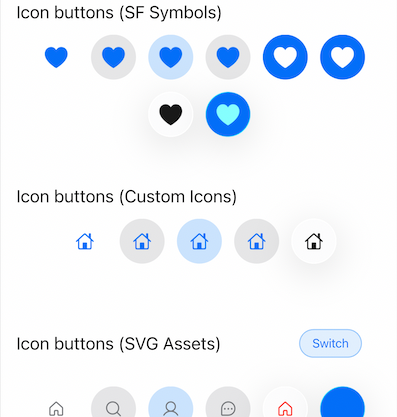
CNButton.icon |
Circular icon-only button variant | - |
CNIcon |
Platform-rendered SF Symbols, custom IconData, or image assets | - |
CNTabBar |
Native tab bar with split mode for scroll-aware layouts | - |
CNSlider |
Native slider with min/max range and step support | CNSliderController |
CNSwitch |
Native toggle switch with animated state changes | CNSwitchController |
CNPopupMenuButton |
Native popup menu with dividers, icons, and image assets | - |
CNPopupMenuButton.icon |
Circular icon-only popup menu variant | - |
CNActionSheet |
Native UIAlertController action sheet with destructive styling |
- |
CNAlert |
Native UIAlertController alert with text fields and destructive styling |
- |
CNSegmentedControl |
Native segmented control with SF Symbols support | - |
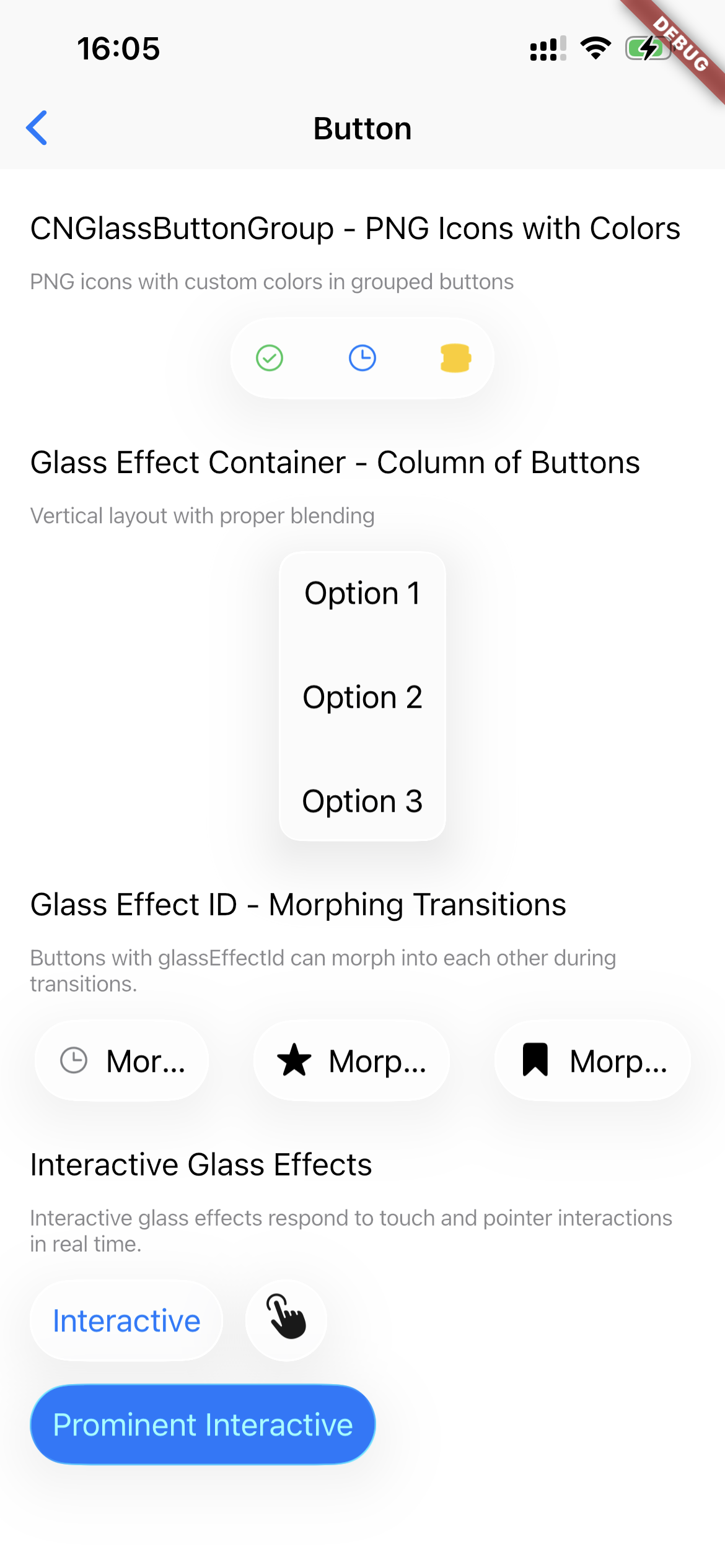
CNGlassButtonGroup |
Grouped buttons with unified glass blending (tint color support) | - |
LiquidGlassContainer |
Apply Liquid Glass effects to any Flutter widget | - |
CNGlassCard |
(Experimental) Pre-styled card with optional breathing glow animation | - |
CNTabBarNative |
iOS 26 Native Tab Bar with UITabBarController + search | - |
CNToast |
Toast notifications with Liquid Glass effects | - |
All widgets support three icon types with unified priority:
- Image Assets (highest priority) - PNG, SVG, JPG with automatic resolution selection
- Custom Icons - Any
IconData(CupertinoIcons, Icons, custom) - SF Symbols - Native Apple SF Symbols with rendering modes
// SF Symbol
CNButton(
  label: 'Settings',
  icon: CNSymbol('gear', size: 20),
  onPressed: () {},
)

// Custom Icon
CNButton(
  label: 'Home',
  customIcon: CupertinoIcons.home,
  onPressed: () {},
)

// Image Asset
CNButton(
  label: 'Custom',
  imageAsset: CNImageAsset('assets/icons/custom.png', size: 20),
  onPressed: () {},
)CNButtonStyle.plain // Minimal, text-only
CNButtonStyle.gray // Subtle gray background
CNButtonStyle.tinted // Tinted text
CNButtonStyle.bordered // Bordered outline
CNButtonStyle.borderedProminent // Accent-colored border
CNButtonStyle.filled // Solid filled background
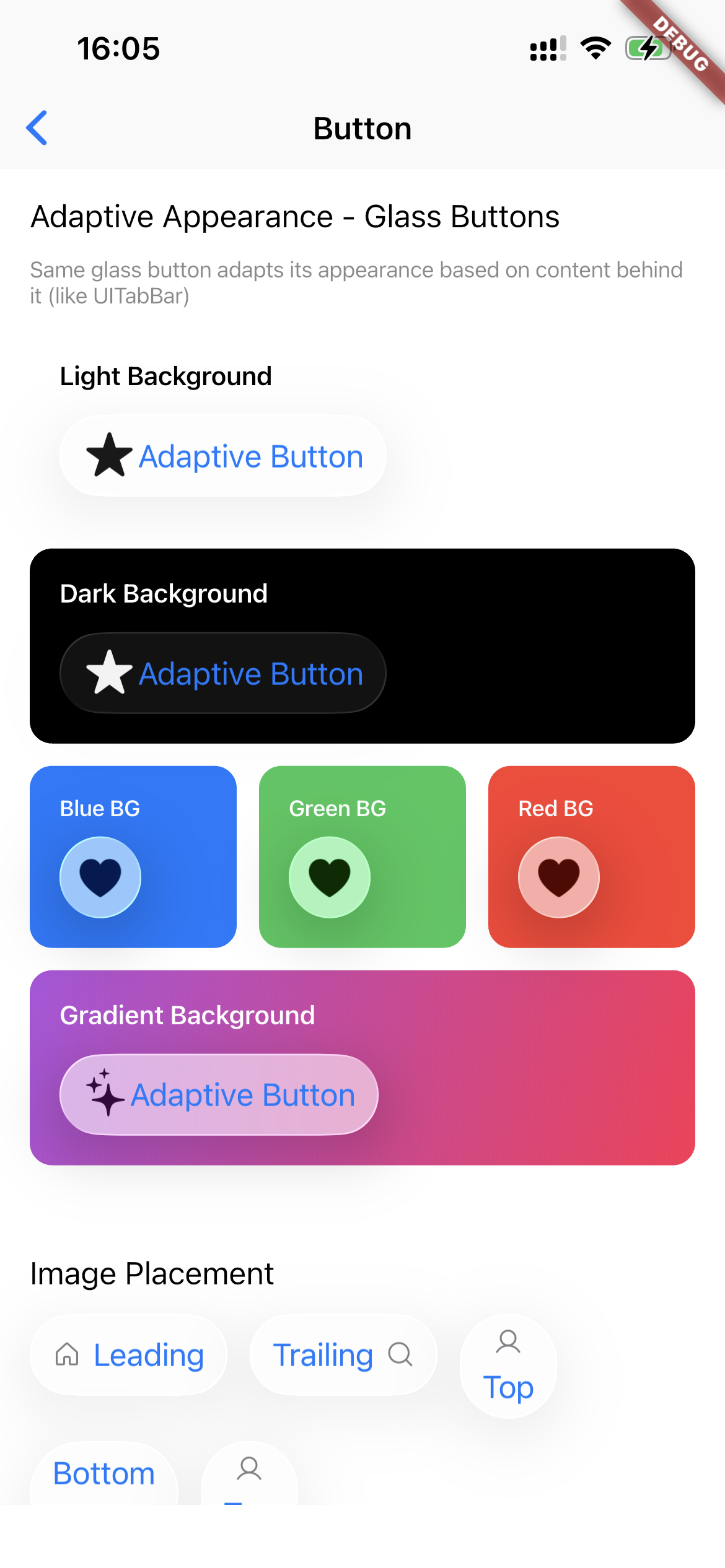
CNButtonStyle.glass // Liquid Glass effect (iOS 26+)
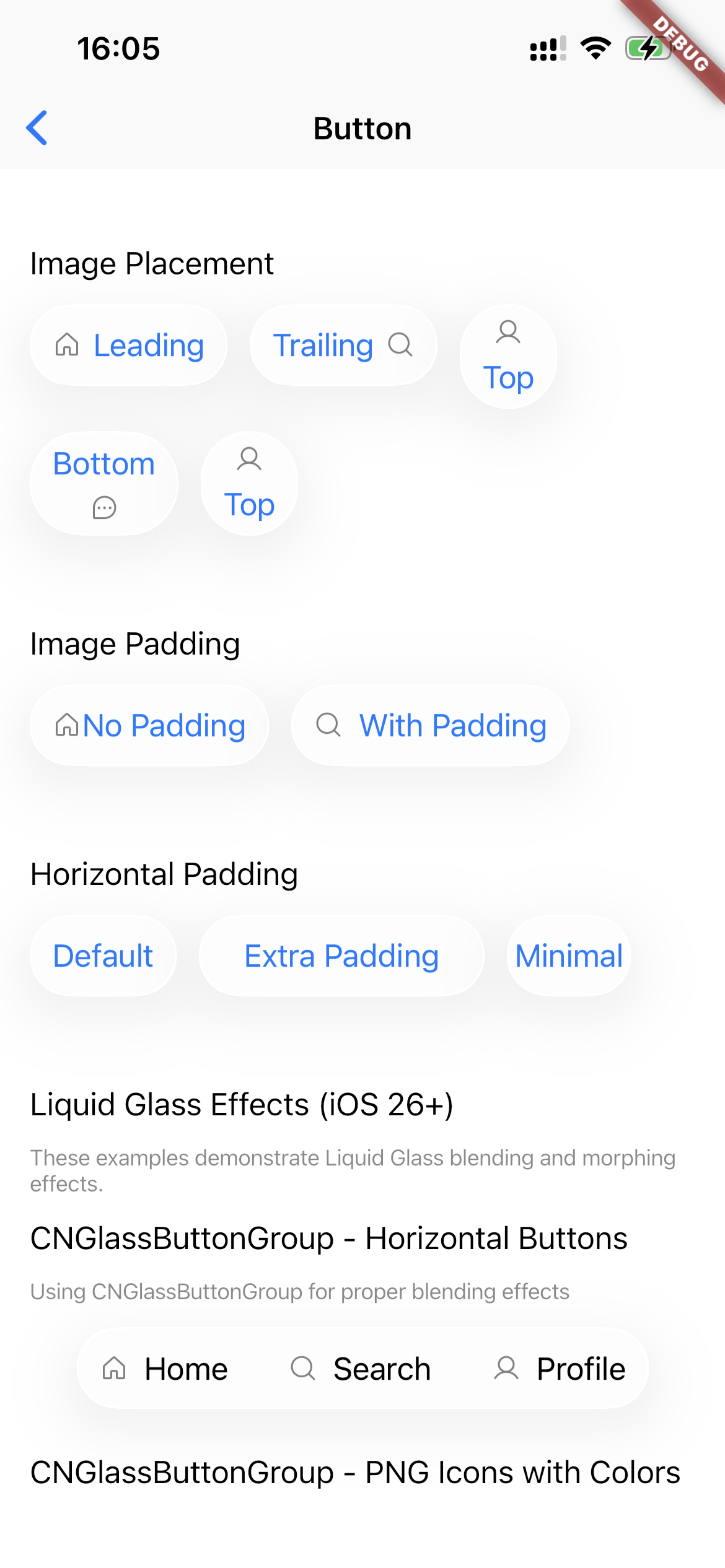
CNButtonStyle.prominentGlass // Prominent glass effect (iOS 26+)Multiple buttons can share a unified glass effect:
Row(
  children: [
    CNButton(
      label: 'Left',
      config: CNButtonConfig(
        style: CNButtonStyle.glass,
        glassEffectUnionId: 'toolbar',
      ),
      onPressed: () {},
    ),
    CNButton(
      label: 'Right',
      config: CNButtonConfig(
        style: CNButtonStyle.glass,
        glassEffectUnionId: 'toolbar',
      ),
      onPressed: () {},
    ),
  ],
)
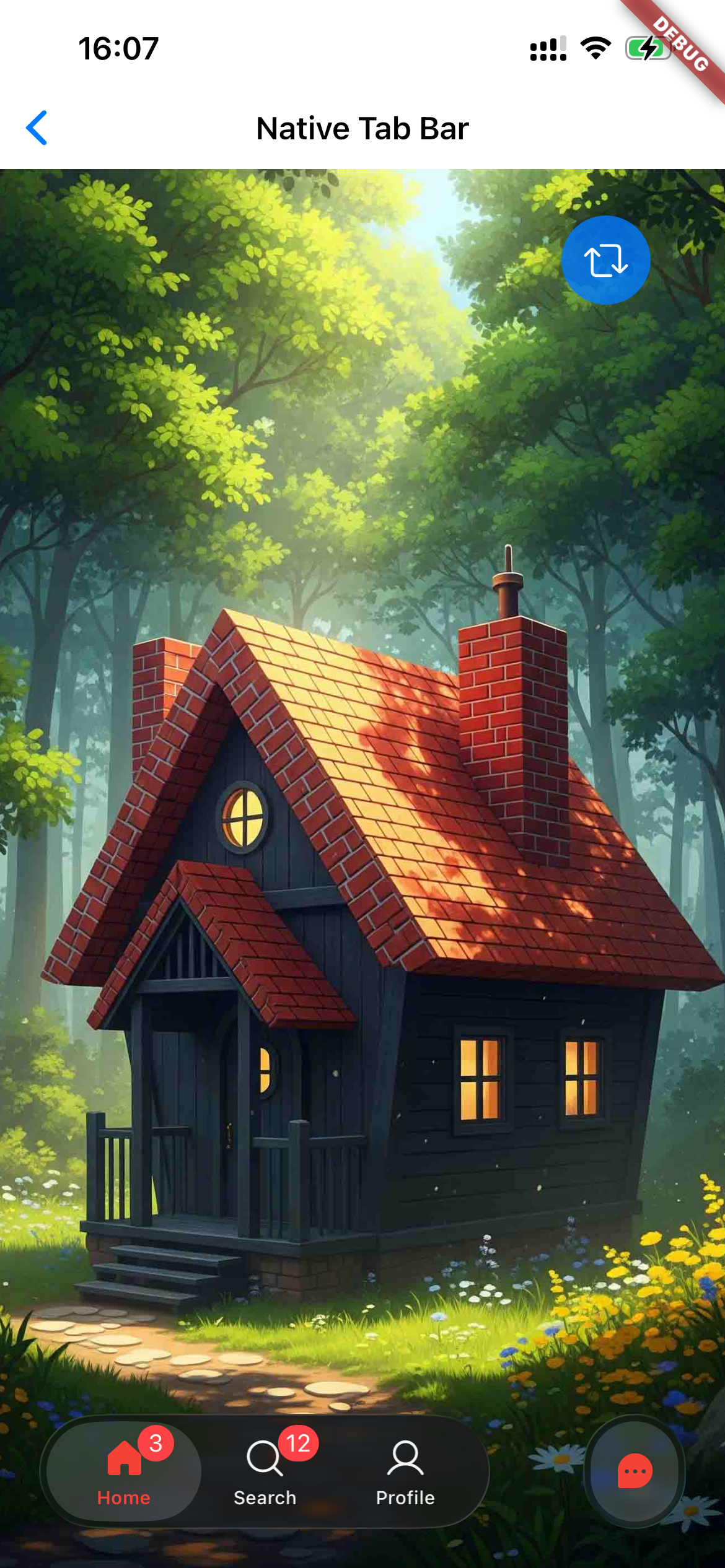
CNTabBar(
  items: [
    CNTabBarItem(
      label: 'Home',
      icon: CNSymbol('house'),
      activeIcon: CNSymbol('house.fill'),
    ),
    CNTabBarItem(
      label: 'Profile',
      icon: CNSymbol('person.crop.circle'),
      activeIcon: CNSymbol('person.crop.circle.fill'),
    ),
  ],
  currentIndex: _selectedIndex,
  onTap: (index) => setState(() => _selectedIndex = index),
  iconSize: 25, // Optional: customize icon size (default ~25pt)
  split: true, // Separates tabs when scrolling
  rightCount: 1, // Number of tabs pinned to the right
)Items that use customIcon (an IconData) are rendered to images before the
native bar can be created, so the first mount of a bar shows its Flutter
fallback for a few frames. When a bar appears right after launch, warm the
cache first with the same items and iconSize the bar will use:
await CNTabBar.precacheIcons(items, iconSize: 25);A bar mounted afterwards skips the fallback. SF Symbol and imageAsset items
need no precaching.
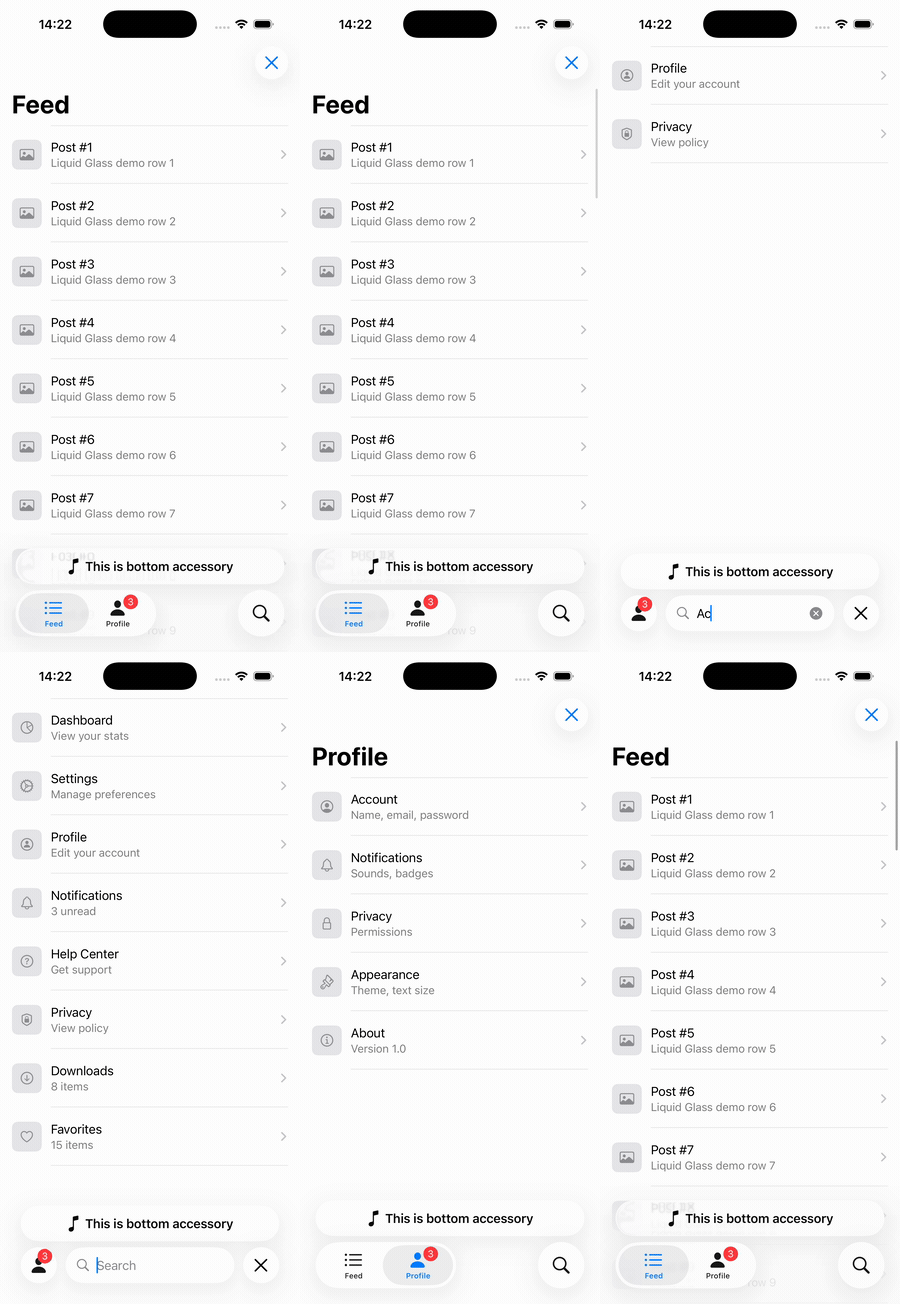
Minimize-on-scroll, the bottom accessory pill, and the native iOS 26 search tab — all rendered natively.
CNTabBarNativeis not a Flutter widget — it is a full native takeover. CallingCNTabBarNative.enable(...)presents a real iOS 26 Liquid Glass tab bar (a SwiftUITabViewover aUITabBarController) on top of / in place of your Flutter app. You don't put it in your widget tree and there is nocurrentIndex/onTapcontract — you drive it with static methods and react to callbacks.iOS 26+ only. On older iOS, other platforms, or the web,
enable()is a silent no-op (nothing appears). If you need a tab bar that works everywhere and lives inside your Flutter tree, useCNTabBarinstead.
CNTabBar (widget) |
CNTabBarNative (native takeover) |
|
|---|---|---|
| Where it lives | In your Flutter widget tree | Presented natively over/instead of your app |
| Each tab's content | Your Flutter screens (you own navigation) | Native scrolling lists, a native search tab, and/or one root-mode Flutter surface |
| Platforms | iOS (Liquid Glass on 26) + graceful Flutter fallback elsewhere | iOS 26 only (no-op otherwise) |
| Minimize-on-scroll (shrink) | ✗ | ✅ (minimizeBehavior) |
| Apple-Music-style search tab | Split-search variant (searchItem) |
✅ Dedicated Tab(role: .search) |
| Bottom accessory pill | ✗ | ✅ (bottomAccessory) |
| Best for | A normal app — Flutter screens per tab | Showcasing iOS 26 native chrome: minimize, native search, accessory |
⚠️ Do not useCNTabBarNativeas a drop-in for a Flutter bottom nav — e.g. callingenable()ininitStateand driving anIndexedStack/Scaffold.bottomNavigationBarfromonTabSelected→setState. That creates two sources of truth for the selected tab (the native bar and your Flutter state), which causes the "have to tap twice" behavior and screen rebuilds. For Flutter screens per tab, useCNTabBar.
CNTabBarNative can present in one of two ways, controlled by asRoot:
- Modal (default,
asRoot: false) — presented full-screen over your app. Tabs that have anativeListshow native lists; tabs without a list show a placeholder (Flutter content requires root mode). Dismiss withdisable()or the ✕ button. - Root (
asRoot: true) — replaces the app's root view controller (primary navigation). A tab without anativeListthen hosts your real Flutter UI (the package re-parents your existingFlutterViewControllerinto that tab). This is how you mix native list/search tabs with one live Flutter "home" surface.
await CNTabBarNative.enable(
  tabs: [
    // A tab with a nativeList renders a native scrollable list — and is what
    // lets the bar minimize on scroll (iOS needs a real native scroll view).
    CNTab(
      title: 'Feed',
      sfSymbol: CNSymbol('list.bullet'),
      nativeList: CNNativeList(items: [
        for (var i = 1; i <= 50; i++)
          CNListItem(
            title: 'Post #$i',
            subtitle: 'Row $i',
            leadingSymbol: CNSymbol('photo'),
            showChevron: true,
          ),
      ]),
    ),
    CNTab(
      title: 'Profile',
      sfSymbol: CNSymbol('person'),
      badgeCount: 3,
      nativeList: CNNativeList(items: profileItems),
    ),
    // Apple-Music-style search tab: its OWN screen with its OWN list + search field.
    CNTab(
      title: 'Search',
      isSearchTab: true,
      nativeList: CNNativeList(items: searchableItems),
    ),
  ],
  minimizeBehavior: CNTabMinimizeBehavior.onScrollDown, // shrink on scroll down
  bottomAccessory: CNTabAccessory(
    text: 'Now Playing',
    sfSymbol: CNSymbol('music.note'),
  ),
  tintColor: CupertinoColors.systemBlue,
  isDark: false,
  // Callbacks
  onTabSelected: (i) => debugPrint('tab $i'),
  onListItemTap: (tabIndex, itemIndex) => debugPrint('row $itemIndex in tab $tabIndex'),
  onSearchChanged: (query) => debugPrint('search: $query'),
  onAccessoryTap: () => debugPrint('accessory tapped'),
  onDismissed: () => debugPrint('bar closed (✕ or disable())'),
);

// Later, when leaving the experience:
await CNTabBarNative.disable();CNTab(
title: 'Feed', // shown under the icon
sfSymbol: CNSymbol('list.bullet'), // the tab icon (SF Symbol)
badgeCount: 3, // optional red badge
isSearchTab: false, // mark exactly one tab as the search tab
nativeList: CNNativeList(items: [...]), // optional native list content
)- A tab with
nativeList→ a native scrollable list (CNListItems). Required for minimize-on-scroll. - A tab with
isSearchTab: true→ the detached iOS 26 search button that morphs into a search field (Apple Music style). It is its own destination with its own list. - A tab with neither → hosts your Flutter content in root mode, or a placeholder in modal mode.
minimizeBehavior: CNTabMinimizeBehavior.onScrollDown,| Value | Behavior |
|---|---|
automatic |
System default for the context |
never |
Bar stays fully expanded |
onScrollDown |
Minimize when scrolling down, expand on scroll up |
onScrollUp |
Minimize when scrolling up, expand on scroll down |
Requires at least one tab backed by a CNNativeList (iPhone) — a Flutter list cannot
drive the native minimize. Change it at runtime with setMinimizeBehavior(...) (e.g. set
.never to keep the bar expanded on a particular screen).
The search tab is a separate destination (not an in-place filter of another tab). Two ways to populate results:
nativeSearchFilter: true(default) — iOS filters the search tab's ownnativeListfor you, locally, as the user types.nativeSearchFilter: false— you drive it: listen toonSearchChanged(query), run your own search (a backend, or across your own data), and push results into the search tab withsetItems(tabIndex: searchTabIndex, items: results).
Programmatic helpers: setSearchText(text), activateSearch() (select the search tab),
deactivateSearch() (clear the query).
A pill that floats above the bar and slides inline into it when the bar minimizes.
bottomAccessory: CNTabAccessory(text: 'Now Playing', sfSymbol: CNSymbol('music.note')),
// ...
onAccessoryTap: () { /* tapped */ },
Show / update / hide it after enable() with setBottomAccessory(accessory) — pass
null to hide (e.g. hide it on a specific tab from inside onTabSelected).
| Method | What it does |
|---|---|
enable({tabs, selectedIndex, minimizeBehavior, bottomAccessory, tintColor, isDark, asRoot, nativeSearchFilter, ...callbacks}) |
Present the native tab bar. No-op below iOS 26. |
disable() |
Dismiss the bar and return to your app. |
isEnabled |
bool — whether the bar is currently presented. |
setItems({tabIndex, items}) |
Replace a tab's native list (async data, pagination, live updates). |
setSelectedIndex(index) |
Programmatically select a tab. |
setBadgeCounts(List<int?>) |
Per-tab badges (null/0 clears). |
setBottomAccessory(accessory?) |
Show / update / hide the accessory (null hides). |
setStyle({tintColor}) |
Update the selected-tab tint. |
setBrightness({isDark}) |
Switch light/dark appearance. |
setMinimizeBehavior(behavior) |
Change when the bar minimizes. |
setSearchText(text) / activateSearch() / deactivateSearch() |
Drive the search tab. |
Callbacks (all optional): onTabSelected(int index), onListItemTap(int tabIndex, int itemIndex), onSearchChanged(String query), onAccessoryTap(), onDismissed()
(fired when the bar is closed natively via ✕ — reset your own state here).
The CNTabBar supports iOS 26's native search tab feature with animated expansion:
CNTabBar(
  items: [
    CNTabBarItem(
      label: 'Overview',
      icon: CNSymbol('square.grid.2x2.fill'),
    ),
    CNTabBarItem(
      label: 'Projects',
      icon: CNSymbol('folder'),
      activeIcon: CNSymbol('folder.fill'),
    ),
  ],
  currentIndex: _index,
  onTap: (i) => setState(() => _index = i),
  // iOS 26 Search Tab Feature
  searchItem: CNTabBarSearchItem(
    placeholder: 'Find customer',
    // Control keyboard auto-activation
    automaticallyActivatesSearch: false, // Keyboard only opens on text field tap
    onSearchChanged: (query) {
      // Live filtering as user types
    },
    onSearchSubmit: (query) {
      // Handle search submission
    },
    onSearchActiveChanged: (isActive) {
      // React to search expand/collapse
    },
    style: const CNTabBarSearchStyle(
      iconSize: 20,
      buttonSize: 44,
      searchBarHeight: 44,
      animationDuration: Duration(milliseconds: 400),
      showClearButton: true,
    ),
  ),
  searchController: _searchController, // Optional programmatic control
)Controls whether the keyboard opens automatically when the search tab expands:
true(default): Tapping the search button expands the bar AND opens the keyboardfalse: Tapping the search button only expands the bar; keyboard opens when user taps the text field
This mirrors UISearchTab.automaticallyActivatesSearch from UIKit.
Add to your pubspec.yaml:
dependencies:
  cupertino_native_better: ^1.7.0
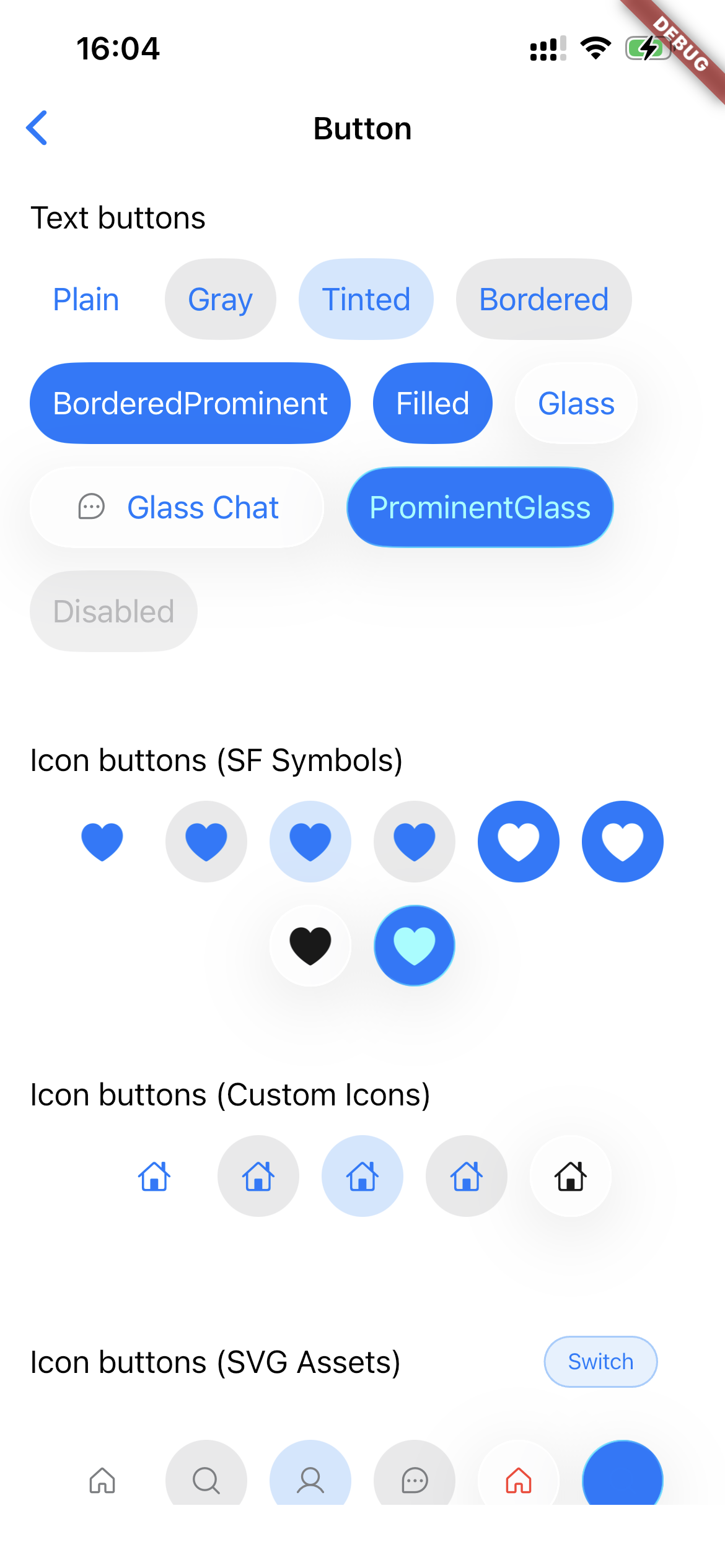
CNButton(
  label: 'Get Started',
  icon: CNSymbol('arrow.right', size: 18),
  config: CNButtonConfig(
    style: CNButtonStyle.filled,
    imagePlacement: CNImagePlacement.trailing,
  ),
  onPressed: () {
    // Handle tap
  },
)
CNButton.icon(
  icon: CNSymbol('plus', size: 24),
  config: CNButtonConfig(style: CNButtonStyle.glass),
  onPressed: () {},
)
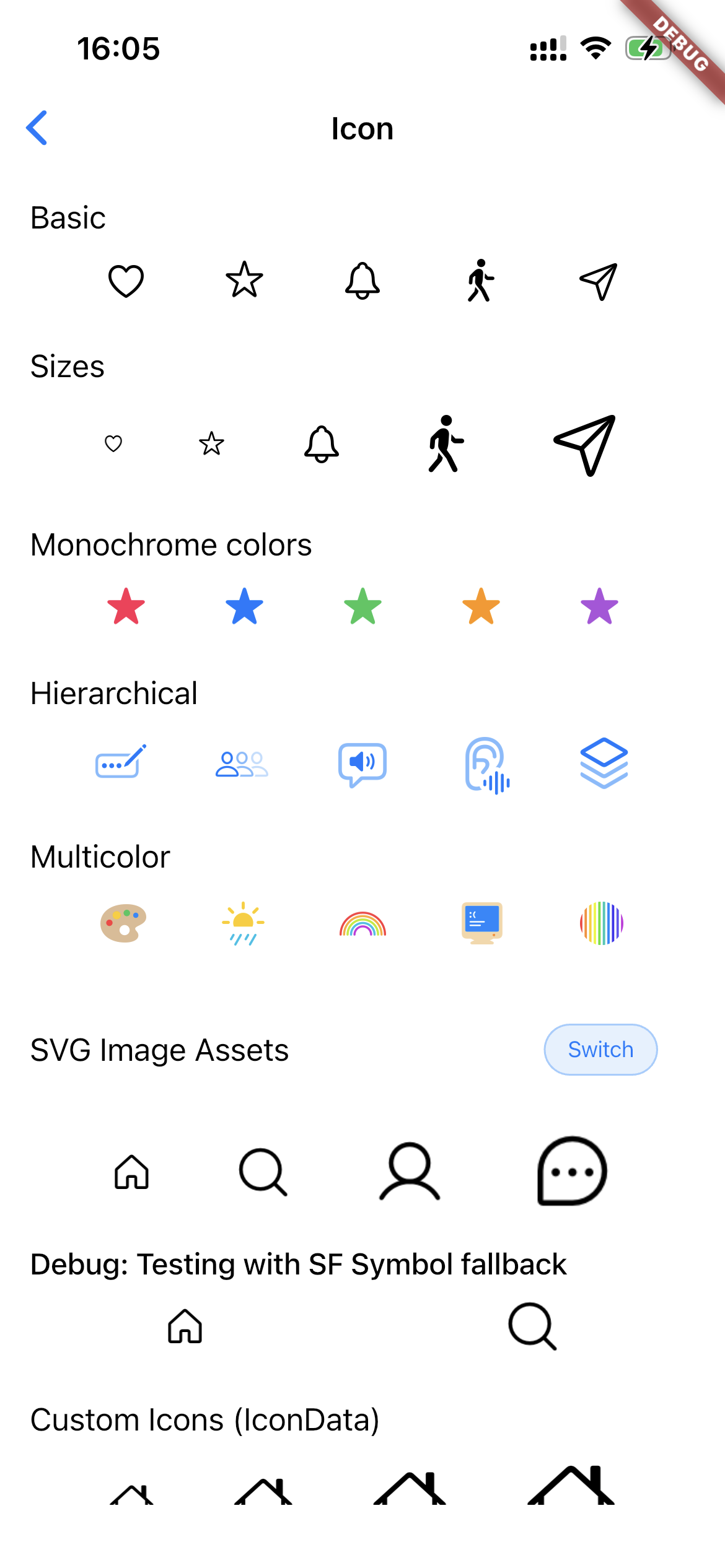
CNIcon(
  symbol: CNSymbol(
    'star.fill',
    size: 32,
    color: Colors.amber,
    mode: CNSymbolRenderingMode.multicolor,
  ),
)
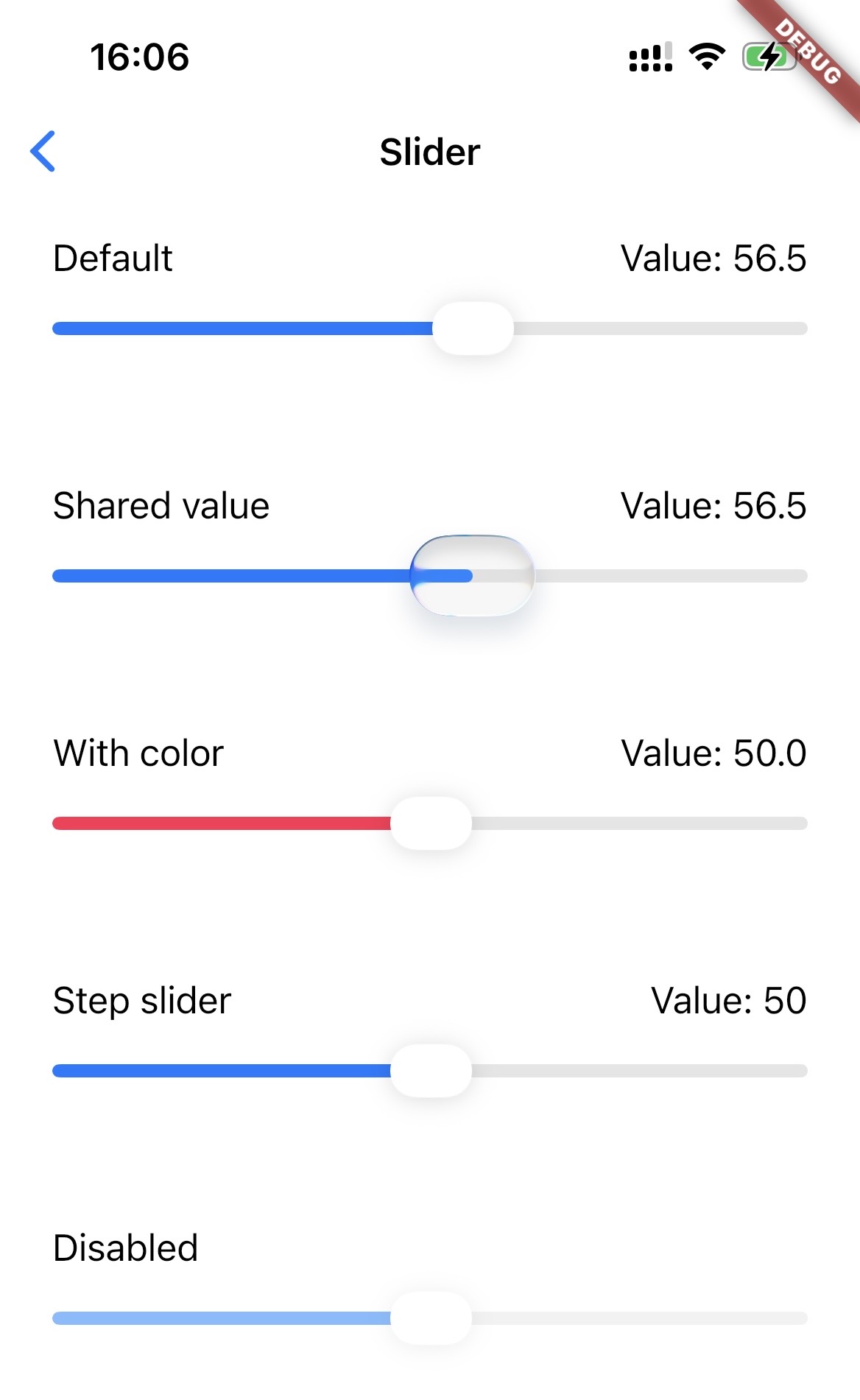
final controller = CNSliderController();

CNSlider(
  value: 0.5,
  min: 0,
  max: 1,
  controller: controller,
  onChanged: (value) {
    print('Value: $value');
  },
)

// Programmatic update
controller.setValue(0.75);
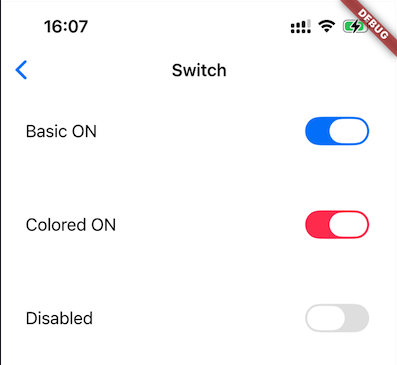
final controller = CNSwitchController();

CNSwitch(
  value: _isEnabled,
  onChanged: (value) {
    setState(() => _isEnabled = value);
  },
  controller: controller,
  color: Colors.green, // Optional tint color
)

// Programmatic control
controller.setValue(true, animated: true);
controller.setEnabled(false); // Disable interaction
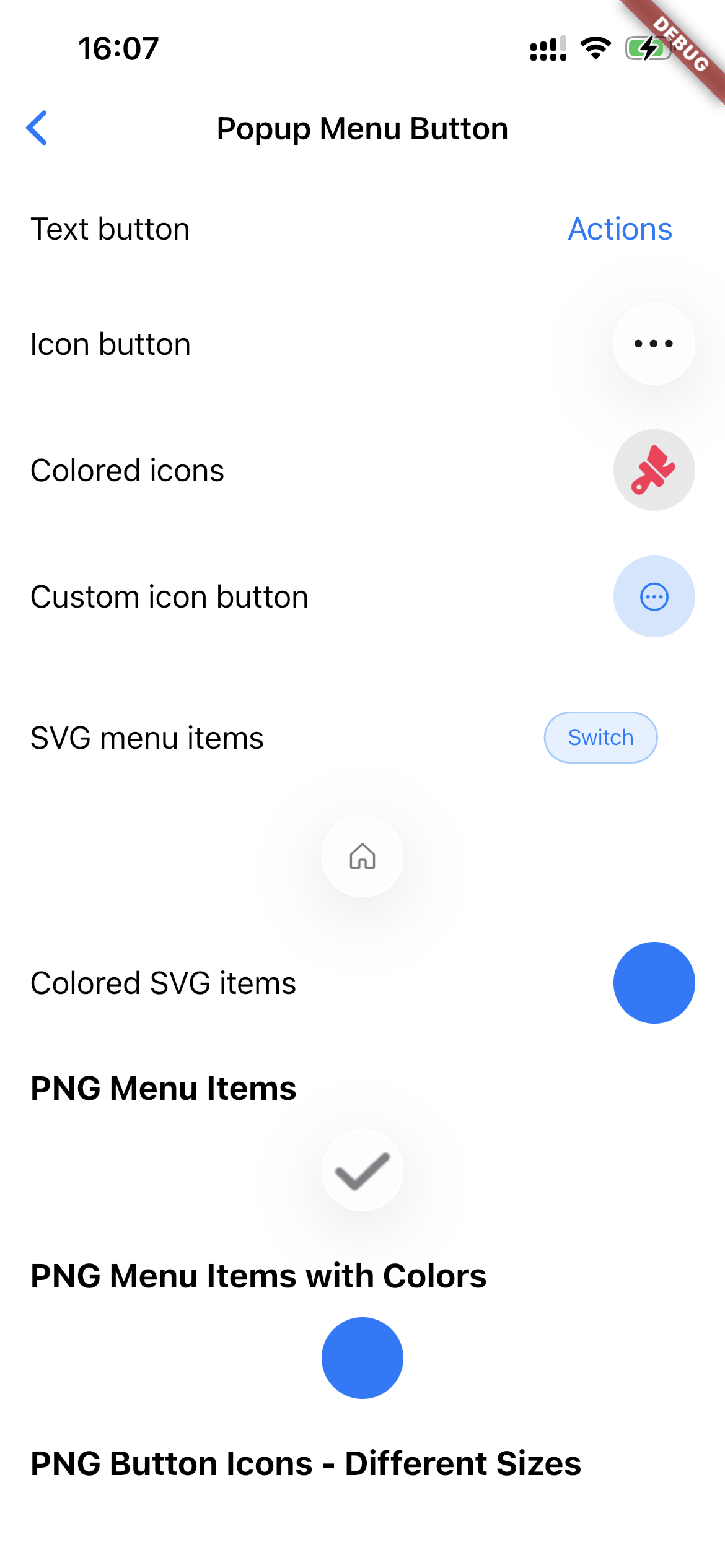
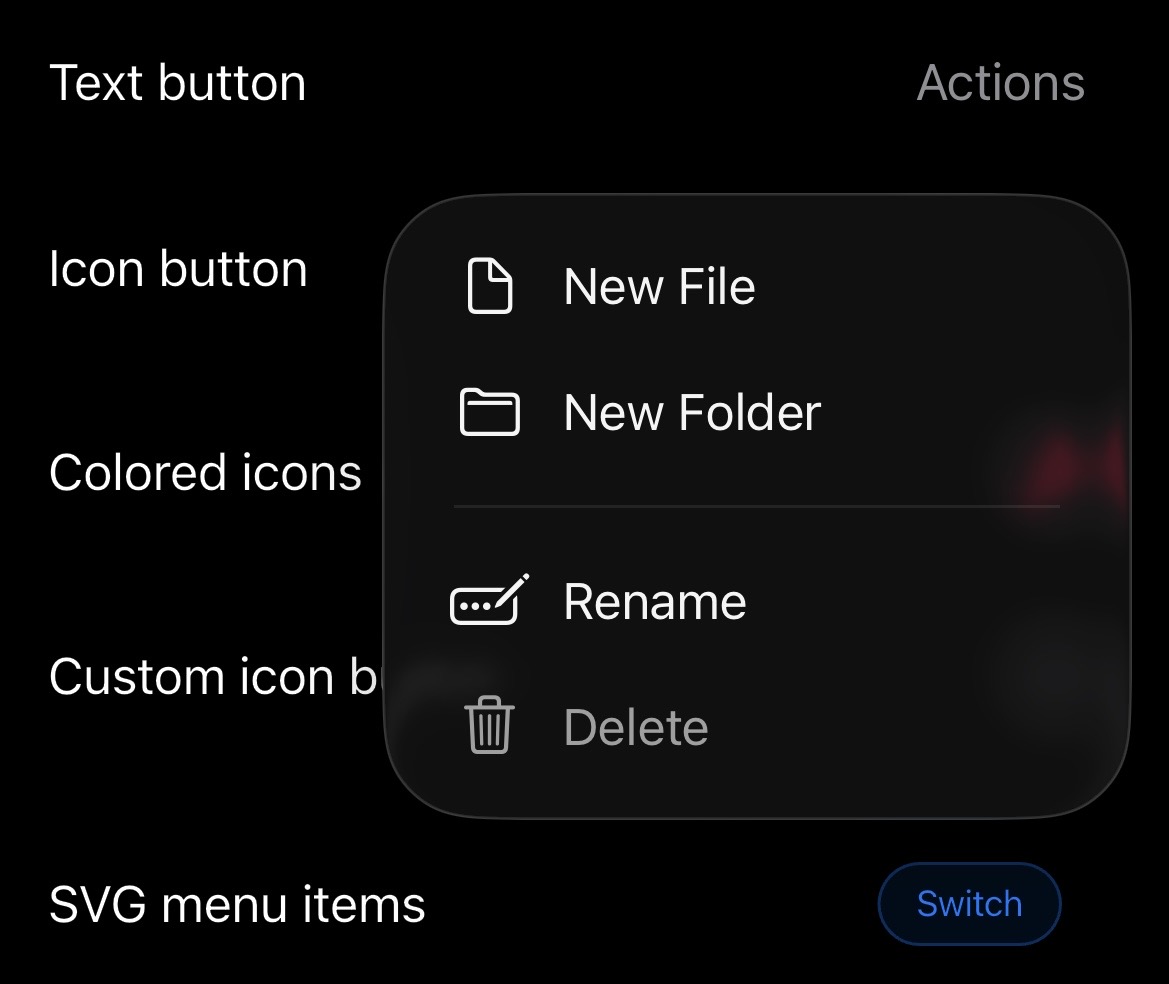
// Text-labeled popup menu
CNPopupMenuButton(
  buttonLabel: 'Options',
  buttonStyle: CNButtonStyle.glass,
  items: [
    CNPopupMenuItem(
      label: 'Edit',
      icon: CNSymbol('pencil'),
    ),
    CNPopupMenuItem(
      label: 'Share',
      icon: CNSymbol('square.and.arrow.up'),
    ),
    const CNPopupMenuDivider(), // Visual separator
    CNPopupMenuItem(
      label: 'Delete',
      icon: CNSymbol('trash', color: Colors.red),
      enabled: true,
    ),
  ],
  onSelected: (index) {
    print('Selected item at index: $index');
  },
)

// Icon-only popup menu (circular glass button)
CNPopupMenuButton.icon(
  buttonIcon: CNSymbol('ellipsis.circle', size: 24),
  buttonStyle: CNButtonStyle.glass,
  items: [
    CNPopupMenuItem(label: 'Option 1', icon: CNSymbol('star')),
    CNPopupMenuItem(label: 'Option 2', icon: CNSymbol('heart')),
  ],
  onSelected: (index) {},
)An imperative API, like CNToast.show. On iOS it presents a real
UIAlertController in .actionSheet style, so the sheet is the system
control — system destructive red, VoiceOver, Dynamic Type, and on iOS 26 the
Liquid Glass appearance, which the system applies with no opt-in. Because the
appearance comes from the OS, the native path is used on every supported
iOS version instead of being gated on iOS 26. Other platforms fall back to
CupertinoActionSheet.
final choice = await CNActionSheet.show<String>(
  context: context,
  title: 'Delete photo?',
  message: 'This cannot be undone.',
  actions: const [
    CNActionSheetAction(
      label: 'Delete',
      value: 'delete',
      isDestructive: true,
    ),
    CNActionSheetAction(label: 'Duplicate', value: 'duplicate'),
    CNActionSheetAction(label: 'Export as PDF', value: 'pdf', enabled: false),
  ],
  cancelLabel: 'Cancel',
);

if (choice == 'delete') _deletePhoto();
show resolves to the selected action's value, or null when the sheet is
cancelled or dismissed.
Starting in iOS 26 an action sheet anchors to the view it came from on iPhone
as well as iPad, appearing directly over that view instead of sliding up from
the bottom (WWDC25). Pass
anchorRect — the global rect of the widget that triggered the sheet — to get
that presentation and its transition:
final box = _buttonKey.currentContext!.findRenderObject()! as RenderBox;

await CNActionSheet.show<String>(
  context: context,
  anchorRect: box.localToGlobal(Offset.zero) & box.size,
  actions: const [
    CNActionSheetAction(label: 'Share', value: 'share'),
    CNActionSheetAction(label: 'Remove', value: 'remove', isDestructive: true),
  ],
);
Omitting anchorRect is still valid — the system centres the sheet. Two things
to know about that path:
- On iOS 26 a centred sheet groups the cancel button with the actions (side by side when there is only one action), rather than the detached bottom row older iOS used.
- Below iOS 26 UIKit adds no cancel button of its own, so the sheet shows
exactly the actions you passed. Without a
cancelLabelthe only way out is to pick one, so pass one unless forcing a choice is what you want.
What anchorRect itself does depends on the presentation the OS picks:
- On iPad, and on iPhone from iOS 26, the sheet is a popover: it drops the
cancel button and is dismissed by tapping outside, so passing
cancelLabelalongsideanchorRectis harmless — it simply does not render. - On iPhone below iOS 26
anchorRectdoes not turn the sheet into a popover. It still slides up from the bottom, still renderscancelLabeland still has no outside-tap dismissal, so pass one.
Apple's HIG
puts destructive choices at the top and caps the sheet at four buttons including
cancel. CNActionSheet preserves the order you pass — reordering would silently
break the index-to-value mapping — so put the destructive action first
yourself.
UIAlertAction exposes no public image property, so CNActionSheetAction has
no icon field. The setValue(_:forKey: "image") workaround seen in the wild is
KVC against an undeclared private property: it risks App Store rejection and
breaks silently across iOS releases. Use CNPopupMenuButton
when you need icons — its UIMenu path has a public image API.
An imperative API like CNActionSheet.show. On iOS it presents a real
UIAlertController in .alert style — system typography, the destructive
red, VoiceOver, Dynamic Type, and on iOS 26 the Liquid Glass appearance — on
every supported iOS version. Other platforms fall back to
CupertinoAlertDialog.
final result = await CNAlert.show<String>(
  context: context,
  title: 'Delete photo?',
  message: 'This cannot be undone.',
  actions: const [
    CNAlertAction(label: 'Cancel', isCancel: true),
    CNAlertAction(label: 'Delete', value: 'delete', isDestructive: true),
  ],
);

if (result?.value == 'delete') _deletePhoto();
Text fields come back in CNAlertResult.textFields, in order:
final result = await CNAlert.show<String>(
  context: context,
  title: 'Rename',
  textFields: const [
    CNAlertTextField(placeholder: 'Name', initialText: 'Untitled'),
  ],
  actions: const [
    CNAlertAction(label: 'Cancel', isCancel: true),
    CNAlertAction(label: 'Save', value: 'save', isDefault: true),
  ],
);

if (result?.value == 'save') rename(result!.textFields.first);
show resolves to a CNAlertResult for every button press, cancel included,
and to null when no answer was produced — for example when, on iOS, a
second CNAlert.show replaced this alert. Things to know:
- An alert cannot be dismissed by tapping outside, so pass at least one
enabled action. A call with none asserts in debug and resolves to
nullwithout presenting in release. - At most one action may be
isCanceland at most oneisDefault; UIKit cannot render more. UIAlertControllerhas no public API for custom content or action icons, soCNAlertoffers neither.
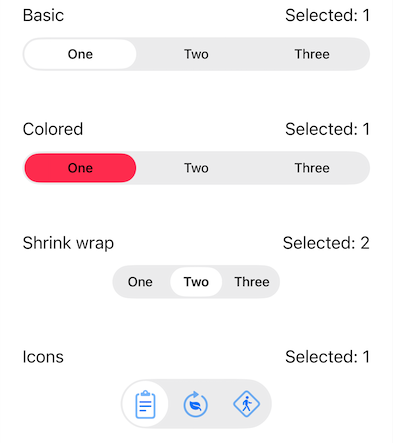
// Text-only segments
CNSegmentedControl(
  labels: ['Day', 'Week', 'Month', 'Year'],
  selectedIndex: _selectedIndex,
  onValueChanged: (index) {
    setState(() => _selectedIndex = index);
  },
  color: Colors.blue, // Optional tint color
)

// Segments with SF Symbols
CNSegmentedControl(
  labels: ['List', 'Grid', 'Gallery'],
  sfSymbols: [
    CNSymbol('list.bullet'),
    CNSymbol('square.grid.2x2'),
    CNSymbol('photo.on.rectangle'),
  ],
  selectedIndex: _viewMode,
  onValueChanged: (index) {
    setState(() => _viewMode = index);
  },
  shrinkWrap: true, // Size to content
)LiquidGlassContainer(
config: LiquidGlassConfig(
effect: CNGlassEffect.regular,
shape: CNGlassEffectShape.rect,
cornerRadius: 16,
interactive: true,
),
child: Padding(
padding: EdgeInsets.all(16),
child: Text('Glass Effect'),
),
)
// Or use the extension
Text('Glass Effect')
.liquidGlass(cornerRadius: 16)CNGlassCard(
child: Text("Hello"),
breathing: true, // Optional subtle glow animation
)| Platform | Liquid Glass | SF Symbols | Other Widgets |
|---|---|---|---|
| iOS 26+ | Native | Native | Native |
| iOS 13-25 | CupertinoButton | Native via CNIcon | CupertinoWidgets |
| macOS 26+ | Native | Native | Native |
| macOS 11-25 | CupertinoButton | Native via CNIcon | CupertinoWidgets |
| Android/Web/etc | Material fallback | Flutter Icon | Material fallback |
Check platform capabilities:
// Check if Liquid Glass is available
if (PlatformVersion.shouldUseNativeGlass) {
  // iOS 26+ or macOS 26+
}

// Check if SF Symbols are available (iOS 13+, macOS 11+)
if (PlatformVersion.supportsSFSymbols) {
  // Use CNIcon for native rendering
}

// Get specific version
print('iOS version: ${PlatformVersion.iosVersion}');
print('macOS version: ${PlatformVersion.macOSVersion}');- Flutter: >= 3.3.0
- Dart SDK: >= 3.9.0
- iOS: >= 15.0 (Liquid Glass requires iOS 26+)
- macOS: >= 11.0 (Liquid Glass requires macOS 26+)
-
Update your
pubspec.yaml:# Before cupertino_native_plus: ^x.x.x # After cupertino_native_better: ^1.7.0
-
Update imports:
// Before
import 'package:cupertino_native_plus/cupertino_native_plus.dart';

// After
import 'package:cupertino_native_better/cupertino_native_better.dart';
-
No other code changes needed - API is fully compatible!
Contributions are welcome! Please feel free to submit a Pull Request.
- Fork the repository
- Create your feature branch (
git checkout -b feature/amazing-feature) - Commit your changes (
git commit -m 'Add amazing feature') - Push to the branch (
git push origin feature/amazing-feature) - Open a Pull Request
This package is based on:
- cupertino_native_plus by NarekManukyan
- cupertino_native by Serverpod
MIT License - see LICENSE for details.