
Spinup Podman containers with network isolation and traffic logging to run coding/LLM agents, untrusted tools, anything really.
- A simple project to run LLM/coding agents in isolated environments with control and visibility using stable tech (Podman and Squid).
- Podman runs rootless (unlike default Docker): no privileged daemon, and in-container root maps to an unprivileged host UID.
- All traffic, including DNS, is forced through a separate Squid proxy container. Even if an agent gains root, it cannot reroute traffic.
- Default-deny: you explicitly allow only the specific domains / subdomains / IP / port combinations each container/pod can reach.
- Traffic logging and dashboard for easy analysis, see exactly what your agents are trying to reach (check out logserver.py).
- The inner
poduserhassudo(e.g. forapt install) but requires a password you set at build time. - Easy host↔container file sharing: each container gets a mounted
~/projects/directory. - Easy management of your configurations, dotfiles and scripts; a shared
~/config/directory for unified setups. Mounted as read only to prevent cross-pod lateral movement. You can change it to write access for convenience if you don't fancy a tinfoil hat. - Multiple pods can be easily spun up. Example usecase, 2 pods, one with projects to work on using local LLMs only, another with allowed access to both local and external providers.
- Podman and podman-compose:
sudo apt install podman podman-compose - TUI coding agents misbehave when you try to copy/paste from them when they're running inside any container. Use a terminal emulator that handles this properly, e.g. kitty
host-tools/setup-kitty.sh. DeepSeek Harness web interface is nice alternative to bypass these issues.
The fastest way to get a working, isolated pod. Run from the project root (the contained-pods directory):
# 0. One-time: install prerequisites
sudo apt install podman podman-compose

# 1. Give the container's 'poduser' account a password (used for sudo inside).
export PODUSER_PASSWORD='replace-with-a-password'

# 2. One-time: build the base image; ignore warnings :)
podman-compose -f compose.yaml build

# 3. One-time: create the shared external network
podman network create internet-net

# 4. REVIEW AND ALLOW THE NETWORK SOURCES YOU NEED FOR THIS CONTAINER
# (default config here only allows APT sources and HOST:8085 everyting else is denied)
nano mypods/agents/proxy/squid.conf

# 5. Build and start the agents pod (container + proxy)
cd mypods/agents

# On Ubuntu 26.04 or Debian 13, or any newer OS with Podman ≥ 5.0
podman-compose --in-pod false up -d --build

# On Ubuntu 24.04 and older versions of Podman use:
# podman-compose up -d --build

# If you get error: --userns and --pod cannot be set together, run:
# podman-compose down && podman-compose --in-pod false up -d --build

# 6. Verify both containers are running
podman ps -a
#    You should see:  agents-contained   and   agents-contained-proxy

# 7. Jump inside the pod as 'poduser'
podman exec -it --user poduser agents-contained bash

# Pods don't auto start after reboot; start when you need them
cd mypods/agents
podman-compose start
You're in. From inside the pod:
- Your code lives at
/home/poduser/projects - Shared configs are at
/home/poduser/config(read-only) sudoworks with the password you set in step 1- Outbound traffic is blocked by default — only the domains listed in
mypods/agents/proxy/squid.confare reachable (includes APT sources by default). Edit that file and runpodman-compose restart(insidemypods/agents) to apply changes. - Optional, after the pod is running: You can run the scripts from
host-toolsto have a batteries included setup. They can setup Kitty, download coding agents/harnesses for the pods like opencode, pi , deepseek-harness, maki, herdr, agent-browser, configure ezsh for pods etc. Seehost-tools/README.md.
logviewer is a setup to view the traffic requests from your pods using the Squid access logs. It shows Squid access logs requests, what requests are being sent, what is being blocked. Actually see what requests your tools/agents are attempting. Run the tiny logserver.py helper:
cd contained-pods
sudo python3 logserver.py --port 8090
Then open http://127.0.0.1:8090/ it auto-discovers every container's proxy/logs/squid-access.log.
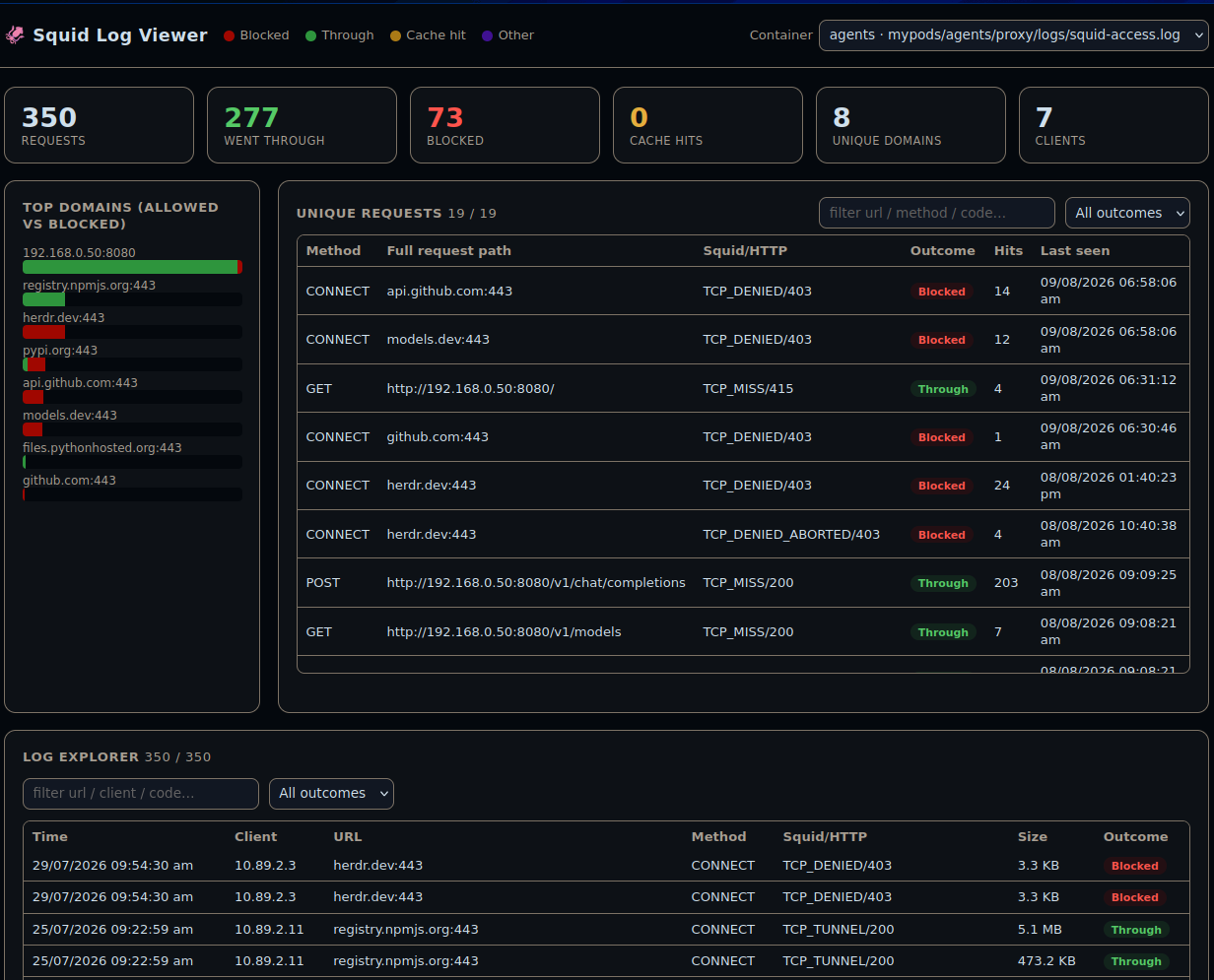
Why not open logviewer.html directly? Proxy pods write logs owned by a different UID, so browsers couldn't read them even with world-read permissions. (I tried different approaches, but this setup needs: rootless podman + a DNS server running on the proxy's port 53 + UID 1000 mapping for seamless file permission). Run this helper as root using sudo.
Full Setup Guide For Multiple Variants
How to create and run an isolated container/pod variant.
- Set the
PODUSER_PASSWORDenvironment variable - Build the base image (
localhost/contained-pods:latest) - Create the shared
internet-netnetwork (one-time) - Create a new variant
- Review and customize the proxy allowlist (
mypods/<variant-name>/proxy/squid.conf) - Build and start the pod variant
- Verify that the new pod variant is running
- Access the pod
The PODUSER_PASSWORD environment variable is used during the base image build to set the password for the poduser account. This password is also used for sudo access.
# Set the password for your containers 'poduser'
export PODUSER_PASSWORD='your_password_here'The base image (localhost/contained-pods:latest) must be built first, as all variant Dockerfiles inherit from it. Run this from the project root (the contained-pods directory):
podman-compose -f compose.yaml buildThe internet-net network is an external network that allows the proxy containers to reach the internet.
# Only needs to be done once
podman network create internet-netTo create a new isolated pod, copy the template-proxied directory and customize it:
# Copy the template
cp -r mypods/template-proxied mypods/myvariant
Set your pod VARIANT name in the variant's .env file:
cd mypods/myvariant
nano .envVARIANT=myvariantThe VARIANT value determines:
- Container name:
${VARIANT}-contained - Proxy name:
${VARIANT}-contained-proxy - Network name:
${VARIANT}-contained-net - Image names:
localhost/${VARIANT}-contained:latestandlocalhost/${VARIANT}-contained-proxy:latest
Optionally edit the variant's Dockerfile to add your own software/dependencies.
REQUIRED: Define which domains/IPs this variant can access. By default, all outbound traffic is blocked.
nano mypods/<variant-name>/proxy/squid.confExample allowlist:
# Allow access to a local LLM (Llama.cpp) at 192.168.0.50:8080
acl allowed_internal dst 192.168.0.50
acl allowed_internal_port port 8080
http_access allow allowed_internal allowed_internal_port

# Allow access to PyPI
acl allowed dstdomain .pypi.org
acl allowed dstdomain .pythonhosted.org
http_access allow allowed

# Deny everything else
http_access deny allBuild the variant image and start both the container and its proxy:
cd mypods/<variant-name>
podman-compose --in-pod false up -d --buildCheck that both containers are up and running:
# List all running containers
podman ps -a

# You should see both:
# - <variant>-contained
# - <variant>-contained-proxy
If the container can't reach allowed domains, check:
- Is the proxy running? (
podman ps -a) - Does
squid.confhave the correct allowlist entries? - Was the proxy restarted after editing
squid.conf?
Access the container directly using podman exec.
podman exec -it --user poduser <variant>-contained bashOnce inside, you can:
- Access your projects at
/home/poduser/projects - Use shared configs at
/home/poduser/config - Use
sudowith the password you set in Step 1 - Install packages (in the template, APT sources are allowed, nothing else is allowed by default)
Managing Variants
After editing mypods/<variant-name>/proxy/squid.conf, restart those pods to apply changes.
cd mypods/<variant-name>
# Stop containers (preserves data)
podman-compose stop
# Start again
podman-compose startIf you modify the variant's Dockerfile:
# Rebuild variant
cd mypods/<variant-name>
# Stop and remove containers. Data in ~/projects is still preserved, everyting else
podman-compose down
podman-compose --in-pod false up -d --build
Project Structure
contained-pods/
├── Dockerfile                 # Base image (tools, user setup)
├── compose.yaml               # Builds base image (needs PODUSER_PASSWORD build arg)
├── logserver.py               # Optional helper: serves logviewer + auto-discovers logs
├── logviewer.html             # Log viewer frontend (served by logserver.py)
├── set-proxy-dns.sh           # DNS-isolation entrypoint for the base image
├── host-tools/                # Host setup scripts (kitty, agent binaries, etc.)
├── config/                    # Shared configs mounted as read-only to /home/poduser/config
│   └── ...                    # Shell settings, aliases, env vars, etc.
├── proxy/
│   └── Dockerfile             # Squid proxy image (runs dnsmasq + squid)
└── mypods/
    ├── template-proxied/      # TEMPLATE: copy this to create a new variant pod
    │   ├── .env               # VARIANT=template-proxied
    │   ├── Dockerfile         # Variant dockerfile (FROM localhost/contained-pods:latest)
    │   ├── compose.yaml
    │   ├── proxy/
    │   │   ├── squid.conf     # ⚠️ MUST REVIEW: Allowlist domains/IPs for your variant
    │   │   └── logs/          # Mounted proxy logs (git ignored)
    │   └── projects/          # Your code projects (git ignored)
    ├── agents/                # Example variant: LLM coding agents
    │   ├── .env               # VARIANT=agents
    │   ├── Dockerfile
    │   ├── compose.yaml
    │   ├── proxy/
    │   │   ├── squid.conf
    │   │   └── logs/
    │   └── projects/
    └── ...                    # Other variants
Network Architecture
Each variant uses two networks to enforce isolation:
- Internal network (
${VARIANT}-contained-net) — container can only reach its own squid proxy, not the internet directly - External network (
internet-net) — only the squid proxy connects here to forward allowed traffic
Container → Proxy (allowed domains/IPs/ports only) → Internet
| Component | Name Pattern | Example (agents) |
|---|---|---|
| Container | ${VARIANT}-contained |
agents-contained |
| Proxy | ${VARIANT}-contained-proxy |
agents-contained-proxy |
| Internal net | ${VARIANT}-contained-net |
agents-contained-net |
| External net | internet-net |
internet-net |
| Container image | localhost/${VARIANT}-contained:latest |
localhost/agents-contained:latest |
| Proxy image | localhost/${VARIANT}-contained-proxy:latest |
localhost/agents-contained-proxy:latest |
The proxy runs its own dnsmasq and squid's squid.conf is configured with dns_nameservers 127.0.0.1, so all DNS resolution for the pod is funneled through the proxy's allowlist. The container reaches the proxy via ${VARIANT}-contained-proxy:3128.
┌─────────────────────────────────────────────────────────────────────────┐
│           ${VARIANT}-contained-net  (internal network)                  │
│                                                                         │
│   ┌──────────────────────┐               ┌────────────────────────┐     │
│   │     Container        │               │        Proxy           │     │
│   │     (poduser)        │               │                        │     │
│   │                      │               │                        │     │
│   │ ${VARIANT}-contained │  ──────────▶  │ ${VARIANT}-contained-  │     │
│   │                      │   port 3128   │      proxy             │     │
│   │                      │  ◀──────────  │          │             │     │
│   └──────────────────────┘               └──────────┬─────────────┘     │
│                                                     │                   │
└─────────────────────────────────────────────────────┼───────────────────┘
                                                      │
                                                      │ (allowed domains/IPs/ports only)
                                                      ▼
                                          ┌──────────────────────┐
                                          │     internet-net     │
                                          │     (external)       │
                                          └──────────────────────┘
How Proxies Work
Each variant has its own proxy/squid.conf that defines an allowlist of domains/IPs. By default, all traffic is blocked.
To allow a domain (e.g., GitHub for code):
acl allowed dstdomain .github.com
http_access allow allowed
If you need to change proxy rules, edit the mypods/<variant>/proxy/squid.conf for that container, then restart the containers:
cd mypods/<variant-name>
# Stop containers (preserves data)
podman-compose stop
# Start again
podman-compose start
Troubleshooting
| Issue | Fix |
|---|---|
localhost/contained-pods:latest not found |
Run podman-compose -f compose.yaml build from project root first |
| Container can't reach allowed domains | Check proxy is running: podman ps -a |
| Proxy config changes not taking effect | Edit proxy/squid.conf then cd mypods/<variant> then podman-compose restart |
| Build fails / password not set | Ensure PODUSER_PASSWORD is exported before building the base image |
| Variant won't start (network error) | Ensure internet-net exists: podman network create internet-net |
Tips
- Each variant has its own
projects/folder — it's mounted at/home/poduser/projectsinside the container - The
.envfile definesVARIANT— change it per variant; the variant name drives the container, proxy, network, and image names - The
config/directory is shared across all variants and mounted as read-only at/home/poduser/config— put shell aliases, environment variables, or any container-wide configs here - Use
podman-compose logs -fto follow container logs in real-time - The proxy logs are available at
mypods/<variant>/proxy/logs/on the host
This project is licensed under the GNU General Public License v3.0 (GPLv3).