
A KeePass 2.x plugin that performs real-time network diagnostics — ping, TCP port check, and HTTP status — directly from your password entries.





- Ping check — ICMP round-trip time in milliseconds
- Port check — TCP connect to configurable ports (checkboxes for common ports + custom field)
- HTTP status — GET request with SSL certificate validation bypass (useful for self-signed certs on routers, NAS devices, etc.)
- Net Status column — inline UP/DOWN indicator directly in the KeePass entry list
- Entry check — right-click any entry → Network Check
- Group check — right-click any group → Network Check All Group Entries
- DNS resolve — optional hostname to IP resolution (disabled by default)
- Sort & Filter — click column headers to sort, filter by All / UP only / DOWN only
- Export CSV — export results to CSV for reporting
- Right-click context menu — Copy IP, Copy URL, Open URL in browser, Ping again
- Scan time — shows total scan duration next to last checked timestamp
- Configurable — port checkboxes, custom extra ports, timeout, DNS resolve toggle
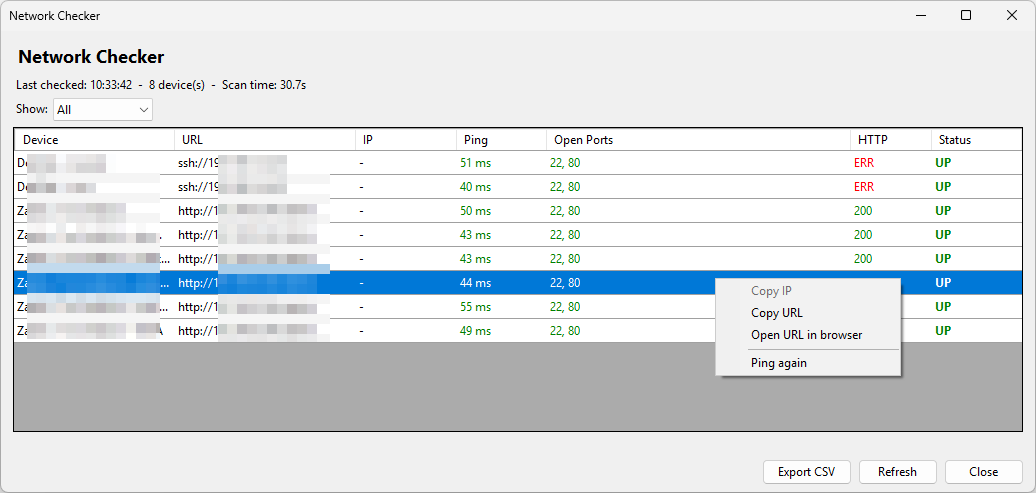
The popup shows detailed results per entry with color-coded status indicators, sort/filter controls and Export CSV button.
| Column | Description |
|---|---|
| Device | Entry title |
| URL | Entry URL field |
| IP | Resolved IP address (when DNS resolve is enabled) |
| Ping | ICMP round-trip time (ms) or TIMEOUT |
| Open Ports | List of open TCP ports found |
| HTTP | HTTP response code (200, 403, etc.) or ERR |
| Status | UP / DOWN composite result |
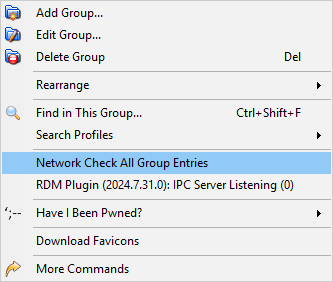
Right-click any group → Network Check All Group Entries to check all entries in that group at once.
After running a check, the Net Status column in the KeePass entry list is updated with UP or DOWN for each checked entry. To enable it: View → Configure Columns → enable "Net Status".
| Requirement | Version |
|---|---|
| KeePass | 2.x (tested on 2.61) |
| .NET Framework | 4.8 |
| Windows | 10 / 11 |
- Download
KeePassNetworkChecker.dllfrom the Releases page - Copy it to your KeePass
Plugins\folder
(e.g.C:\Program Files\KeePass Password Safe 2\Plugins\) - Restart KeePass
- Approve the plugin in the KeePass security dialog
Prerequisites:
- Visual Studio 2019/2022 or Build Tools for Visual Studio (select
.NET desktop build toolsduring install) - .NET Framework 4.8 (included with Windows 10/11)
# Clone the repository
git clone https://github.com/karanikn/KeePassNetworkChecker.git
cd KeePassNetworkChecker

# Set the path to your KeePass.exe (required)
$env:KEEPASS_PATH = "C:\Path\To\KeePass\KeePass.exe"

# Build and install
.\build.ps1
Tip: Add
$env:KEEPASS_PATHto your PowerShell profile ($PROFILE) so you don't have to set it every time.
The build.ps1 script automates the entire build and deployment process.
| Step | Action |
|---|---|
| 1 | Locates KeePass.exe from $env:KEEPASS_PATH or common install paths |
| 2 | Finds MSBuild.exe automatically via vswhere.exe |
| 3 | Cleans bin\ and obj\ folders from any previous build |
| 4 | Compiles the project with MSBuild in Release configuration |
| 5 | Removes any leftover .plgx file from the Plugins folder |
| 6 | Copies the compiled DLL to the KeePass Plugins\ folder |
| 7 | Clears the KeePass plugin cache (%LOCALAPPDATA%\KeePass\PluginCache\*) |
# Standard build
.\build.ps1

# Override KeePass path inline
.\build.ps1 -KeePassPath "C:\Tools\KeePass\KeePass.exe"| Parameter | Type | Default | Description |
|---|---|---|---|
-KeePassPath |
string | $env:KEEPASS_PATH |
Full path to KeePass.exe |
-Configuration |
string | Release |
MSBuild configuration |
- Restart KeePass
- On first load, KeePass will show a security approval dialog — click Yes
- The plugin appears in Tools → Plugins as KeePass Network Checker
- Select one or more entries in KeePass
- Right-click → Network Check (Ping / Port / HTTP)
- The popup opens and runs all checks automatically
- Right-click on any group in the left panel
- Select Network Check All Group Entries
- Only entries directly in that group are checked (not subgroups)
- Click any column header to sort ascending/descending
- Use the Show dropdown to filter: All / UP only / DOWN only
- Copy IP — copies the resolved IP to clipboard
- Copy URL — copies the entry URL to clipboard
- Open URL in browser — opens the URL directly
- Ping again — re-pings just that host without a full rescan
Click Export CSV after a scan to save results as a .csv file (opens Save dialog with auto-generated filename).
After any check completes, the Net Status column updates for the checked entries.
Enable it via View → Configure Columns → Net Status.
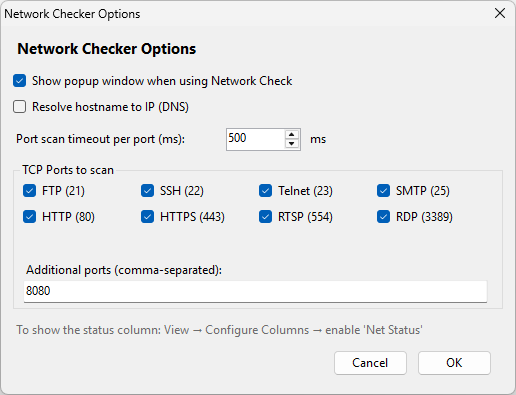
Go to Tools → Network Checker Options to configure:
- Show/hide the popup window
- Enable/disable DNS resolve (default: off)
- Port scan timeout in ms (default: 500ms)
- Which common ports to scan (checkboxes)
- Additional custom ports (comma-separated)
For each entry, the plugin performs three independent checks:
Entry URL: https://192.168.1.1
         │
         ├── Ping (ICMP)         → 12 ms ✓
         ├── Port scan (TCP)     → 22, 443, 3389 open ✓
         └── HTTP GET            → 200 ✓
                                    └─ Status: UP
- Ping — ICMP with configurable timeout
- Port scan — sequential TCP connect per port with configurable timeout
- HTTP — GET request with TLS 1.1/1.2 and self-signed cert acceptance
- Status — UP if at least one of the three checks succeeds
Checks run in a BackgroundWorker so the KeePass UI remains fully responsive.
KeePassNetworkChecker/
├── KeePassNetworkChecker.cs        # Plugin entry point, menu registration
├── NetworkCheckerForm.cs           # Popup results window
├── NetworkStatusColumnProvider.cs  # Net Status column for KeePass entry list
├── SettingsForm.cs                 # Options dialog
├── Properties/
│   └── AssemblyInfo.cs             # Version and product metadata
├── KeePassNetworkChecker.csproj    # MSBuild project file
├── build.ps1                       # Build & install script
└── README.md                       # This file
- Added Sort — click column headers to sort results
- Added Filter — dropdown: All / UP only / DOWN only
- Added Export CSV — save results to file
- Added Right-click context menu — Copy IP, Copy URL, Open URL, Ping again
- Added Scan time display next to last checked timestamp
- Added Net Status column — inline UP/DOWN in KeePass entry list (updates after each check)
- Added DNS resolve option (disabled by default)
- Added port checkboxes in Options for common ports (FTP, SSH, Telnet, SMTP, HTTP, HTTPS, RTSP, RDP)
- Added custom extra ports text field in Options
- Added timeout setting in Options (default: 500ms)
- Fixed crash caused by parallel port scanning — replaced with stable sequential scan
- Fixed DataGridView crash on form load — moved scan start to
Shownevent - Fixed group check scanning entire database instead of selected group only
- Added Group context menu — Network Check All Group Entries
- Added Net Status column provider (ColumnProvider API)
- Added Settings dialog — Tools → Network Checker Options
- Fixed plugin not appearing in KeePass Plugins list (AssemblyProduct must be
"KeePass Plugin") - Fixed menu registration — replaced direct EntryContextMenu manipulation with
GetMenuItem()override - Fixed dark theme — switched to system default colors matching KeePass appearance
- Removed PLGX build in favor of DLL-only deployment
- Ping check (ICMP)
- TCP port check (single port auto-detected from URL scheme)
- HTTP status check with SSL bypass
- Popup results window with Device, URL, Ping, Port, HTTP, Status columns
- Entry right-click menu integration
- BackgroundWorker for non-blocking UI
This project is licensed under the GNU General Public License v3.0 — see the LICENSE file for details.
Nikolaos Karanikolas
This plugin was developed with the assistance of Claude AI by Anthropic. The iterative development process — from initial concept through build system troubleshooting, KeePass plugin API research, UI refinement, and bug fixing — was carried out in collaboration with Claude, which helped navigate the KeePass plugin framework, resolve .NET Framework compatibility issues, and refine the feature set based on real-world feedback.