

Agenstorm removes the friction an agent-heavy workflow hits in the IDE every day.
Coding agents changed what a working day looks like, and the IDE was not built for that rhythm. Agenstorm closes the gaps, one small feature at a time. Every feature has its own on/off switch.
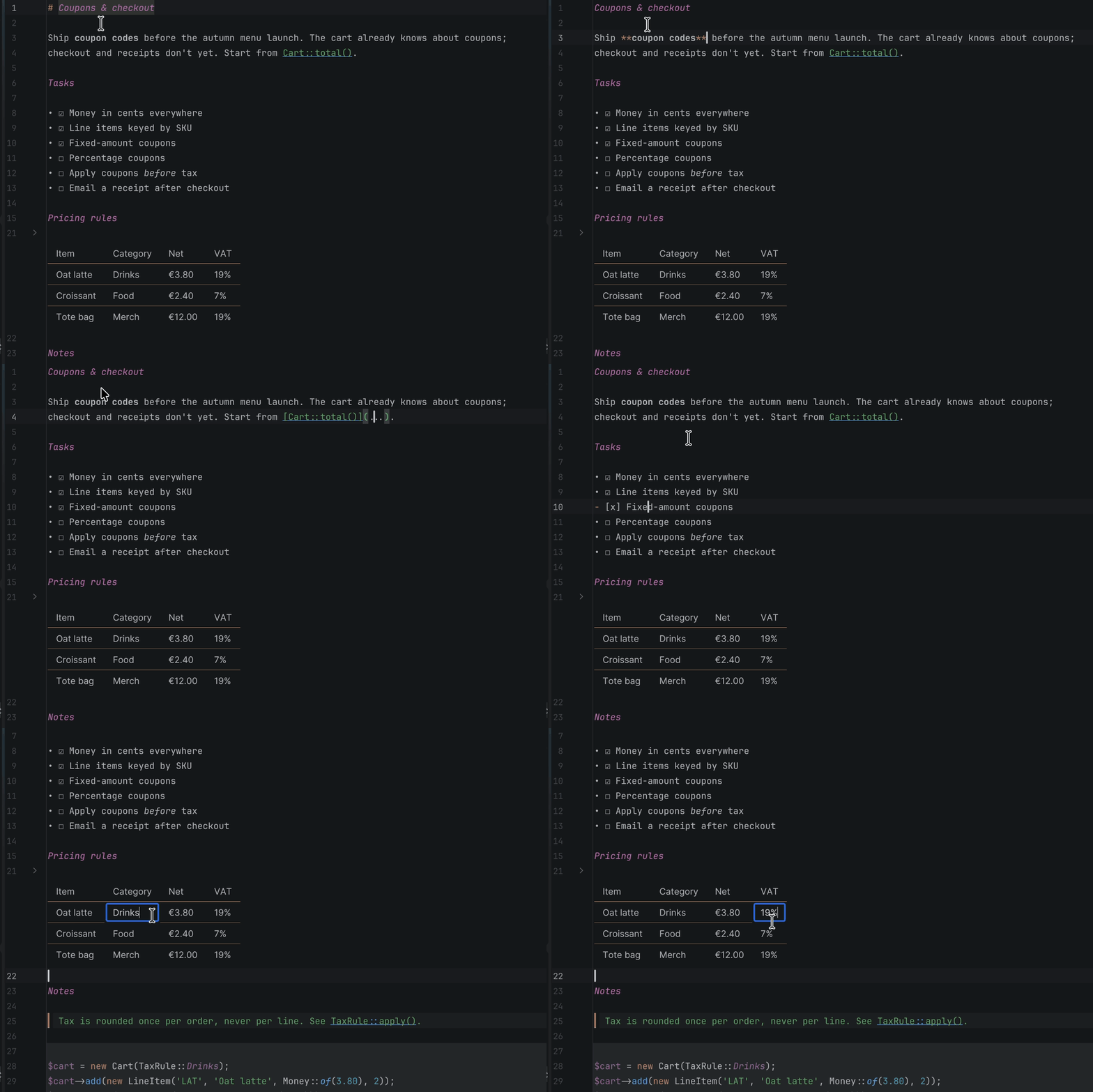
Obsidian-style editing: **bold**, headings, links, - [ ] task boxes and bullets show their
result until the caret reaches them. Fenced code blocks and block quotes sit on a card. Tables
render in place — a proportional font, wrapped cells, a bold header — and a click edits one cell
without leaving the rendered view. It is folding only: the file on disk never changes, and copying always copies raw Markdown.
An optional switch also hides the editor/preview layout buttons. Soft-wrapped Markdown and text stop at
the right margin's line, however wide the window. The headings sit in the top-right corner as a contents card
that stays put while you scroll, and a click jumps to one.
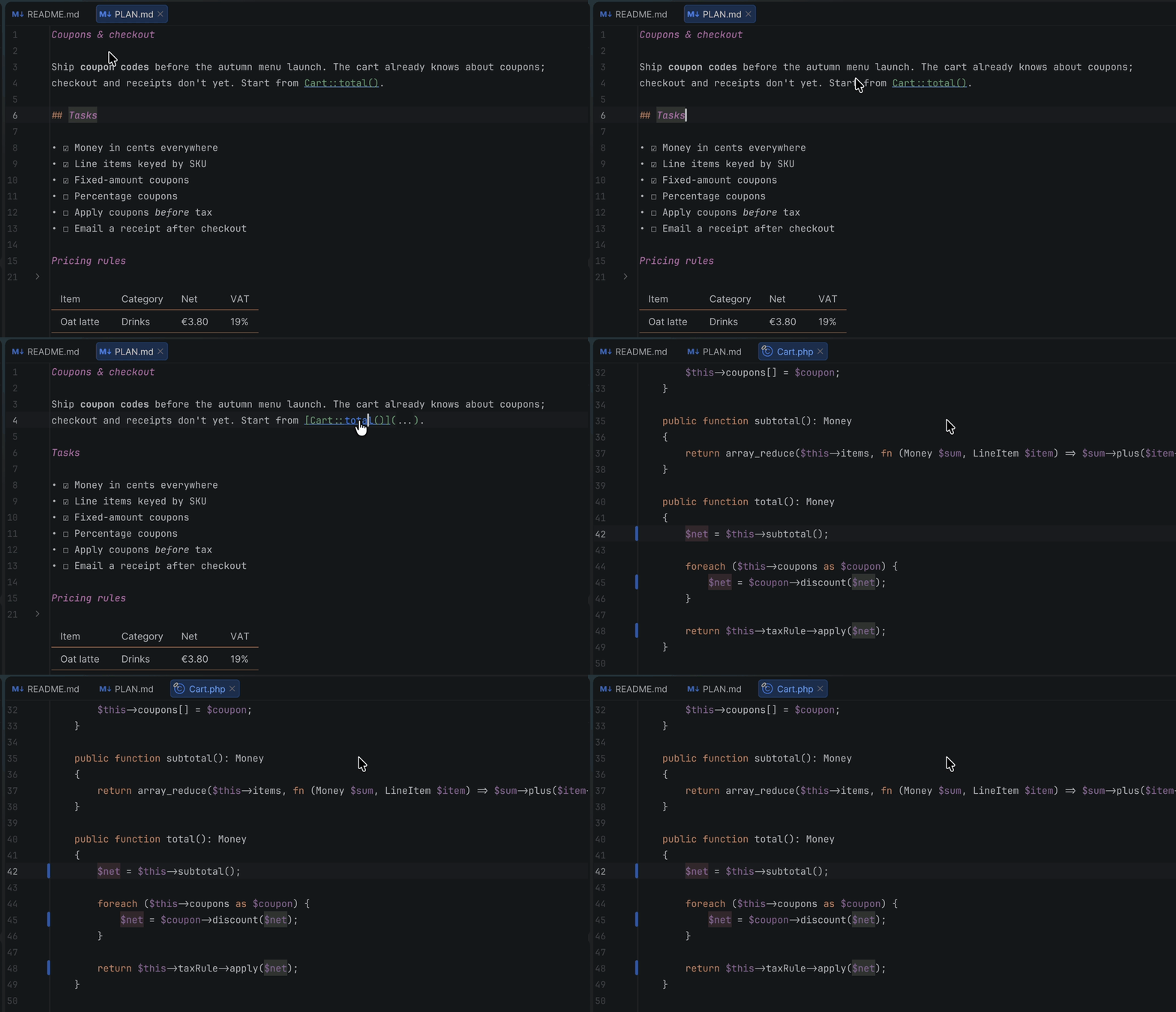
src/Foo.php:42:7 becomes a link in Markdown, in comments of every language, and in PHP strings.
It is the format compilers, test runners and agents already emit, so nothing has to change on the
other side. Copy Location Link puts such a token on the clipboard, ready to paste back to an agent.
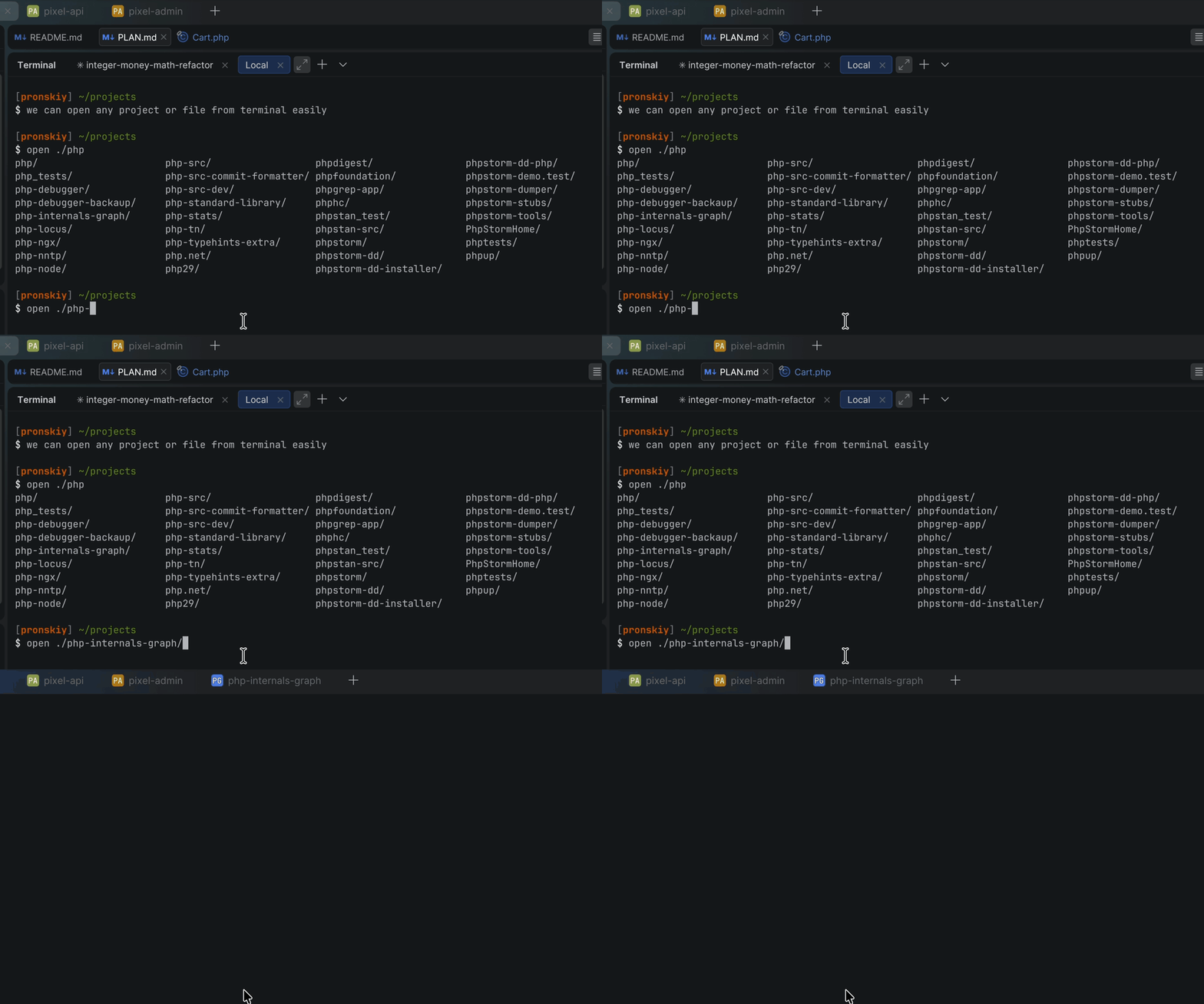
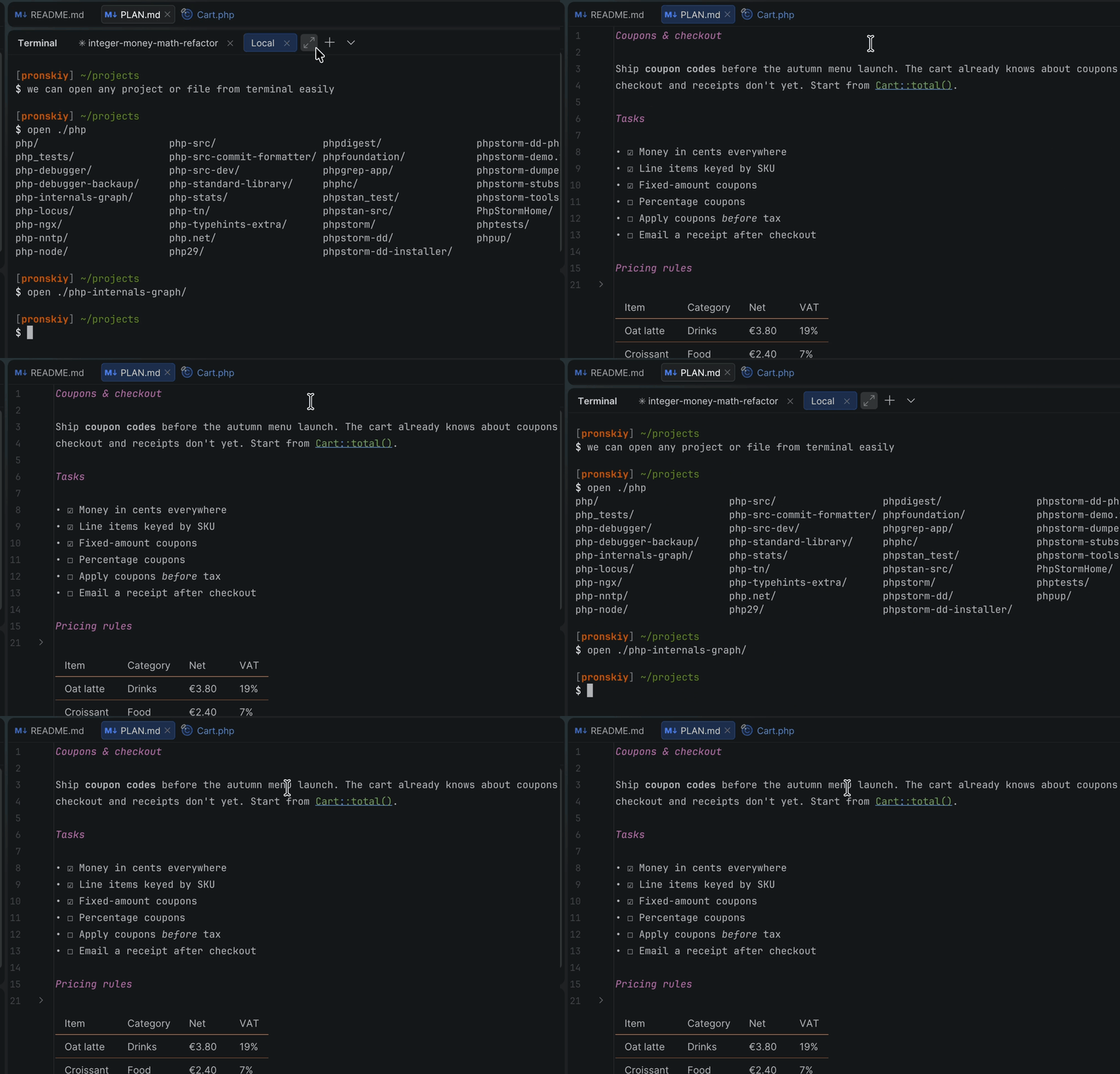
open src/Foo.php:42 opens that file in the window the terminal belongs to, caret on line 42,
instead of handing it to the OS. Anything the IDE does not claim (flags, URLs, missing paths,
binaries) reaches the real open untouched.
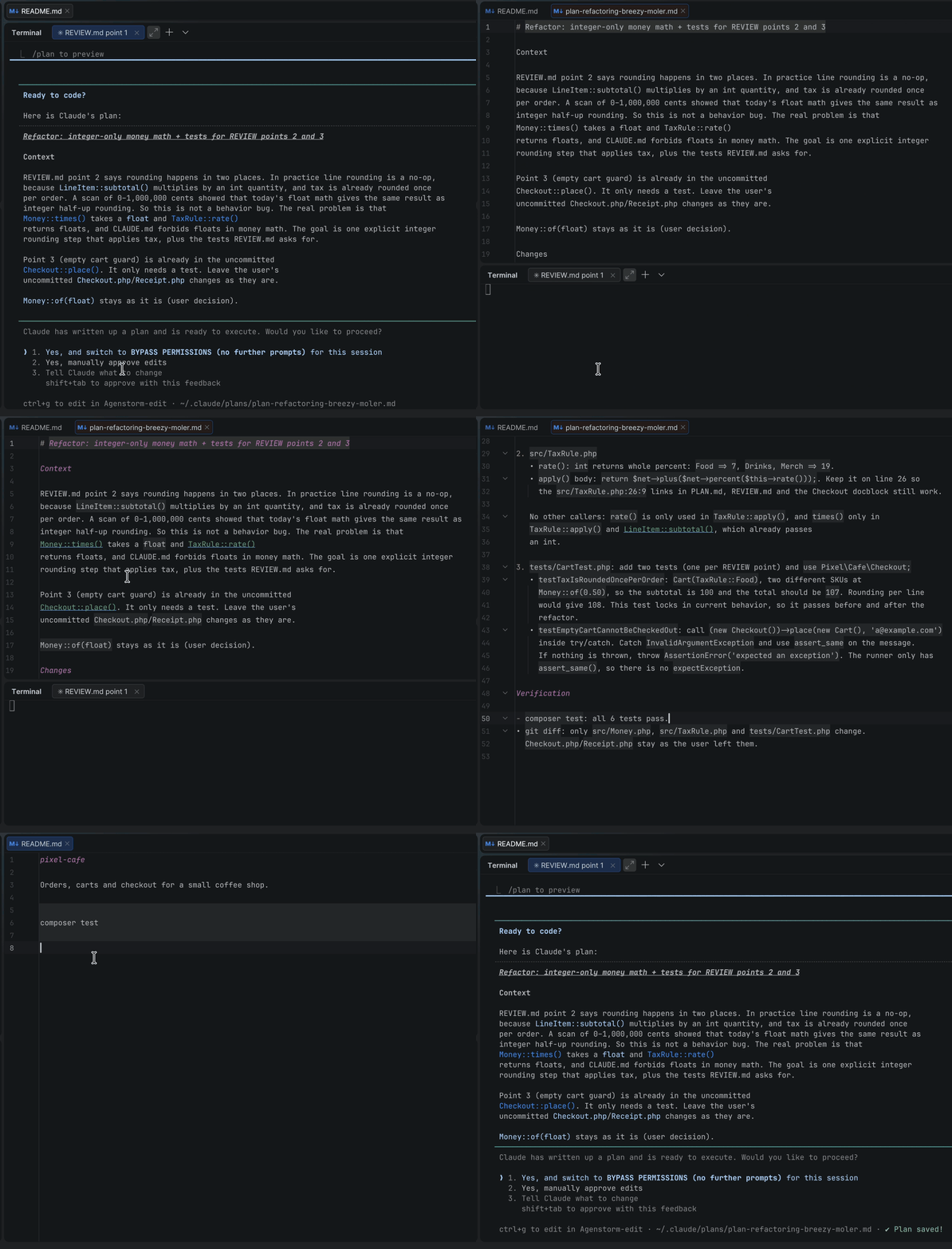
Press Ctrl+G in Claude Code and the prompt opens in this project's window
instead of vim. Close the tab and the edited text goes back to it. git commit and everything else
that reaches for $EDITOR behaves the same way.
A subject and body streamed into the commit message field from the Anthropic API, any
OpenAI-compatible endpoint (OpenAI, Ollama, LM Studio, OpenRouter, Groq), or the local claude CLI,
which needs no API key. No SDK and no bundled jars: just the platform's own HTTP client.
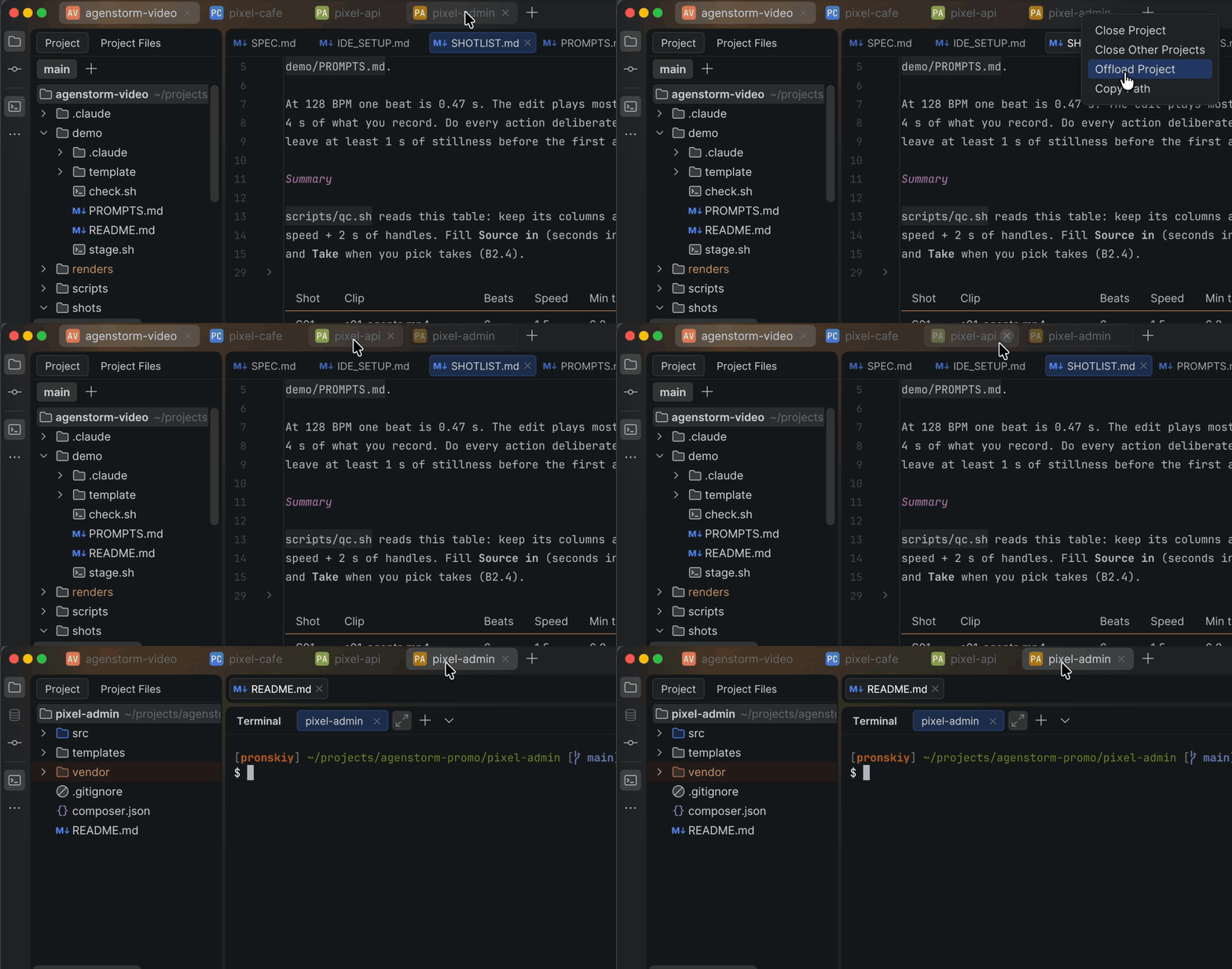
Open projects become tabs inside the main toolbar, in the slot the project widget normally occupies,
so the window loses a row of chrome. The tabs take all the room the toolbar can spare and shrink
before they turn into icons. A project you have not touched for two hours is offloaded: closed with
everything saved, its tab kept as a dotted bookmark that loads it again on click. The Git branch moves
down to the status bar (or, if you prefer, stays on top before the tabs), and window titles name the
project rather than whichever file is open. Projects that share a name carry their parent folder in
front of it on the tabs and in the "+" popup — SomeFolder/ProjectName, not two plain ProjectName.
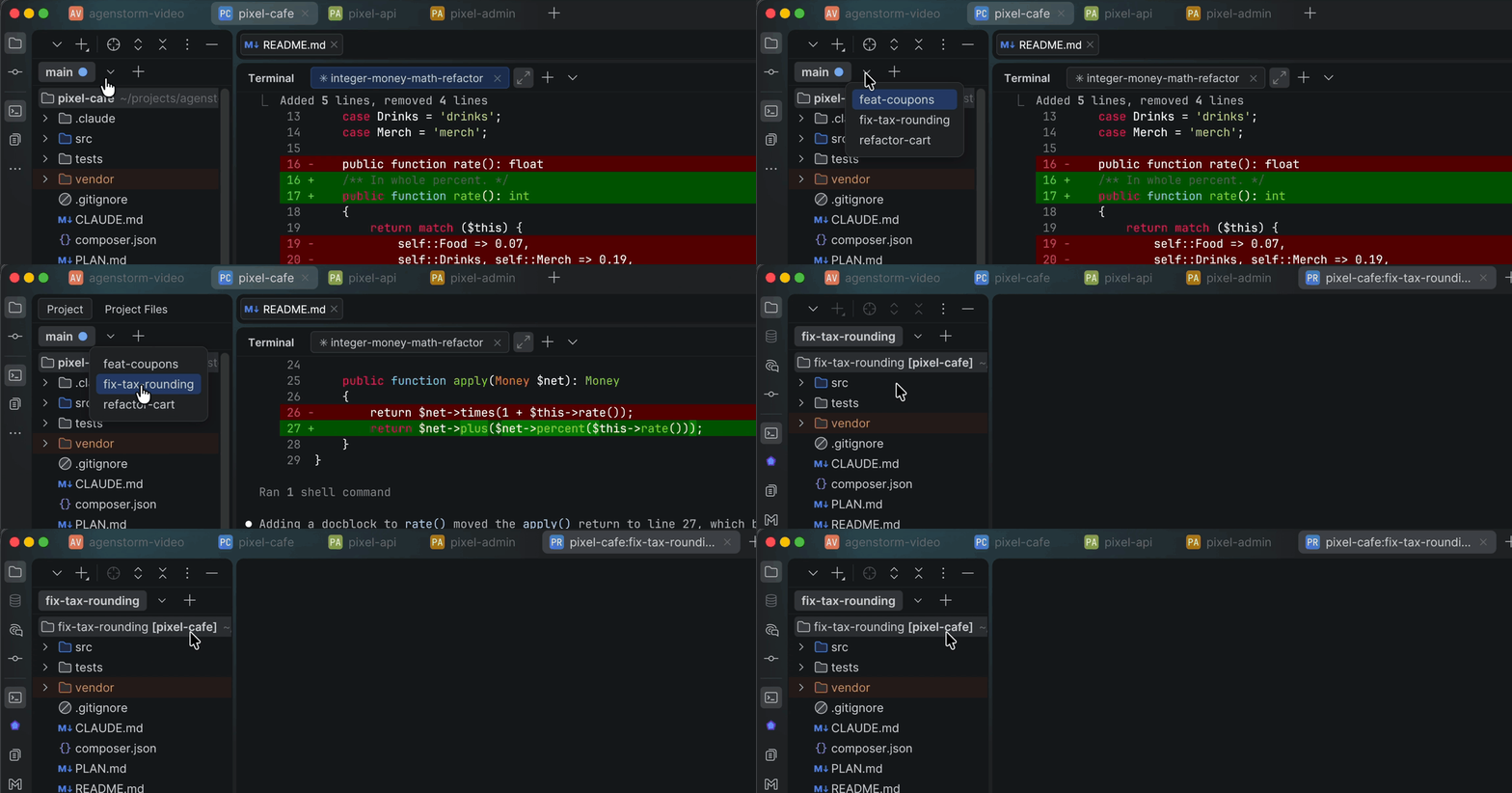
The worktrees of the repository, yours and the ones Claude Code, Cursor or Conductor make for their
agents, become tabs above the Project tree. A click swaps the window to that worktree in place; one with
a command still running in its terminal stays open behind, so no agent is cut off. Each tab says whether
its worktree has uncommitted changes, commits ahead or behind, or an agent at work, and its menu merges it
back, archives it or removes it, never losing work without asking. "+" makes a new one
that is ready to work in: project settings, .env and vendor/ carried over, the repository's setup
started in a terminal. Worktrees nested in the repository stay out of the project that holds them.
With tmux and one setting, terminals running an agent or a dev server follow the switch to the next
worktree, and can be kept running when a window closes or the IDE quits.
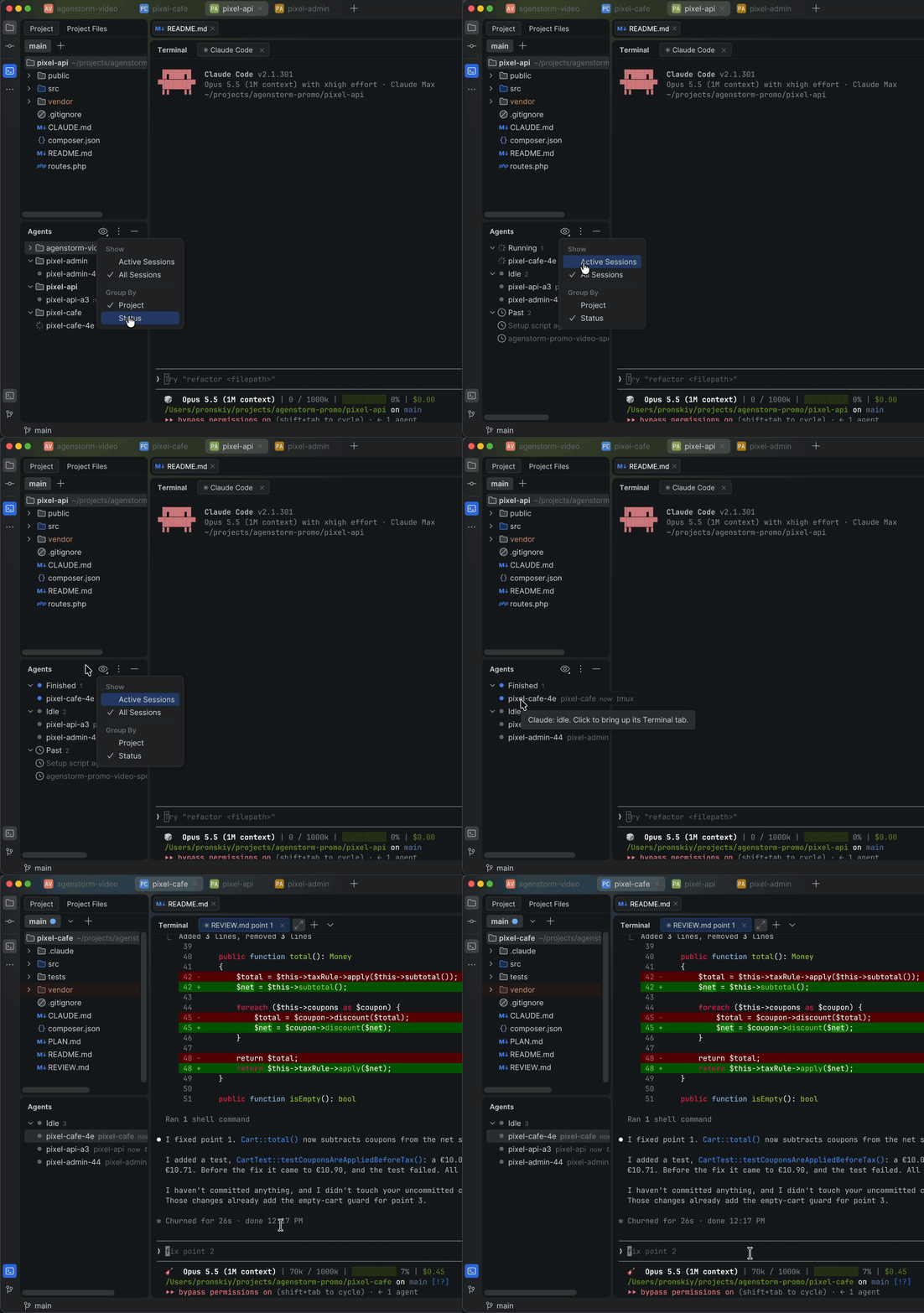
An Agents sidebar lists the Claude Code sessions of every open project: the running ones, with what Claude says each is doing, and the recent ones to pick up again. It looks the same in every window, so switching projects changes everything but it. A click brings up the terminal tab a session runs in, in its own project's window, or resumes a past one in a new tab. It tells you when a session needs your input or finishes while you are looking elsewhere, and puts a dot on the project tab where an agent waits. Off by default.
One key fills the editor's area with the terminal, and the same key gives the editor back. Other tool windows keep their place.
In the Reworked terminal, a var_dump, print_r, var_export, JSON line or PHP stack trace collapses
to one line; click the ▸ to open it in place, coloured like code. Rules are JSON files you can add to.
Balloons fade after a few seconds instead of the IDE's 10 seconds, or 5 minutes for sticky ones. The countdown pauses while the IDE is in the background, and everything stays in the Notifications tool window; only the popup goes.
A switch that is off until you ask for it: clear the right tool window bar so the editor reaches the window edge. And the status bar's status text, the last message at the bottom left, is hidden unless you want it back, as is the Hide button beside the Terminal header's ⋯. The main menu folds Navigate, Code, Refactor, Run, Tools and Git into one More menu.
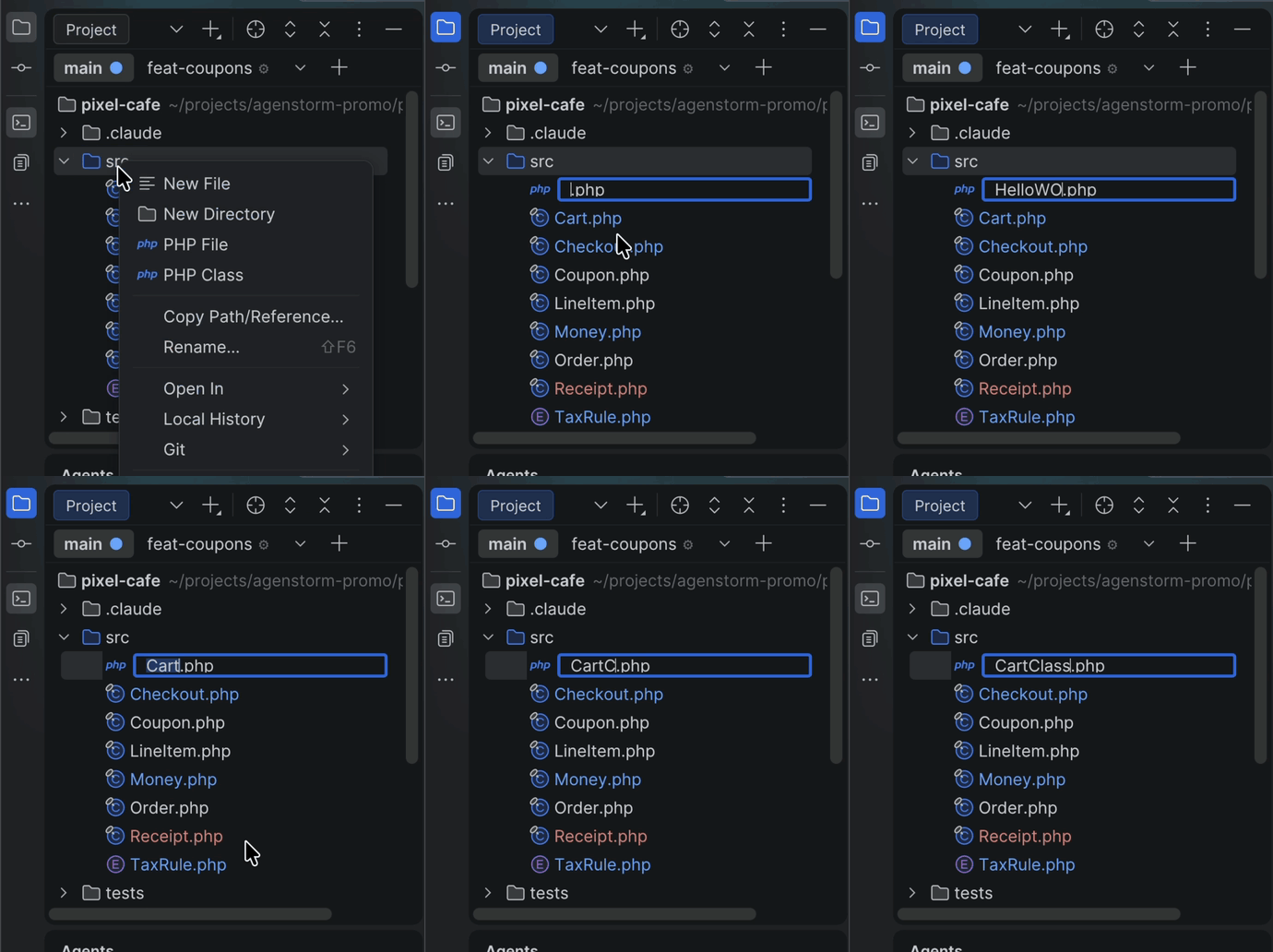
New File, New Directory, Rename and Duplicate open an editable row in the tree instead of a dialog.
Type, press Enter, done. src/Http/Client.php creates the folders on the way.
Only the languages on your allow-list, in your order, with "All Languages…" at the bottom.
Features that need the PHP, Markdown, Git or Terminal plugin switch themselves off when it is missing, so the plugin is at home in any IntelliJ-based IDE of the same version.
Free and open source, MIT: https://github.com/pronskiy/agenstorm
| Feature | Default | Settings group |
|---|---|---|
| Markdown live markup | on | Markdown live markup |
| Soft wrap at the right margin | on | Soft wraps |
| Contents in the corner | on | Markdown editor |
| Clickable file locations | on | Location links |
open in the terminal |
on | Terminal |
IDE as $EDITOR |
on | Terminal editor |
| AI commit messages | on | Commit messages |
| Project tabs in the toolbar | on | Project tabs |
| Idle projects offloaded | on | Project tabs |
| Worktrees as tabs | on | Worktrees |
| Terminals that follow the switch (tmux) | off | Worktrees |
| Agents sidebar | off | Agents |
| Window title without file names | on | Window title |
| Terminal fills the window | on | Terminal size |
| Terminal output that folds | on | Terminal output |
| Self-hiding notifications | on | Notifications |
| Names typed in the project tree | on | Project tree |
| Shorter New Scratch File popup | on | Scratch files |
| One More menu in the main menu | on | Main menu |
| Hide the right tool window bar | off | Tool windows |
| Only ⋯ in the Terminal header | on | Tool windows |
| Hide the status text | on | Status bar |
SPEC.md is the plan and the task list; CHANGELOG.md records what each version shipped.
PhpStorm 2026.2 (build 262.*). The plugin also loads in other IntelliJ-based IDEs of the same version. Features that need the PHP, Markdown, Git or Terminal plugin switch themselves off when that plugin is missing.
From JetBrains Marketplace
Settings → Plugins → Marketplace → search "Agenstorm" → Install
From disk
Download the latest release, then Settings → Plugins → ⚙️ → Install plugin from disk…
Everything lives under Settings → Tools → Agenstorm, one group per feature. Most features are on by default; the one marked off in the table above is not.
Settings are stored in agenstorm.xml in the IDE config directory, so they roam with Settings Sync.
Obsidian-style editing: the syntax hides itself until the caret reaches the line.
- Inline markers.
**bold**,*italic*,~~strike~~,`code`show only their text. Markers return for the element the caret touches and under a selection, so what you see is what you copy. A setting switches to revealing the whole caret line instead. - Headings, task boxes, bullets.
#marks are hidden;- [ ]/- [x]become ☐ / ☑ and toggle on click;-,*,+show as •. - Block quotes and GitHub alerts (
> [!NOTE],> [!WARNING], …) lose their>markers and get a card with an accent bar. Nesting still reads as indent. An alert's[!…]title stays as written. - Thematic breaks (
---,***,___) become a full-width rule. - Fenced code blocks lose their ``` lines and sit on a full-width card; highlighting inside is untouched.
- Tables render in place while the caret is outside them: the proportional UI font, cells that wrap, a bold header row, thin rules between rows and the column alignment the separator row asks for. Click a cell to edit it right there: a field over the cell holds its raw Markdown, Enter writes it back, Esc drops it, Tab walks the row. Click a link to follow it. For rows and columns, Edit Table as Text in the context menu opens the raw table; so do Find, Go to line and a jump into it, and it renders again when the caret leaves. Arrow keys pass over a rendered table.
- Links.
[text](destination)shows the text; Ctrl/Cmd+click or Ctrl+B follows the destination: files,path:line:collocations,#headingsand URLs. - Layout buttons, if you want them gone. A separate switch, off by default under Settings → Tools → Agenstorm → Markdown editor, hides the editor/preview buttons in Markdown editors. While it is on the preview cannot be opened at all, Find Action included.
The Live Markup entry in the editor context menu turns it off or on for one editor, overriding the global switch for that tab. Settings → Tools → Agenstorm → Markdown live markup has the global switch and the per-element options.
Nothing is ever written to the file. It is folding: copying always copies raw Markdown, and the Markdown plugin's own folding, Expand All and Collapse All keep working.
Limitations:
- Heading sizes stay at the editor's single line height.
- Images and reference-style links stay raw.
- The code-block card has no rounded corners, language chip or copy button.
With soft wrap on, the IDE wraps a line at the window's edge, so on a wide window with a small font a paragraph of Markdown runs far past the right margin's vertical line. Agenstorm stops it at that line — or at the window's edge when the window is narrower, as before — the way VS Code's "bounded" word wrap does. It is the margin the editor draws (Code Style → Hard wrap at, per language), and the wraps follow when you zoom, resize the window or change the margin.
It applies to the files the IDE soft-wraps — Settings | Editor | General | Soft Wraps → Soft-wrap these
files, by default *.md; *.txt; *.rst; *.adoc — and leaves code, diff views, consoles and the terminal
alone. On by default under Soft wraps. A file short enough to fit the window keeps its old width
after a margin change until it is resized, zoomed or reopened.
A Markdown file with two or more headings shows them in the editor's top-right corner, against the scrollbar: a card that stays put while the text scrolls, indented by level, with the section on screen in bold. Click a heading to jump to it; Back (⌘[) returns.
The icon in the card's corner folds it into just the icon and back. That choice holds for every Markdown file and is remembered. Until you first click it, the card folds itself when the window has no room for it past the right margin and unfolds when it has.
It lists # to ### by default — Settings | Tools | Agenstorm | Markdown editor → Heading levels
takes 1 to 6 — and leaves PHP and other editors, diffs and the preview pane alone. On by default. The
card trusts the right margin to tell where the text ends: with soft wrap off, a long line can run under it.
Bare file locations become links wherever they appear: Markdown link destinations, comments in any language, and PHP string literals.
path/to/file.ext:LINE
path/to/file.ext:LINE:COLUMN
- Line and column are 1-based, like every compiler and test runner.
- Paths resolve relative to the containing file, then the project root, then every content root. Absolute paths work, and as a last resort a unique file name anywhere in the project matches.
- Locations that do not resolve stay plain text. Nothing is flagged as an error, because agents routinely refer to files they are about to create.
Add a line like this to your CLAUDE.md, AGENTS.md or system prompt:
When you refer to code, write the location as
path/from/project/root/File.php:LINE:COLUMN(1-based) so it is clickable in the IDE. In Markdown, use it as the link destination:[Foo::bar()](src/Foo.php:42:7).
In the editor and gutter context menus. Puts a token for the caret (or selection start) on the
clipboard, plus a Markdown-link flavor ([Foo.php:42](src/Foo.php:42:7)).
No default shortcut. Ctrl+Alt+Shift+L is free in the default keymaps (Settings → Keymap, search
"Copy Location Link").
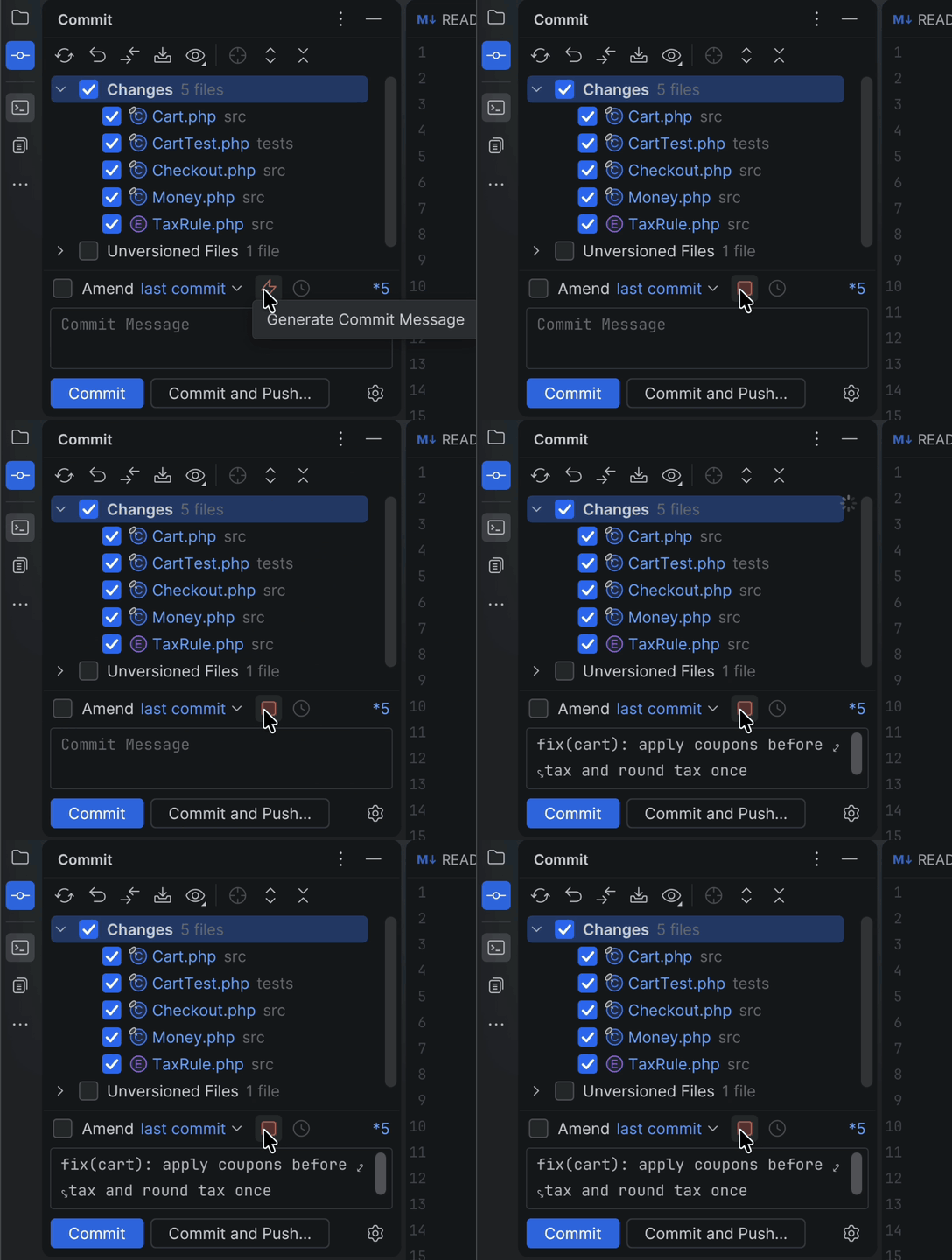
The lightning button above the commit message field streams a subject and body for the included changes. Click again to stop.
- Undo removes the whole generation in one step.
- Text already in the field is treated as a hint: a multi-line draft is improved rather than replaced, and saved to the commit message history first.
- No default shortcut;
Ctrl+Alt+Shift+Gis free (Settings → Keymap, "Generate Commit Message").
Settings → Tools → Agenstorm → Commit messages.
| Backend | Key needed | Notes |
|---|---|---|
| Anthropic API | yes | Stored in the IDE password safe, never in agenstorm.xml. Default model claude-sonnet-5 |
| OpenAI-compatible | optional | OpenAI, Ollama (http://localhost:11434/v1, no key), LM Studio, OpenRouter, Groq. Model id required |
| Claude CLI | no | Runs claude -p with your Claude Code login. Default model haiku |
The CLI backend runs with extended thinking off and in safe mode, so your CLAUDE.md, plugins,
skills, hooks and MCP servers stay out of it: about 3 s instead of 20–50 s, and roughly 800 prompt
tokens instead of 6,000. Remove --safe-mode from "Extra arguments" if you want your
CLAUDE.md rules applied.
- Test Connection validates the values as typed.
- Templates are editable:
{diff},{stat},{branch},{hint},{language}and{conventional}are substituted, unknown placeholders are kept, and "Reset to Default" restores the built-in text. - Lock files and generated output never enter the diff (
vendor/,node_modules/,dist/,build/,*.min.*,*.map). Every file still appears in the stat.
Type names in the tree, not in a dialog. On by default, under Settings → Tools → Agenstorm → Project tree.
New File, New Directory and Rename put an editable row in the project tree and let you type the name there. Enter commits, Escape cancels, clicking elsewhere accepts what you typed, the way a file manager behaves.
- The row appears directly below the row you clicked, indented to where the file or folder will land.
src/Http/Client.phpcreates the two folders on the way, the same as the dialog does.- Renaming runs the real refactoring, so a PHP class file's usages are still updated, in one undo step.
Nothing asks along the way: when
Client.phpholds classClient, the class is renamed with the file, exactly as pressing OK in PhpStorm's own "rename the class too?" dialog would. A rename that reaches into comments or plain text still shows you the list first. - The new file is empty, exactly as
New | Filemakes it today. The<?phpstill comes from PhpStorm's own PHP File entry, which this does not touch. Neither are PHP Class, Interface and Trait, whose dialogs carry a namespace a single field cannot hold. - Anything the row cannot handle keeps the dialog it has today: a module root, a library, the project folder, and a folder that is a PSR namespace, where PhpStorm has namespace work to offer.
- The New menu's typed entries go inline too: PHP File, HTML File, JavaScript File,
TypeScript File. The row opens on the extension with the caret in front of it, so New | PHP File
shows
.phpwaiting for a name, and the file arrives with its template body. An entry with no template of its own name, such as composer.json File, keeps its dialog. PHP Class, Interface and Trait keep theirs too, because a namespace does not fit in one field. The plain File entry still makes an empty file, exactly as it does today. - Duplicate in the same menu copies a file or folder next to itself, opening the row on
Client 2.phpwithClient 2selected. It has no shortcut out of the box, because ⌘D already means Duplicate Line everywhere; bind one under Settings → Keymap if you want it. - Copy File… (F5) is untouched and keeps its target-directory browser. ⌘C / ⌘V in the tree are untouched too.
- Switching it off gives New File, New Directory and Shift+F6 straight back, without a restart, and takes Duplicate out of the menu.
Put Navigate, Code, Refactor, Run, Tools and Git under one More menu. On by default, under Settings → Tools → Agenstorm → Main menu.
The main menu reads File, Edit, View, More, Window, Help, and More opens Navigate, Code, Refactor, Run, Tools and Git as submenus. Git is named after the project's version control, as it is on the bar.
- Menus other plugins add to the top level stay there, and so does Build where an IDE shows it.
- The menus themselves are untouched: shortcuts, Find Action, and items other plugins add to Tools or Git keep working, and so do your own changes to them in Settings → Appearance & Behavior → Menus and Toolbars.
- A plugin installed while More is on that puts its own menu right after one of the six shows it at the end of the bar until More is switched off or the IDE restarts.
- Switching it off puts every menu back where it was, without a restart, and so does uninstalling the plugin.
Hide the right tool window bar. Off by default, under Settings → Tools → Agenstorm → Tool windows.
Clears the strip of icons down the right edge: the tool windows anchored there move to the left bar, and the IDE hides a bar with nothing on it, so the editor reaches the window edge.
- The windows keep their content and every way in: View | Tool Windows, their own shortcuts, the ⋯ button on the left bar.
- They now open on the left, alongside Project, instead of on the right. That is the trade, and it is why the setting is off until you ask for it.
- Switching it off moves back exactly the windows Agenstorm moved. One you already had on the left stays there, one you re-docked yourself is left where you put it, and uninstalling the plugin puts them back too.
Show only ⋯ in the Terminal header. On by default, in the same group.
The Terminal's top-right corner keeps its ⋯ menu and loses the Hide button beside it. ⇧⎋ and the Terminal's icon on the bar still hide the window. Other tool windows keep their Hide button, and switching it off brings the Terminal's back without a restart.
Hide the status text. On by default, under Settings → Tools → Agenstorm → Status bar.
The text at the bottom left of the status bar, the last message, "Indexing…" and notification titles, is no longer shown. Progress bars stay where they are, and switching the option off brings the text back.
The IDE has no switch for this text on its own. Its Status Text item (right-click the status bar) only swaps the text for the navigation bar, and with project tabs on and the Git branch in the status bar (the default), Agenstorm hides the navigation bar to make room for the branch. So with both on, the bottom left holds just the branch.
On macOS, open projects appear as tabs inside the main toolbar, where the project widget normally sits, so the window has one header row instead of two.
- Click a tab to switch, middle-click or × to close.
- "+" opens the recent projects — one line each, with its icon and branch, at most twelve in view and the
rest a scroll away (type to filter) — and under them Open and Get from Version Control, always in view.
Two projects sharing a name show their parent folder in front of it,
SomeFolder/ProjectName, and a worktree of one shows its project's,SomeFolder/ProjectName:fix; a row's tooltip is the full path. - Right-click for Close, Close Others, Copy Path.
- Drag to reorder; order is remembered per project in
agenstorm-tabs.xml. - The tabs take all the room the toolbar can spare. When it runs out, the widest tabs shrink first (names
shortened in the middle, so the folder in front stays in view and a worktree's
:fixstays whole; short names untouched), then every tab becomes an icon. Nothing hides behind a "…" button. - A project you have not used for a while is offloaded: closed with everything saved, its tab kept as a dotted bookmark. Click the bookmark to load it again. See below.
That is the platform's own macOS window tabs doing the work: Agenstorm leaves them on and hides only their separate row, so switching a tab does not raise a second window.
Agenstorm 1.0 switched those window tabs off, which is why every tab was its own window. Installs left that way are put right on first start, with a balloon offering the restart it needs.
Windows and Linux have no window merging to build on, so there the strip switches between windows instead; the "move the other window onto this one's position and size" option exists for that case.
Like a browser unloading tabs you have not looked at, Agenstorm closes a project whose window has not been in front for two hours, and, when more than eight projects are loaded, the least recently used one. Everything is saved first. The tab stays where it was, drawn with a dotted border and a dimmed icon; hover it for the path and how long ago it was offloaded, click it to load the project again in the same place. The × on a bookmark, or a middle click, forgets it (the project is still under "+"). Right-click a loaded tab for Offload Project; right-click a bookmark for Load, Forget and Copy Path.
Two things never get offloaded: the project whose window is in front, and any project with a terminal command or a run/debug process still running. The first time a project is offloaded, a balloon says which one and why.
An offloaded project is not reopened by the IDE at the next launch. Its bookmark is: the strip remembers it, dotted, one click from loaded.
With tabs on, the VCS widget next to them is hidden and the branch shows bottom-left in the status bar, where the navigation bar was. Click it for the branches popup.
Prefer it on top, as the IDE has it without Agenstorm? Choose Git branch: At the top, before the tabs: the stock branch widget, dropdown and all, comes first in the toolbar, then the tabs, and it stays put however many tabs are open. It shows the current window's branch. The navigation bar comes back too, provided Agenstorm was the one that hid it.
The Project tabs group holds the switch plus five options: where the Git branch goes (the status bar by default, or the top), mirror window position/size when switching (on), project icons (on), the parent folder in front of a project name shared with another shown project (on), and max tab width (220 px). Offloading has its own switch (on), the idle time before a project is offloaded (120 minutes, from 5 to 1440) and how many projects may stay loaded (8, from 1 to 50).
Three actions ship without shortcuts so they never collide with your keymap: Next Project Tab,
Previous Project Tab (both wrap) and Close Project Tab. Settings → Keymap, search "Project
Tab". Ctrl+Alt+Shift+] and Ctrl+Alt+Shift+[ are a natural pair.
With a Git repository open, a row of tabs sits above the Project tree: one per worktree of the repository, the main checkout first and named after its branch, the rest oldest first.
- Click a tab to swap the window to that worktree: it opens where the window is, and the worktree you left closes. If a command or a run configuration is still running there (an agent in the terminal, say), it stays open behind instead and closes on a later switch, once it is idle. Or, under Settings | Tools | Agenstorm | Worktrees, have each worktree open as a project of its own next to the current one, with its own project tab.
- Worktrees made anywhere show up on their own within seconds:
git worktree add, Claude Code'sclaude -w, the Git tool window, Cursor, Conductor. - "+" asks for a name and what to branch off (the current HEAD, or the default branch) and creates
.worktrees/<name>in the main checkout on a branch of the same name — or takes an existing branch no worktree has checked out, which is how an archived worktree comes back. The folder is ignored through.git/info/exclude, so no tracked file changes. Branching off the current HEAD, it can bring your uncommitted changes along — staged, unstaged and untracked files — copied, so the checkout you started from keeps them too. - Each tab shows its worktree's state after the name:
●uncommitted changes,↑2 ↓1commits ahead of and behind its upstream (or, without one, the branch it was made from, else the default branch), and⚙while a command runs in it or it is locked, as Claude Code locks the worktree its agent works in. Hover for the details. The status follows file and Git changes and the IDE coming to the front; while nothing changes, the only Git run is a check at most once a minute on a locked worktree. - Right-click a tab for Open in New Window, Copy Path and Open in Terminal, which starts a terminal in
that worktree without leaving the window, and for what ends a worktree:
- Merge Back brings its branch into the branch it was made from: squashed (the default), the result is left staged in that branch's worktree and the window goes there with the Commit tool window open, so you write the message; or rebased and fast-forwarded. Uncommitted work is committed first. A conflict never leaves the base half-merged: the base stays as it was, and the conflict waits in the worktree, where the window goes.
- Archive commits whatever is uncommitted to the worktree's branch as
wip: archive <name>, removes the folder and keeps the branch. - Remove deletes the folder, and the branch if it is merged. It asks first, naming the files whose changes would be lost and the commits left on the branch.
- Clean Up Worktrees lists the worktrees whose removal loses nothing — no uncommitted changes, no commits their base lacks, nothing running, not open in a window — least recently used first and ticked, and the rest with what keeps each; Remove takes the ticked ones.
- None of them touches a worktree whose window has a command running, or one an agent has locked while that agent still runs; the main checkout has none of them. A program running in the worktree's tmux terminals (below) is named in the confirmation, which then reads Stop and Remove; Merge Back waits until nothing runs there.
- When the tabs do not fit, the rest go under a chevron; the current one always stays.
- A worktree's window is named after the repository and the worktree,
app:fix-login, in the project tabs, the "+" popup and the window title, and shows the repository's icon; on the tabs and in the popup the worktree is dimmed and never shortened. The main checkout keeps its own name. .worktrees/and Claude Code's.claude/worktrees/are excluded from the project that holds them, so they are neither indexed twice nor picked up as extra Git roots, andopen .worktrees/xin the terminal opens that worktree. Like.idea, they are left out of the Project view; Project Files still lists them.
Before the window switches to a worktree "+" made, Agenstorm gives it what a fresh checkout lacks:
-
Project settings. The main checkout's
.ideais copied, so the PHP interpreter, Composer settings and run configurations come along. Only what belongs to one checkout stays behind: its project id, change lists, tasks, shelf and HTTP request history. A worktree made some other way gets the same the first time the tabs open it. -
Files git ignores. Whatever
.worktreeincludenames, in.gitignoresyntax, is copied, but only files git ignores: a tracked.env.exampleor an untracked note never travels. Without a.worktreeinclude, that is.env*at the top of the repository. The same file works for Claude Code and Conductor. -
Dependencies.
vendor/andnode_modules/are cloned whole, so the worktree resolves without acomposer install. On macOS (APFS), btrfs and XFS the clone is copy-on-write: 200 MB ofvendor/takes seconds and next to no disk. -
Setup. If the repository has
.cursor/worktrees.json, Cursor's format, or.agenstorm/worktrees.jsonwith the same keys, its commands run in a terminal tab of the new worktree, withROOT_WORKTREE_PATHpointing at the main checkout:{ "setup-worktree": ["cp \"$ROOT_WORKTREE_PATH/.env\" .env", "php artisan key:generate"] }For a worktree made elsewhere, right-click its tab and choose Run Setup Script.
A worktree made elsewhere — git worktree add in a terminal, claude -w — gets the settings, the
ignored files and the dependencies too, the first time a tab opens it; the dependencies only where it
has none, so an agent's own vendor/ is left alone. Or, with Prepare one as soon as it appears on,
within seconds of being made, so an agent working there has .env and vendor/ without the worktree
ever being opened.
A new worktree is indexed once when it first opens; after that, switching back to it takes about a second.
Off by default: Keep terminals running across worktree switches (tmux) under Worktrees. It needs
tmux (brew install tmux); without it, terminal tabs stay plain shells and a balloon says so once a run.
Not on Windows.
With it on, each terminal tab of a Git project runs its shell inside a tmux session on Agenstorm's own
socket (tmux -L agenstorm) with Agenstorm's own config, so your tmux server and ~/.tmux.conf are left
alone. The tab looks and works as before — colours, clickable locations, open, $EDITOR — except that
scrollback is tmux's: the mouse wheel enters its copy mode, and a selection there goes to the clipboard.
- A switch takes what runs along. When the window swaps to another worktree of the same repository,
every terminal running something — an agent,
npm run dev, a test run — becomes a tab of the new window: the same process, its output going on, at the tab's full width. The worktree you left closes instead of staying open behind, and its idle terminals end with it. A renamed tab keeps its name, and a program's own title (Claude Code's animated one) shows in the tab as it does in a plain one. - Closing a window or quitting asks. Closing a project with a terminal still running shows the usual Process Is Running dialog: Disconnect keeps it running in the background, Terminate ends it. Quitting asks once for every window: Keep Running or Stop All. A window Agenstorm closes by itself — an idle project offloaded, a worktree switch — keeps them without asking.
- Background terminals. Kept terminals are listed as N background terminals in the status bar, each with Open (a tab in this window when it belongs to the same repository, otherwise in its own worktree's window) and Stop. When a worktree opens again, its background terminals come back as tabs, also after a restart. One whose program has ended is cleaned up; nothing that runs is ever stopped on a timer.
openand$EDITORkeep working in a terminal that moved, or that outlived a restart.
Options, under Worktrees: the switch, the folder new worktrees go in, the folders to clone, when to prepare a worktree made elsewhere, whether to run the setup, a limit on worktrees per repository (off; at the limit "+" refuses and offers the cleanup), an automatic cleanup of worktrees with nothing to lose that nobody used for 30 days (off; checked once a day, and it never takes one with work in it), and the tmux-backed terminals. The exclusion stays with the tabs switched off, and a changed folder takes effect when the project is reopened.
Window titles name the project, not whichever file happens to be open. On by default, Settings → Tools → Agenstorm → Window title.
Off by default: Show the Agents sidebar under Settings | Tools | Agenstorm | Agents. It adds an Agents tool window in the lower part of the left side, under the Project view, the same in every project window. Its notifications and the project-tab dot are on once the sidebar is, each with its own checkbox in the same group.
It lists, under each open project, the Claude Code sessions running in it — in any Terminal tab, plain or tmux-backed, in any window — each one's mark right under the project's folder icon, and below them the project's last ten sessions (Past sessions per project, 0 for none), under the titles Claude gives them. Each running session shows Claude's own status:
- a spinner while Claude works, an orange dot while it waits for you (a permission, a question), a grey one when it is idle;
- a blue dot when it finished while its tab was not on screen — another tab, another project's window, or the IDE behind another app — until you click it or bring its tab up;
- tmux when it runs in a tmux-backed tab, background for a background terminal, outside the IDE for one in another terminal app.
A click on a running session brings its project's window to the front with the Terminal open on that tab.
A background terminal comes back as a tab first. A past session opens in a new Terminal tab of its project,
in its folder, with claude --resume <id> typed in once the shell is ready, so your PATH and shell setup
apply. Copy Session ID in the context menu copies the id for doing that by hand.
A click on a project folds it, or unfolds it (← and → do the same).
View Options, the eye in the sidebar's title bar, choose what it lists and how:
- Show Active Sessions for the running ones only, or All Sessions to add the past ones (the default);
- Group By Project (the default) or Status: every project's sessions under Needs input, Finished, Running, Idle and Past, each row naming its project. A row moves as its status changes, and a section folds like a project.
Both are the same in every window and survive a restart.
Notifications. When a session starts waiting for your input, or finishes, while its tab is not on screen, you hear of it once: a system notification while the IDE is behind another app, a balloon in the window in front otherwise, both bringing up the session's tab when clicked. Several at once make one notification naming them all. Sessions outside the IDE are not told. Notify when a session needs input or finishes while its tab is not on screen turns them off; the system notifications also follow the IDE's own switch under Settings | Appearance & Behavior | Notifications.
Project tabs. While an agent in a project waits for your input, that project's tab carries an orange dot on its icon (before its name when tab icons are off), and its tooltip names the sessions; the dot goes once they move on. Mark a project's tab while an agent there waits for input turns it off.
The same in every window. Opening, closing, resizing or moving the sidebar in one window does the same in all of them — to the other side, or between the upper and lower part — and so does selecting a row, folding a project or scrolling; a project opened later takes the same layout, and it survives a restart. Only your own changes count: a new project that opens its Project view on the same side does not close the sidebar everywhere — the sidebar stays.
Where it comes from. Claude Code writes a file per running session to ~/.claude/sessions/ and keeps
its transcripts in ~/.claude/projects/; the sidebar reads those, every two seconds while it is on, and
nothing else. It reads nothing with the setting off and sends nothing anywhere. A session is matched to its
tab by its tmux session's name or by the processes under the tab's shell.
Good to know:
- Claude Code only, for now, and only sessions inside an open project's folder.
- PhpStorm 2026.3 ships JetBrains' own Agent Sessions window (the Air plugin). Its window cannot be changed or reused by another plugin, and a click there resumes a session in Air's own view rather than finding your terminal tab — hence this one, titled Agents to tell them apart. The notifications, the view options and grouping by status are borrowed from it.
- A session in a terminal of the classic engine, or in another terminal app, is listed but has nothing to bring up.
- A reply that takes less than two seconds is not told and gets no dot: the sidebar reads Claude's files every two seconds, so a session busy for less than that never looks busy.
Inside an IDE terminal, open opens files in the window the terminal belongs to:
open src/Foo.php            # opens the file
open src/Foo.php:42         # caret on line 42
open src/Foo.php:42:7       # caret on line 42, column 7
open src/A.php src/B.php    # opens both
open .                      # opens or focuses the directory
- Inside IDE terminals only; every other shell on the machine is unaffected.
- Flags, URLs, missing paths and binaries reach the real
openuntouched. - A file belonging to another open project lands in that project's window.
- The shim announces itself once in a balloon.
Settings → Tools → Agenstorm → Terminal. You can change which command names the shim installs under, and whether the IDE claims file types it treats as binary.
$EDITOR and $VISUAL in an IDE terminal point at this IDE, so anything reaching for an editor opens
a tab here and waits.
- Claude Code's Ctrl+G,
git commitandcrontab -eall behave the same way. - The command stays blocked until the last tab for that file is closed, with what you typed on disk before it is let go.
- A maximized terminal steps aside for the file and takes its place back afterwards.
- Only one existing, writable file is ever claimed. An invocation with options, a missing path, a
directory or a read-only file goes to your own editor, or to
vi. - Your rc file cannot break it: both variables are also set through the terminal's
_INTELLIJ_FORCE_SET_*mechanism, which runs after your rc files, so the editor you exported becomes the fallback instead.
Settings → Tools → Agenstorm → Terminal editor.
⌘⌥M on macOS, ⌥⇧F12 elsewhere, or the button in the terminal's title bar.
- The terminal fills the editor's area; the same key gives the editor back and returns the caret.
- The editor tabs stay visible above it; clicking one opens that file and gives the editor back. With no file open, that strip stays empty.
- Opening a file gives the editor back too: a path clicked in the terminal,
open, Navigate or Recent Files, a click in the Project view. A file an agent opens in the background while you type in the terminal leaves it where it is. - After that, clicking the tab that is already active fills the editor's area with the terminal again; clicking any other tab just switches to it.
- A terminal that was maximized when you closed the project is maximized again when you open it.
- Other tool windows keep their place and full height.
- The terminal opens first if it was closed, and the height you dragged it to is what comes back.
Widescreen layout. Confining the terminal to the editor's column is what the IDE's Widescreen tool window layout does, so Agenstorm turns it on while the toggle has the terminal maximized (never on install), says so once in a balloon, and puts your layout back when the editor gets its area back — once no other window still has its terminal maximized — and when the feature is switched off. A widescreen layout you chose yourself is never claimed.
⌘⌥M is Extract Method in the macOS keymaps. While this feature is on, Maximize Terminal wins that keystroke. Nothing in your keymap is changed to arrange it, a balloon says so the first time, and rebinding either action or switching the feature off gives it back.
Status bar hidden, 2026.3. With the status bar off, the 2026.3 EAPs show indexing and other
progress as a floating panel near the bottom-right of the editor area. While the terminal is maximized
the editor area is only its tab row, so the panel lands at the top right of the window, over the
toolbar. Turn the status bar back on (View → Appearance → Status Bar), or switch the floating panel
off with the registry key ide.show.progress.without.status.bar (Help → Find Action → Registry…).
Settings → Tools → Agenstorm → Terminal size.
Output that a rule recognises collapses to a one-line summary in the Reworked 2025 terminal (the Classic engine is left alone). Five rules ship with the plugin:
| Rule | Recognises | Folds to | Open, it is |
|---|---|---|---|
php-var-dump |
array(2) { … } and object(Foo)#1 (3) { … } |
array(2) … |
coloured |
php-print-r |
Array / Foo Object + ( … ) |
Array ( … ) |
coloured |
php-var-export |
array ( … ) and Foo::__set_state(array( … )) |
array ( … ) |
coloured |
php-stack-trace |
Stack trace: … #N {main} |
Stack trace … |
as printed |
json-line |
one line that is a JSON object or array | JSON {…} |
coloured |
A ▸ sits in front of every folded block: click it, or the summary, to open the block in place, and
click the ▾ to fold it again. An open tree or json block is coloured the way your editor colours
code — keys, types, class names, strings and numbers in the scheme's own colours — so a dump reads
without a popup. Text a rule folds but the colouring does not recognise stays as printed, never refused.
One JSON file per rule in Open Rules Folder (<IDE config>/agenstorm/terminal-rules/). A saved file
is picked up a moment later; a file with a built-in's id replaces that built-in, which is what Copy a
Built-in Rule… is for. A file that does not parse is skipped with one balloon naming the file, the
field and what was expected; every other rule keeps working.
{ "id": "laravel-dd",
  "start": "^\\^ array:(\\d+) \\[$",
  "end": "^]$",
  "render": "tree",
  "summary": "dd array:{1} …",
"maxLines": 500 }| Field | Meaning |
|---|---|
id |
Letters, digits, ., _ or -. A built-in's id overrides it. |
start |
Regex matched against one line; the first match opens the block. |
end |
Regex closing the block on a later line. Without it the block is the one matched line. |
render |
fold (opens as printed), tree (coloured, the format sniffed from the first line: var_dump, print_r, var_export or JSON), or json (coloured as JSON; a block that does not parse as JSON is left as it is). Default fold. |
summary |
The folded line: {1}, {2} … are start's groups, {0} the whole match, {line} the whole first line (the default). |
enabled |
false keeps the file but not the rule. Default true. |
maxLines |
How many lines a block may run before the opener is treated as plain text. Default 500. |
A single-line rule with a summary that keeps the useful part:
{ "id": "psr-log-line",
  "start": "^\\[(\\d{4}-\\d\\d-\\d\\d)[^\\]]*\\] (\\w+)\\.(\\w+): (.*)$",
  "summary": "{2}.{3} {4}" }
Rules are regexes only: they read output, never run anything. Every regex invocation runs under a time budget, and a rule that blows it is switched off for the session and reported once. The table under Settings → Tools → Agenstorm → Terminal output lists every rule with its source and a switch.
Balloons fade after 5 seconds instead of the IDE's own 10 seconds (Balloon groups) or 5 minutes (Sticky balloon groups).
- The countdown pauses while the IDE is in the background, so nothing that arrived while you were elsewhere is gone before you look.
- Every notification stays in the Notifications tool window; only the popup goes.
- Errors keep the five-minute timer unless you opt them in.
Settings → Tools → Agenstorm → Notifications holds the delay and both switches.
The New Scratch File popup lists only the languages on your allow-list, in your order, ending with an "All Languages…" entry, so a language you left out is one click further away rather than out of reach.
Default list: Plain text, Markdown, PHP, JavaScript, HTML. Buttons add the current file's
language or pick from every registered one.
Entries may also name a file type, which is what allow-lists written for 1.0 and 1.1 hold. Those keep working unchanged.
./gradlew check        # compile, test, coverage — run before every commit
./gradlew runIde       # PhpStorm 2026.2 sandbox with the plugin loaded
./gradlew buildPlugin  # distributable ZIP in build/distributions/
./gradlew verifyPlugin # IntelliJ Plugin Verifier
See CLAUDE.md for conventions and SPEC.md for the task list.
MIT — see LICENSE.