
Install via:
uvx voice-mode|pip install voice-mode| getvoicemode.com
Natural voice conversations for AI assistants. Voice Mode brings human-like voice interactions to Claude, ChatGPT, and other LLMs through the Model Context Protocol (MCP).
Runs on: Linux • macOS • Windows (WSL) | Python: 3.10+ | Tested: Ubuntu 24.04 LTS, Fedora 42
- 🎙️ Voice conversations with Claude - ask questions and hear responses
- 🔄 Multiple transports - local microphone or LiveKit room-based communication
- 🗣️ OpenAI-compatible - works with any STT/TTS service (local or cloud)
- ⚡ Real-time - low-latency voice interactions with automatic transport selection
- 🔧 MCP Integration - seamless with Claude Desktop and other MCP clients
All you need to get started:
- 🔑 OpenAI API Key (or compatible service) - for speech-to-text and text-to-speech
- 🎤 Computer with microphone and speakers OR ☁️ LiveKit server (LiveKit Cloud or self-hosted)
npm install -g @anthropic-ai/claude-code
curl -LsSf https://astral.sh/uv/install.sh | sh
claude mcp add --scope user voice-mode uvx voice-mode
export OPENAI_API_KEY=your-openai-key
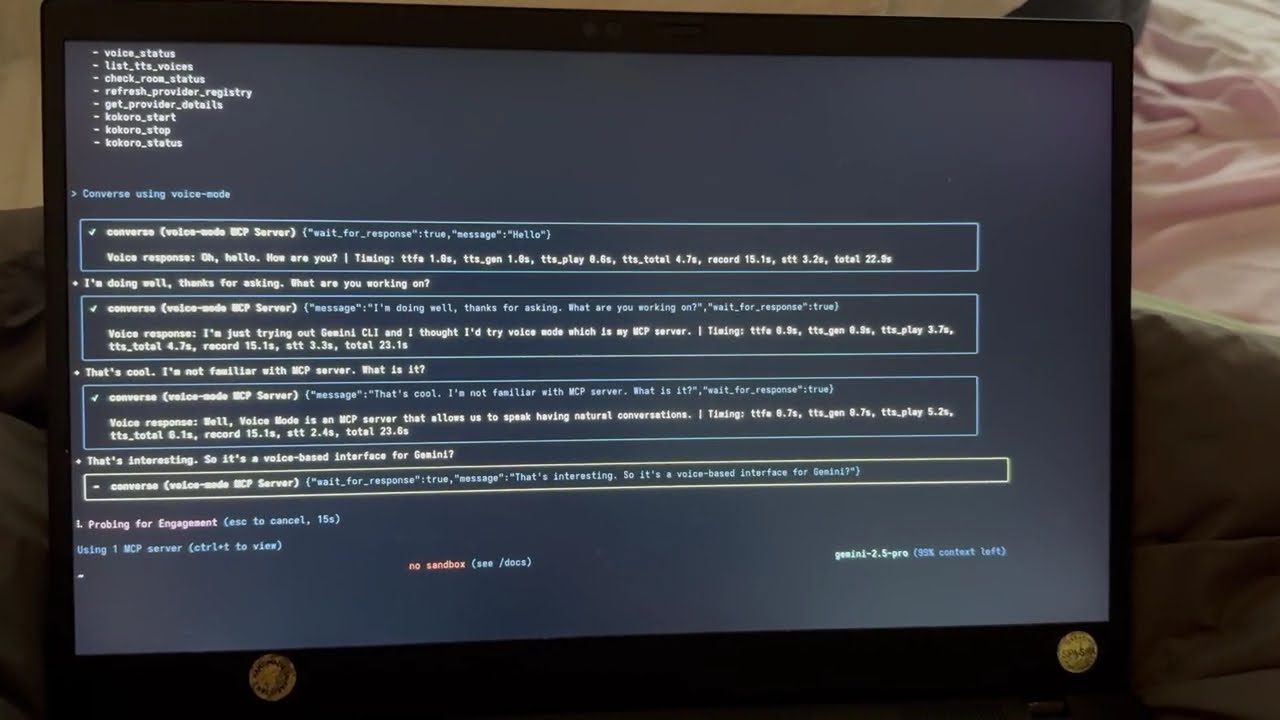
claude converseWatch Voice Mode in action:

See Voice Mode working with Google's Gemini CLI (their implementation of Claude Code):
Once configured, try these prompts with Claude:
"Let's have a voice conversation""Ask me about my day using voice""Tell me a joke"(Claude will speak and wait for your response)"Say goodbye"(Claude will speak without waiting)
The new converse function makes voice interactions more natural - it automatically waits for your response by default.
- Python >= 3.10
- Astral UV - Package manager (install with
curl -LsSf https://astral.sh/uv/install.sh | sh) - OpenAI API Key (or compatible service)
Ubuntu/Debian
sudo apt install python3-dev libasound2-dev libportaudio2 portaudio19-dev ffmpegFedora/RHEL
sudo dnf install python3-devel alsa-lib-devel portaudio-devel ffmpegmacOS
# Install Homebrew if not already installed
/bin/bash -c "$(curl -fsSL https://raw.githubusercontent.com/Homebrew/install/HEAD/install.sh)"

# Install dependencies
brew install portaudio ffmpeg
Windows (WSL)
Follow the Ubuntu/Debian instructions above within WSL.
# Using Claude Code (recommended)
claude mcp add --scope user voice-mode uvx voice-mode

# Using UV
uvx voice-mode

# Using pip
pip install voice-modeClaude Code (CLI)
claude mcp add voice-mode -- uvx voice-modeOr with environment variables:
claude mcp add voice-mode --env OPENAI_API_KEY=your-openai-key -- uvx voice-modeClaude Desktop
macOS: ~/Library/Application Support/Claude/claude_desktop_config.json
Windows: %APPDATA%\Claude\claude_desktop_config.json
{
  "mcpServers": {
    "voice-mode": {
      "command": "uvx",
      "args": ["voice-mode"],
      "env": {
        "OPENAI_API_KEY": "your-openai-key"
      }
    }
  }
}
Cline
Add to your Cline MCP settings:
Windows:
{
  "mcpServers": {
    "voice-mode": {
      "command": "cmd",
      "args": ["/c", "uvx", "voice-mode"],
      "env": {
        "OPENAI_API_KEY": "your-openai-key"
      }
    }
  }
}macOS/Linux:
{
  "mcpServers": {
    "voice-mode": {
      "command": "uvx",
      "args": ["voice-mode"],
      "env": {
        "OPENAI_API_KEY": "your-openai-key"
      }
    }
  }
}
Continue
Add to your .continue/config.json:
{
  "experimental": {
    "modelContextProtocolServers": [
      {
        "transport": {
          "type": "stdio",
          "command": "uvx",
          "args": ["voice-mode"],
          "env": {
            "OPENAI_API_KEY": "your-openai-key"
          }
        }
      }
    ]
  }
}
Cursor
Add to ~/.cursor/mcp.json:
{
  "mcpServers": {
    "voice-mode": {
      "command": "uvx",
      "args": ["voice-mode"],
      "env": {
        "OPENAI_API_KEY": "your-openai-key"
      }
    }
  }
}
VS Code
Add to your VS Code MCP config:
{
  "mcpServers": {
    "voice-mode": {
      "command": "uvx",
      "args": ["voice-mode"],
      "env": {
        "OPENAI_API_KEY": "your-openai-key"
      }
    }
  }
}
Windsurf
{
  "mcpServers": {
    "voice-mode": {
      "command": "uvx",
      "args": ["voice-mode"],
      "env": {
        "OPENAI_API_KEY": "your-openai-key"
      }
    }
  }
}
Zed
Add to your Zed settings.json:
{
  "context_servers": {
    "voice-mode": {
      "command": {
        "path": "uvx",
        "args": ["voice-mode"],
        "env": {
          "OPENAI_API_KEY": "your-openai-key"
        }
      }
    }
  }
}
Roo Code
Add to your Roo Code MCP configuration:
{
  "mcpServers": {
    "voice-mode": {
      "command": "uvx",
      "args": ["voice-mode"],
      "env": {
        "OPENAI_API_KEY": "your-openai-key"
      }
    }
  }
}Using Docker
docker run -it --rm \
  -e OPENAI_API_KEY=your-openai-key \
  --device /dev/snd \
  -v /tmp/.X11-unix:/tmp/.X11-unix \
  -e DISPLAY=$DISPLAY \
  ghcr.io/mbailey/voicemode:latest
Using pipx
pipx install voice-modeFrom source
git clone https://github.com/mbailey/voicemode.git
cd voicemode
pip install -e .| Tool | Description | Key Parameters |
|---|---|---|
converse |
Have a voice conversation - speak and optionally listen | message, wait_for_response (default: true), listen_duration (default: 10s), transport (auto/local/livekit) |
listen_for_speech |
Listen for speech and convert to text | duration (default: 5s) |
check_room_status |
Check LiveKit room status and participants | None |
check_audio_devices |
List available audio input/output devices | None |
start_kokoro |
Start the Kokoro TTS service | models_dir (optional, defaults to ~/Models/kokoro) |
stop_kokoro |
Stop the Kokoro TTS service | None |
kokoro_status |
Check the status of Kokoro TTS service | None |
Note: The converse tool is the primary interface for voice interactions, combining speaking and listening in a natural flow.
📖 See docs/configuration.md for complete setup instructions for all MCP hosts
📁 Ready-to-use config files in config-examples/
The only required configuration is your OpenAI API key:
export OPENAI_API_KEY="your-key"# Custom STT/TTS services (OpenAI-compatible)
export STT_BASE_URL="http://localhost:2022/v1" # Local Whisper
export TTS_BASE_URL="http://localhost:8880/v1" # Local TTS
export TTS_VOICE="alloy" # Voice selection
# LiveKit (for room-based communication)
# See docs/livekit/ for setup guide
export LIVEKIT_URL="wss://your-app.livekit.cloud"
export LIVEKIT_API_KEY="your-api-key"
export LIVEKIT_API_SECRET="your-api-secret"
# Debug mode
export VOICEMODE_DEBUG="true"
# Save all audio (TTS output and STT input)
export VOICEMODE_SAVE_AUDIO="true"
# Audio format configuration (default: pcm)
export VOICEMODE_AUDIO_FORMAT="pcm" # Options: pcm, mp3, wav, flac, aac, opus
export VOICEMODE_TTS_AUDIO_FORMAT="pcm" # Override for TTS only (default: pcm)
export VOICEMODE_STT_AUDIO_FORMAT="mp3" # Override for STT upload
# Format-specific quality settings
export VOICEMODE_OPUS_BITRATE="32000" # Opus bitrate (default: 32kbps)
export VOICEMODE_MP3_BITRATE="64k" # MP3 bitrate (default: 64k)Voice Mode uses PCM audio format by default for TTS streaming for optimal real-time performance:
- PCM (default for TTS): Zero latency, best streaming performance, uncompressed
- MP3: Wide compatibility, good compression for uploads
- WAV: Uncompressed, good for local processing
- FLAC: Lossless compression, good for archival
- AAC: Good compression, Apple ecosystem
- Opus: Small files but NOT recommended for streaming (quality issues)
The audio format is automatically validated against provider capabilities and will fallback to a supported format if needed.
For privacy-focused or offline usage, Voice Mode supports local speech services:
- Whisper.cpp - Local speech-to-text with OpenAI-compatible API
- Kokoro - Local text-to-speech with multiple voice options
These services provide the same API interface as OpenAI, allowing seamless switching between cloud and local processing.
By strictly adhering to OpenAI's API standard, Voice Mode enables powerful deployment flexibility:
- 🔀 Transparent Routing: Users can implement their own API proxies or gateways outside of Voice Mode to route requests to different providers based on custom logic (cost, latency, availability, etc.)
- 🎯 Model Selection: Deploy routing layers that select optimal models per request without modifying Voice Mode configuration
- 💰 Cost Optimization: Build intelligent routers that balance between expensive cloud APIs and free local models
- 🔧 No Lock-in: Switch providers by simply changing the
BASE_URL- no code changes required
Example: Simply set OPENAI_BASE_URL to point to your custom router:
export OPENAI_BASE_URL="https://router.example.com/v1"
export OPENAI_API_KEY="your-key"
# Voice Mode now uses your router for all OpenAI API calls
The OpenAI SDK handles this automatically - no Voice Mode configuration needed!
┌─────────────────────┐     ┌──────────────────┐     ┌─────────────────────┐
│   Claude/LLM        │     │  LiveKit Server  │     │  Voice Frontend     │
│   (MCP Client)      │◄────►│  (Optional)     │◄───►│  (Optional)         │
└─────────────────────┘     └──────────────────┘     └─────────────────────┘
         │                            │
         │                            │
         ▼                            ▼
┌─────────────────────┐     ┌──────────────────┐
│  Voice MCP Server   │     │   Audio Services │
│  • converse         │     │  • OpenAI APIs   │
│  • listen_for_speech│◄───►│  • Local Whisper │
│  • check_room_status│     │  • Local TTS     │
│  • check_audio_devices    └──────────────────┘
└─────────────────────┘
- No microphone access: Check system permissions for terminal/application
- WSL2 Users: See WSL2 Microphone Access Guide
- UV not found: Install with
curl -LsSf https://astral.sh/uv/install.sh | sh - OpenAI API error: Verify your
OPENAI_API_KEYis set correctly - No audio output: Check system audio settings and available devices
Enable detailed logging and audio file saving:
export VOICEMODE_DEBUG=trueDebug audio files are saved to: ~/voicemode_recordings/
Run the diagnostic script to check your audio setup:
python scripts/diagnose-wsl-audio.pyThis will check for required packages, audio services, and provide specific recommendations.
To save all audio files (both TTS output and STT input):
export VOICEMODE_SAVE_AUDIO=trueAudio files are saved to: ~/voicemode_audio/ with timestamps in the filename.
- Configuration Guide - Complete setup instructions for all MCP hosts
- Using uv/uvx - Package management with uv and uvx
- Local Development - Development setup guide
- Audio Formats - Audio format configuration and migration
- Statistics Dashboard - Performance monitoring and metrics
- Whisper.cpp Setup - Local speech-to-text configuration
- Kokoro Setup - Local text-to-speech configuration
- LiveKit Integration - Real-time voice communication
- WSL2 Microphone Access - WSL2 audio setup
- Migration Guide - Upgrading from older versions
- Website: getvoicemode.com
- GitHub: github.com/mbailey/voicemode
- PyPI: pypi.org/project/voice-mcp
- npm: npmjs.com/package/voicemode
- Discord: Join our community
- Twitter/X: @getvoicemode
- YouTube: @getvoicemode
MIT - A Failmode Project