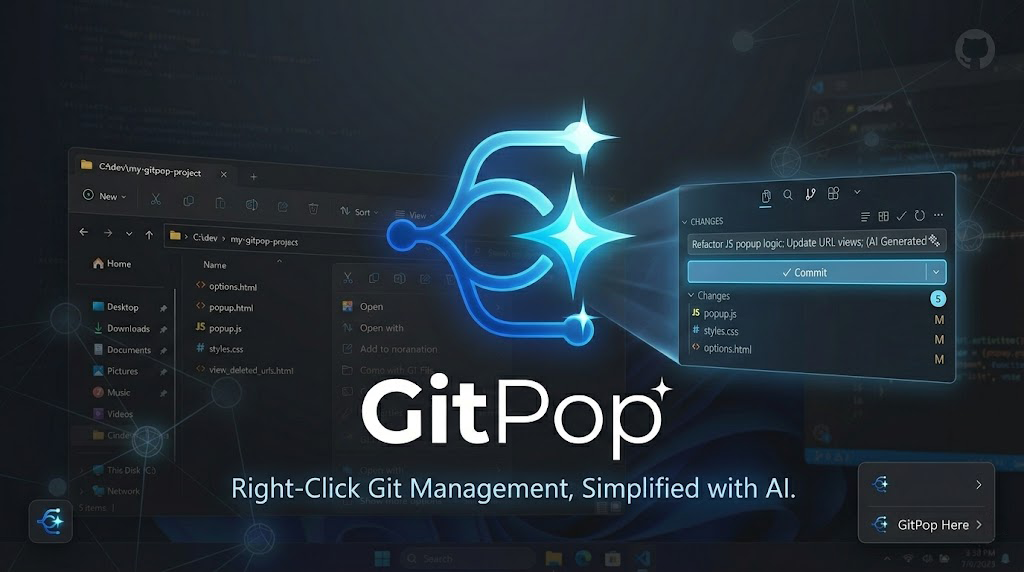


- Zero-Friction Context Menu: Right-click anywhere in a Git repository to immediately open GitPop — even from subdirectories.
- Commit & Push: One-click commit, or commit & push in a single action. The Push button intelligently adapts: "Commit & Push" with staged files, "Push ↑N" with unpushed commits, or "Initial Push" for new branches.
- Sync Status: A
↑ Nindicator in the titlebar shows unpushed commits at a glance — never forget to push your code again. - Smart Repo Detection (Init & Connect): Used GitPop outside a Git repository? No problem. Initialize a new repo right from the UI and optionally paste a remote URL to push when you're ready.
- Instant Native UI & Premium Aesthetics: Built with Tauri + Rust + React. Native performance, tiny memory footprint, dark mode glassmorphism UI overlaying smoothly over your File Explorer. opens instantly.
- AI Conventional Commits: Press the "Sparkle" button to generate a beautiful conventional commit message summarizing your changes.
- In-App Auto-Updater: Never redownload an installer. Pull the latest patches seamlessly from the Settings panel.
GitPop features a built-in one-click setup. No administrator prompts or shell scripts required!
- Download the latest installer (
.msior.exe) from the Releases page. - Launch the downloaded installer.
- Note: If you see a blue "Windows protected your PC" screen, it's because GitPop is new and unsigned. Click More info followed by Run anyway.
- Launch
GitPopfrom your Start Menu. - You're done! Right-click any folder or empty space inside a
.gitrepository and enjoy.
(You can remove it at any time by opening GitPop from the Start Menu and clicking "Remove from Context Menu").
GitPop features robust, intelligent commit message auto-generation capabilities. It supports both local and cloud AI models.
Click the Settings (gear) icon in the top right of the application to choose your AI engine.
If you want to ensure your proprietary code never leaves your machine:
- Download Ollama.
- Run
ollama pull llama3.2(or your preferred code model) in your terminal. - Ensure Ollama is running (
localhost:11434), stage your files in GitPop, and click Sparkle.
GitPop now natively supports model discovery for LM Studio.
- Download and launch LM Studio.
- Start the Local Server (usually
localhost:1234). - In GitPop Settings, select LM Studio and click the refresh icon to see your loaded models.
GitPop natively supports major proprietary cloud providers and any OpenAI-compatible API.
- Select OpenAI, Google Gemini, Anthropic Claude, or Custom in the GitPop settings.
- Enter your desired Model Name (e.g.,
gpt-4o,gemini-1.5-flash,claude-3-5-sonnet, or any local/custom ID). - Provide your API Key (and API Base URL if using Custom mode). (Your configuration and keys are securely stored entirely locally on your machine).
Built with Tauri 2.0, React, TypeScript, and Rust.
# Clone the repository
git clone git@github.com:vinzify/gitpop.git
cd gitpop

# Install dependencies
npm install

# Run the development server
npm run tauri dev

# Build the release bundle
npm run tauri build
License: MIT
💖 Support the Project
If GitPop saves you time and you want to support its continued development, consider sending an ETH donation:
0xe7043f731a2f36679a676938e021c6B67F80b9A1